Printing Certified Event Schedules
|
Front Office
This video provides a step-by-step guide on how to print certified event schedules within the Just Play Basketball platform.
Here is a summary of the process:
Getting Started
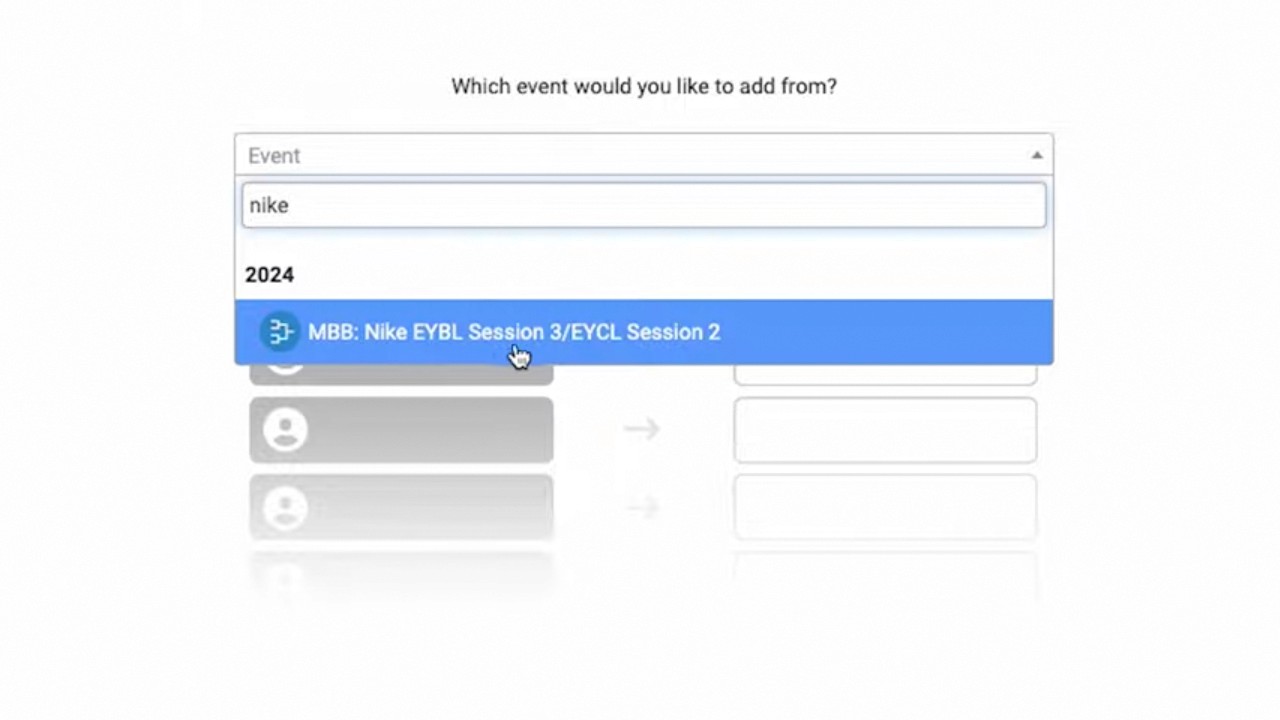
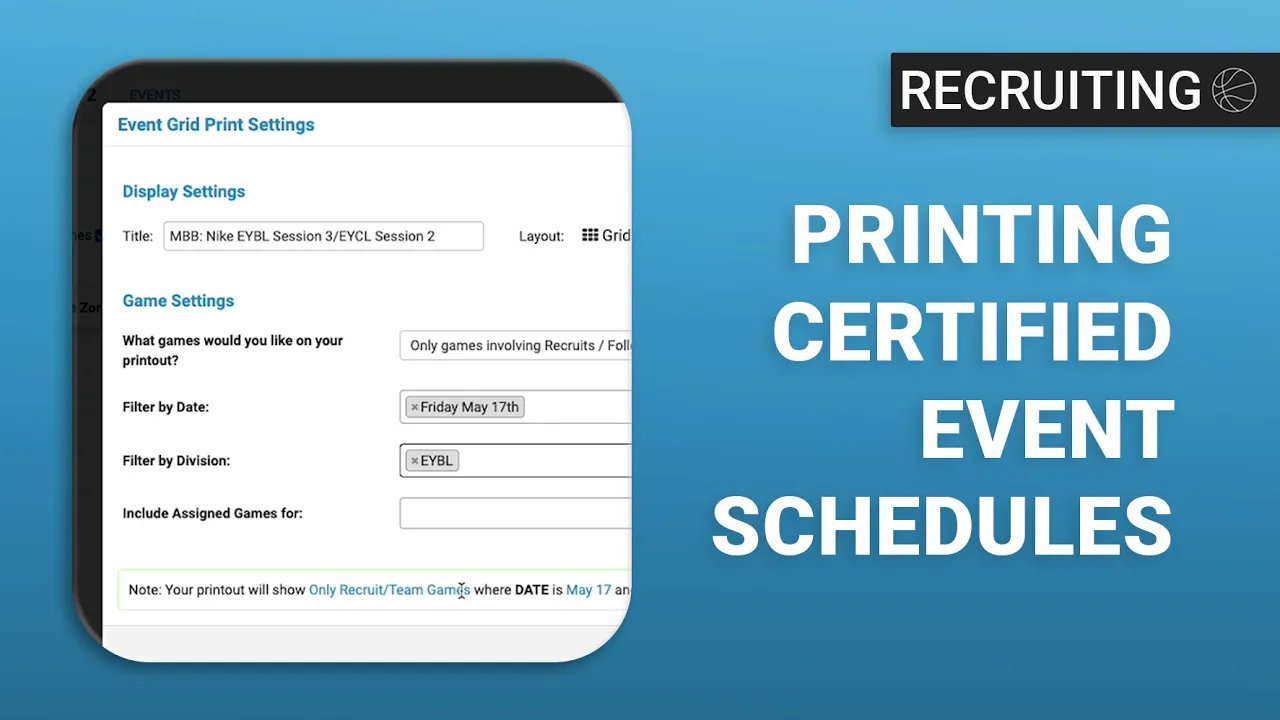
Once inside an event (e.g., Nike EYBL Session 3), navigate to the print button in the top right corner to open the print settings window (0:33 - 0:41).
Customizing Your Printout
Layout Options: Choose between grid or list layouts (0:48 - 0:54).
Content Control: You can include a cover page—which lists mapped recruits and followed teams—or separate the schedule by venue (0:58 - 1:00, 1:51 - 2:03, 2:47 - 3:03).
Filtering: You can filter the schedule by:
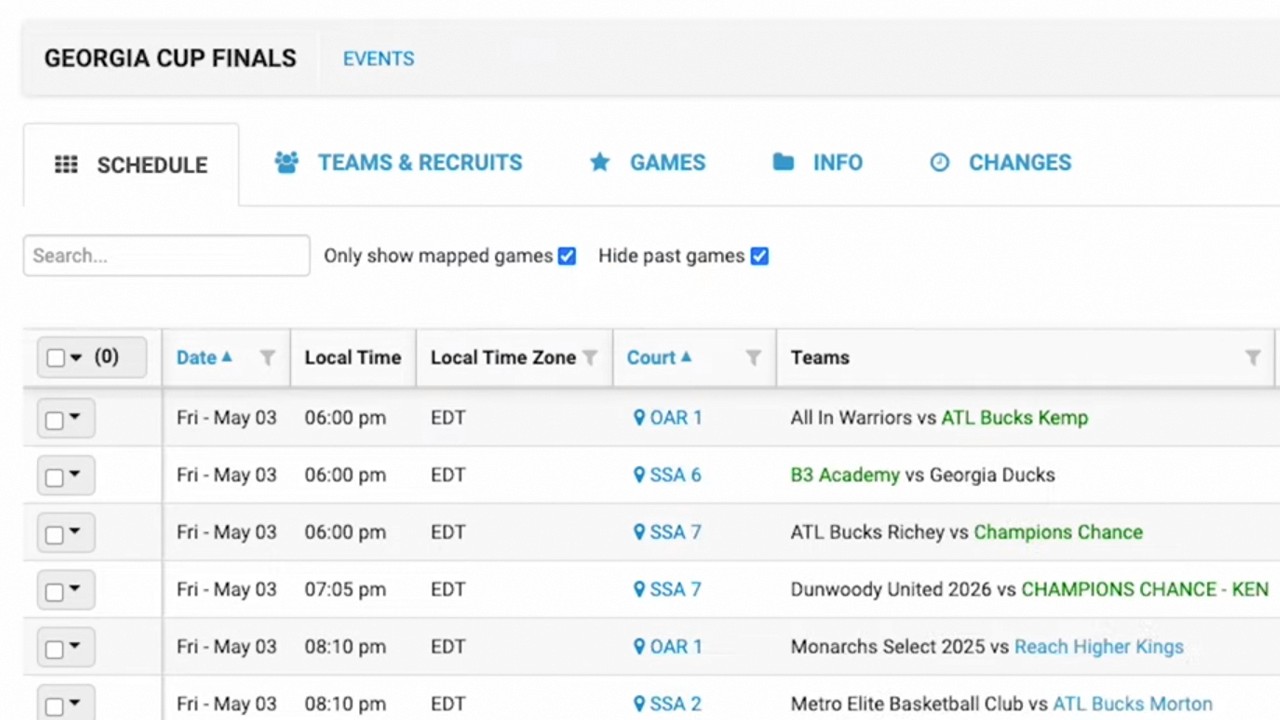
Specific games (all games or only mapped/followed games) (1:02 - 1:07).
Dates, divisions, or individual staff member assignments (1:09 - 1:28).
Final Adjustments and Printing
Once you have selected your parameters, you can toggle additional view settings like combining date and time or splitting teams to keep recruits aligned with their respective teams (3:06 - 3:28).
To finalize, click print. You can either print the document directly or save it as a PDF by selecting the relevant option in the print window (3:30 - 3:44).