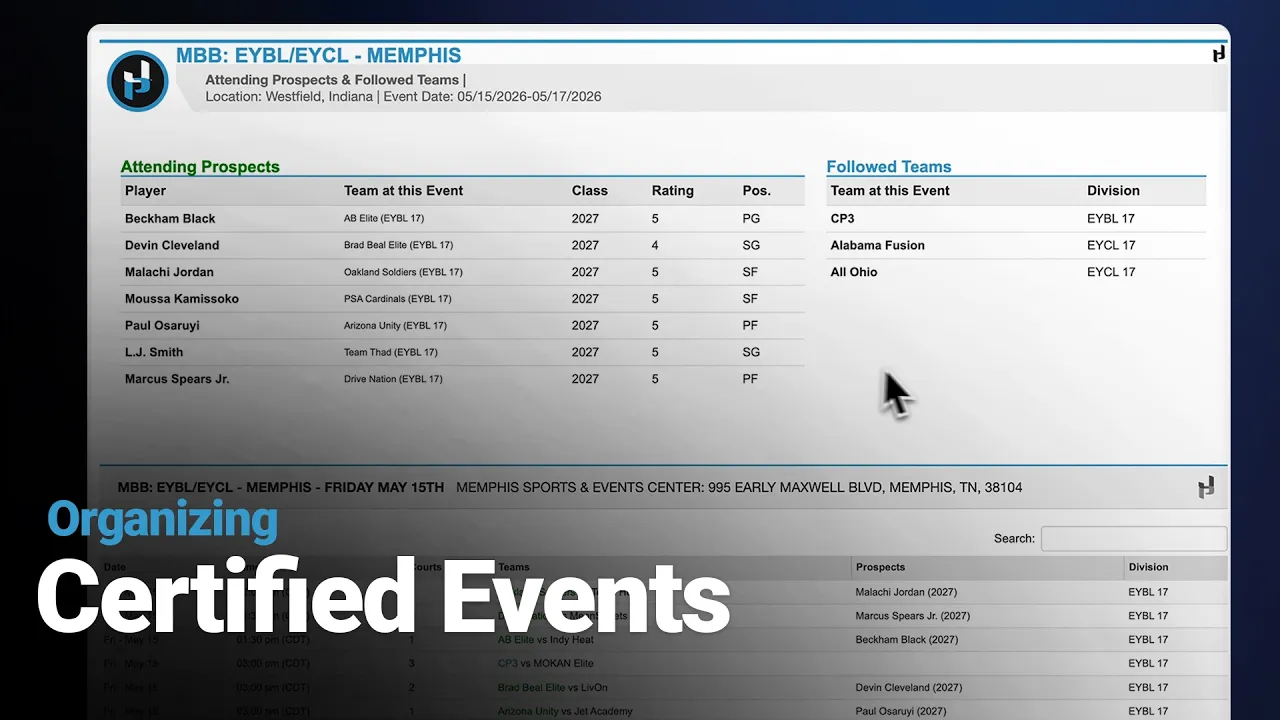
Organizing Certified Events in Front Office
|
Front Office
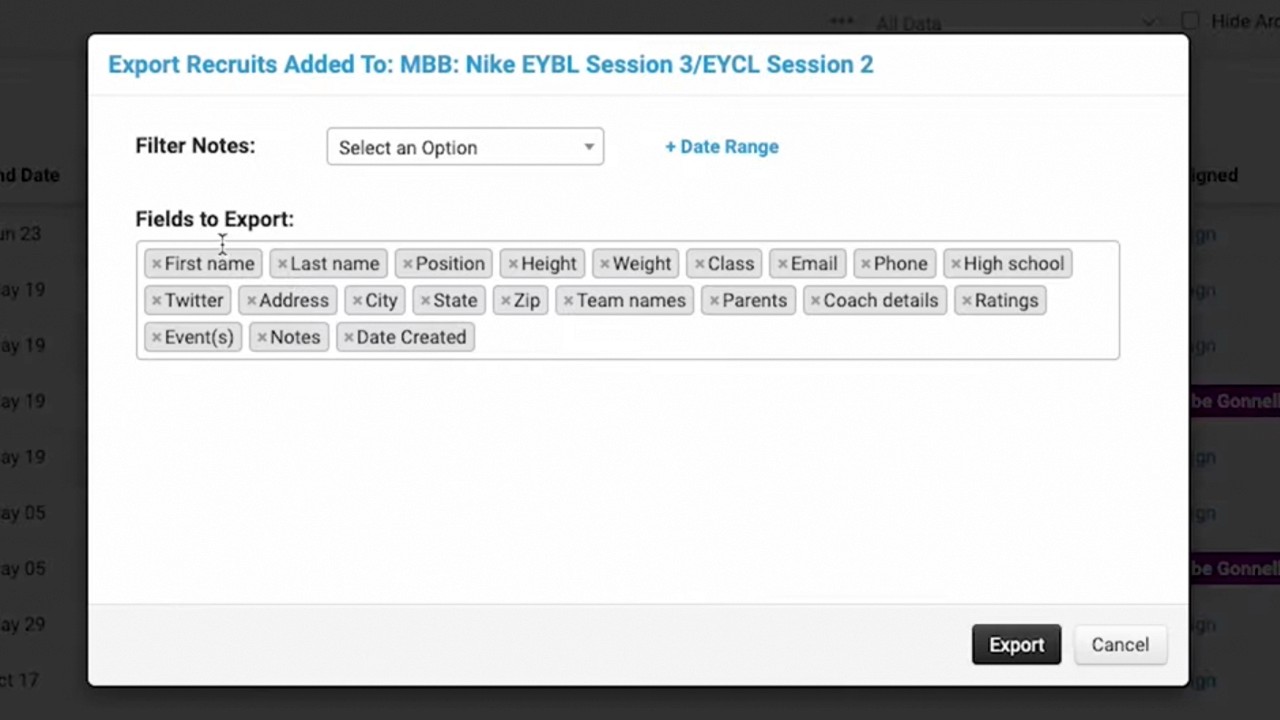
This video provides a tutorial for basketball recruiters on how to use the Front Office Suite to organize and manage their scouting workflow for NCAA-certified events.
Key steps for organizing recruitment travel:
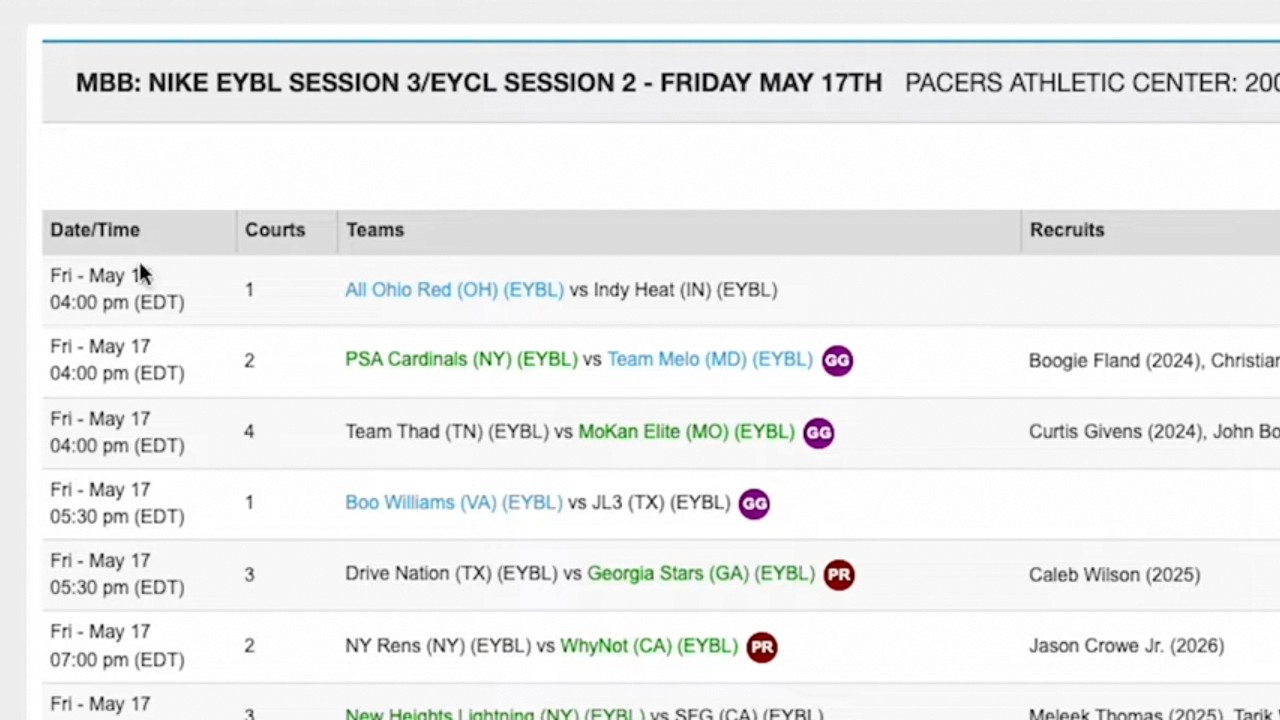
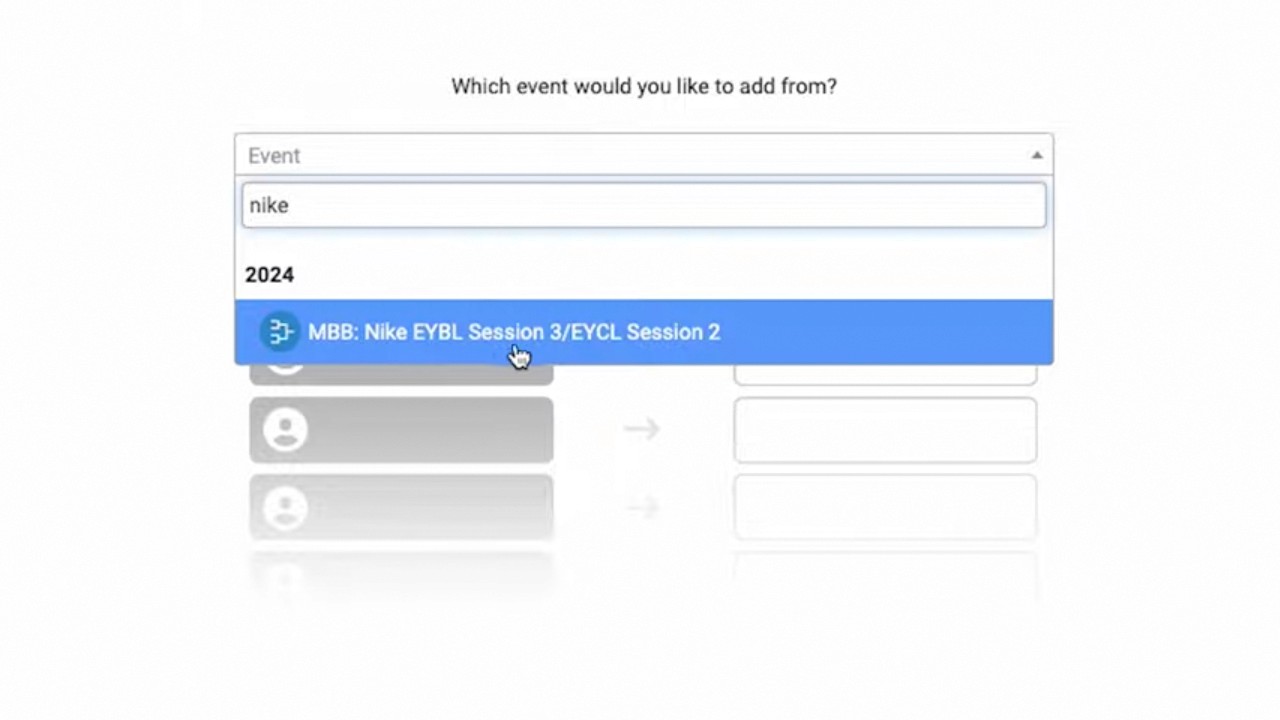
Add Events: Navigate to the events tab and use the search tool to find and add specific NCAA certified events (0:18-0:42).
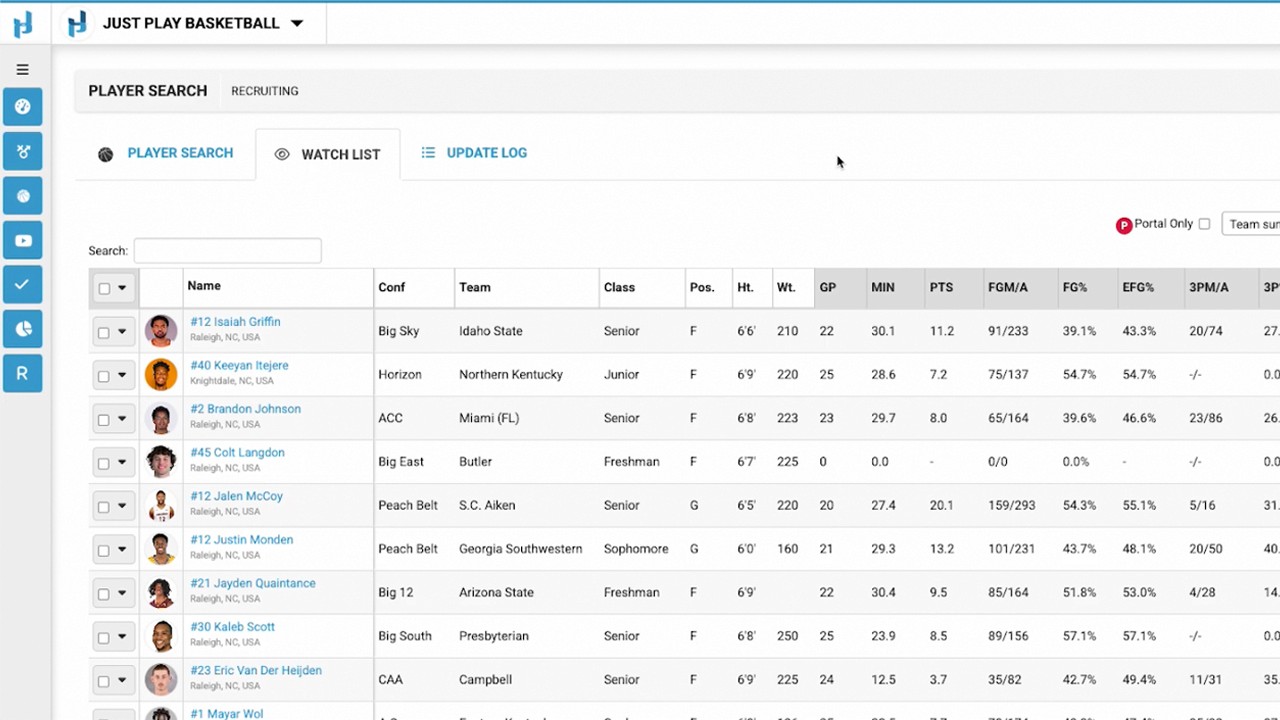
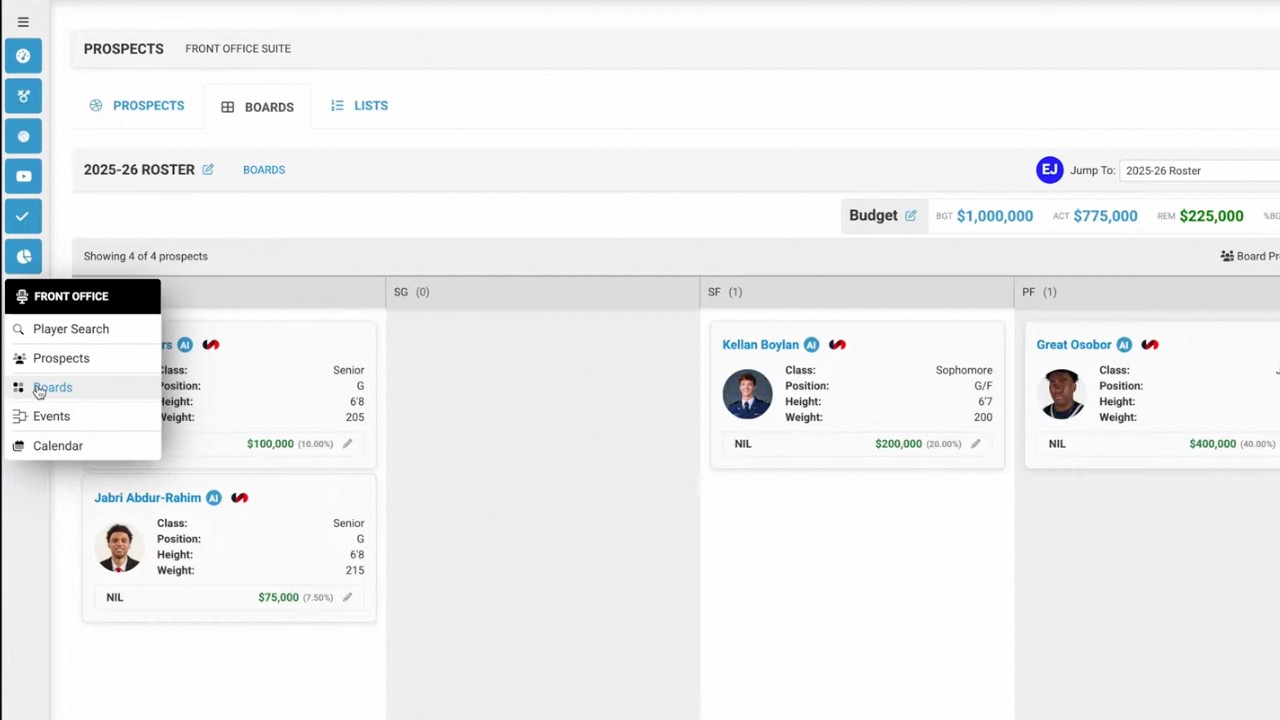
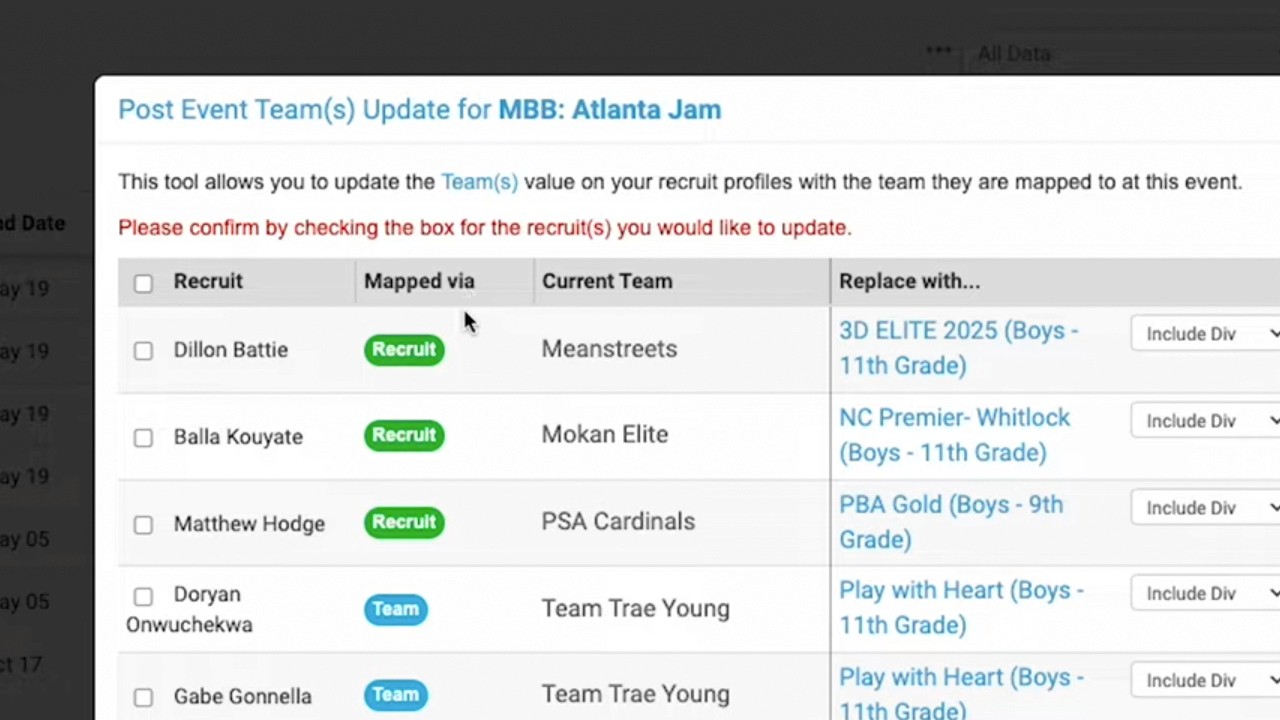
Manage Prospects: Add prospects to your events in bulk or individually. You can map them to their specific teams within the event to ensure accurate tracking (0:46-2:43).
Follow Teams: Utilize the attending teams list to "follow" specific teams you are interested in, even if you don't have a specific prospect mapped to them (2:49-3:04).
Streamline Schedules: Once events, prospects, and teams are mapped, use the "Only show mapped games" checkbox to filter the schedule, significantly reducing the list of games to those relevant to your recruiting focus (3:05-3:42).
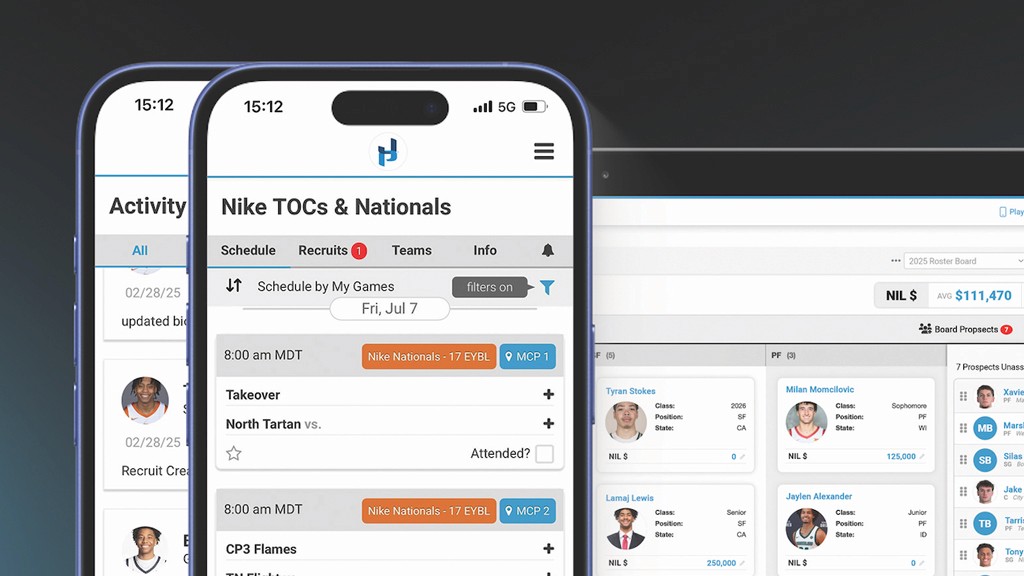
App Integration & Printing: Assign events to staff members so they can view them via the Front Office app (3:43-4:07). Finally, use the Print feature to generate custom schedule layouts (grid or list) for your staff, which can be filtered by date, division, or specific staff assignments (4:08-5:08).