Play Animation Timing
|
Play Drawing
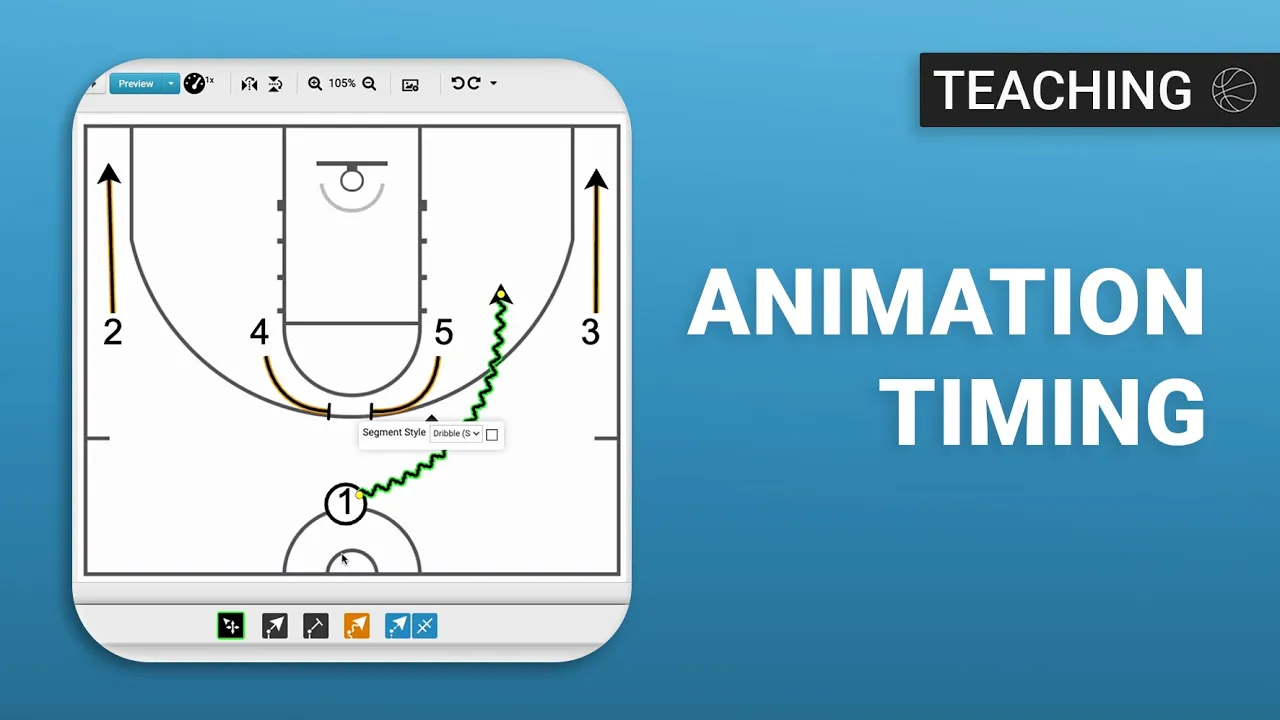
This video serves as a tutorial on how to use the animation timing features within the Just Play basketball drawing tool to ensure player actions in a play appear coordinated.
Key Steps for Adjusting Animation Timing:
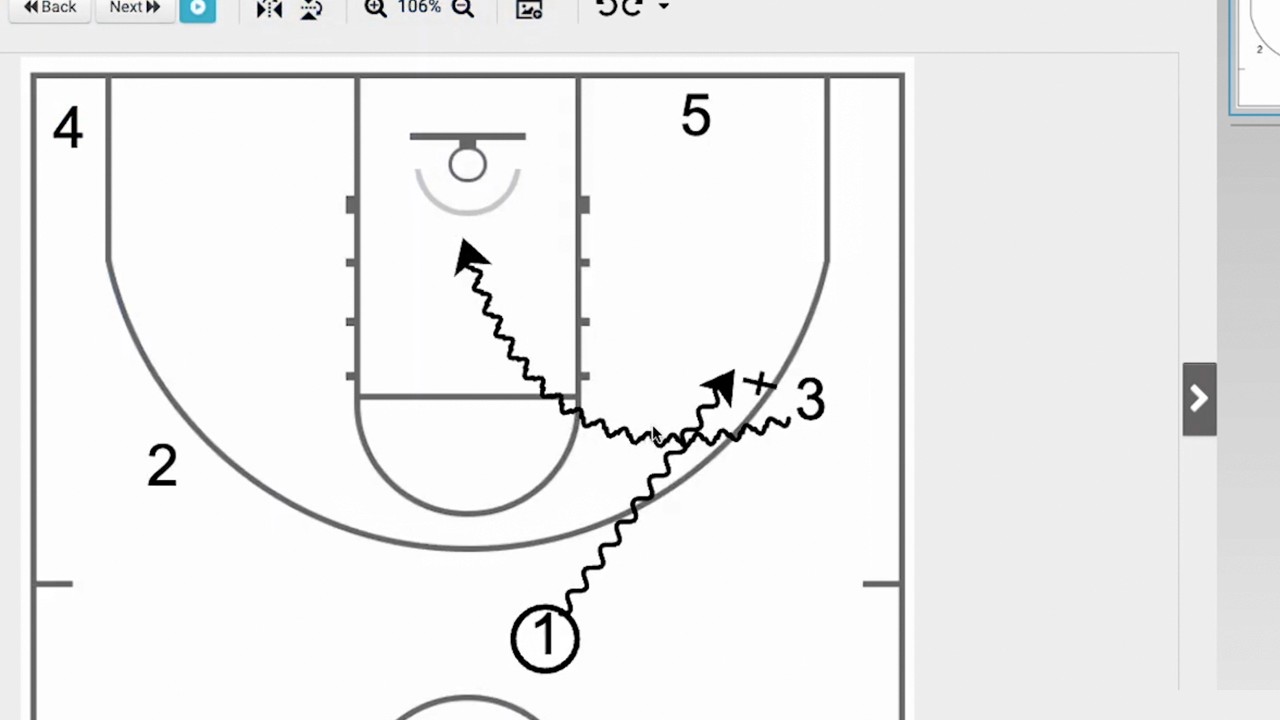
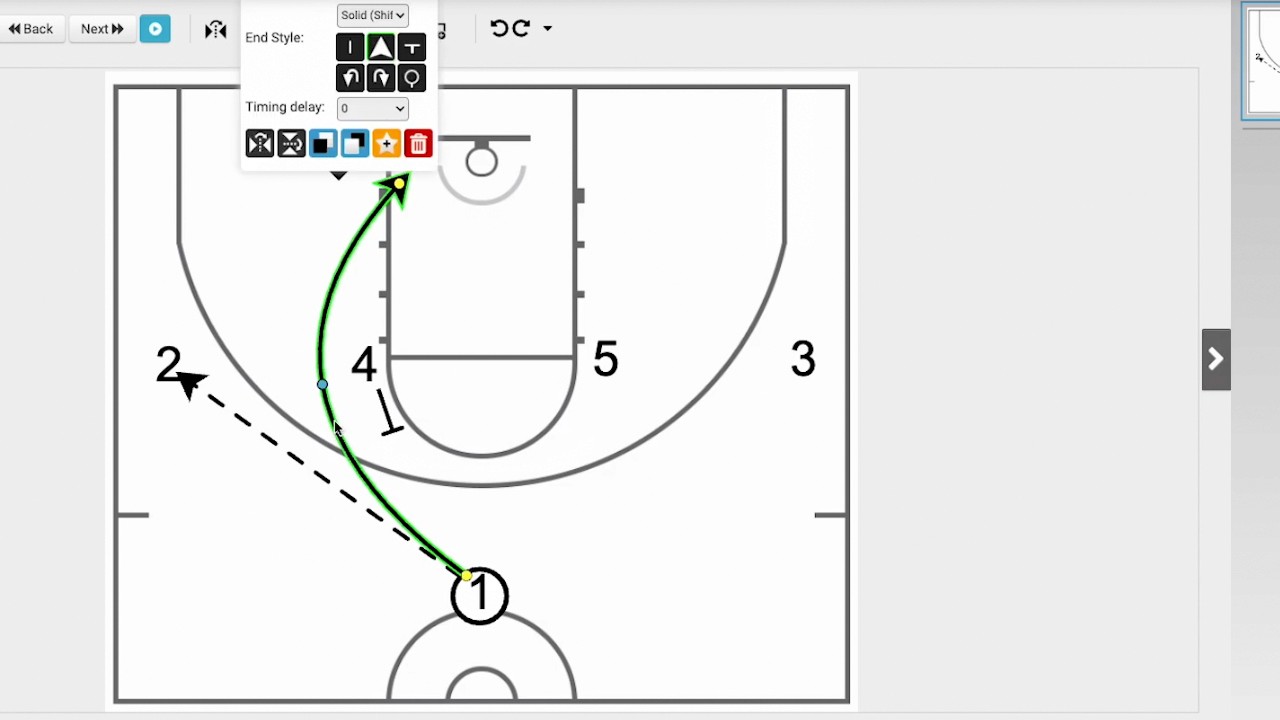
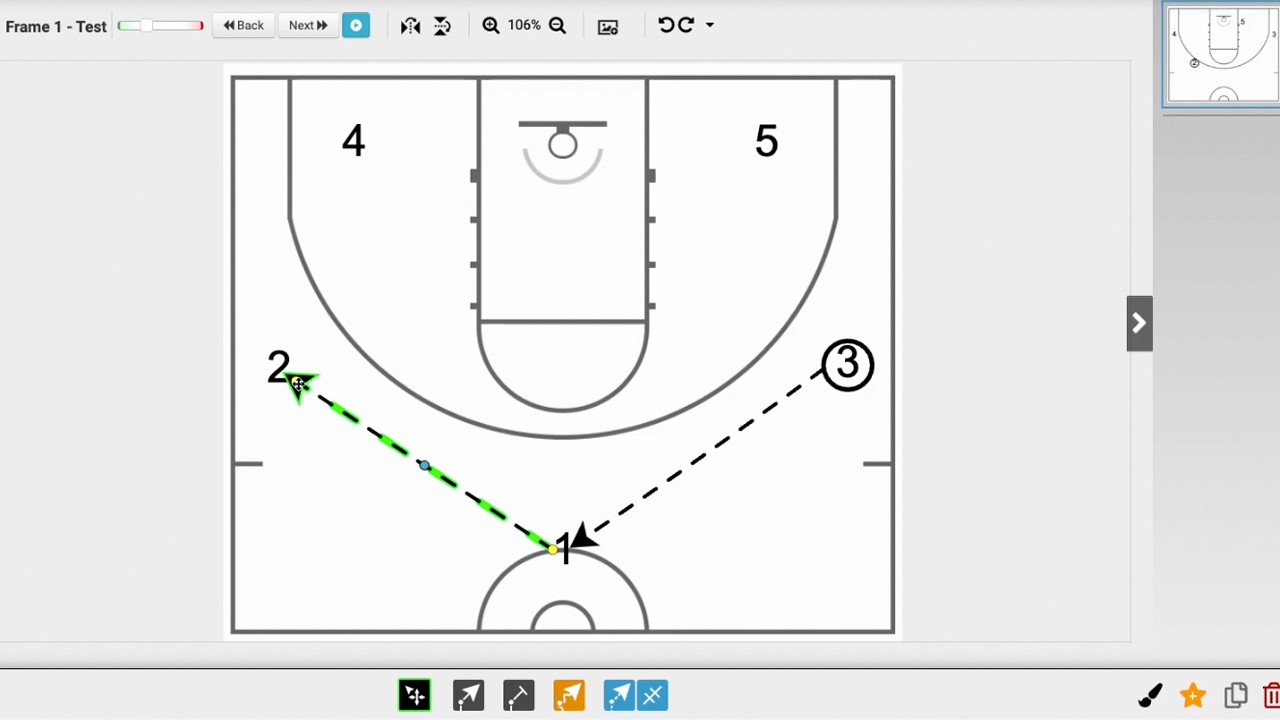
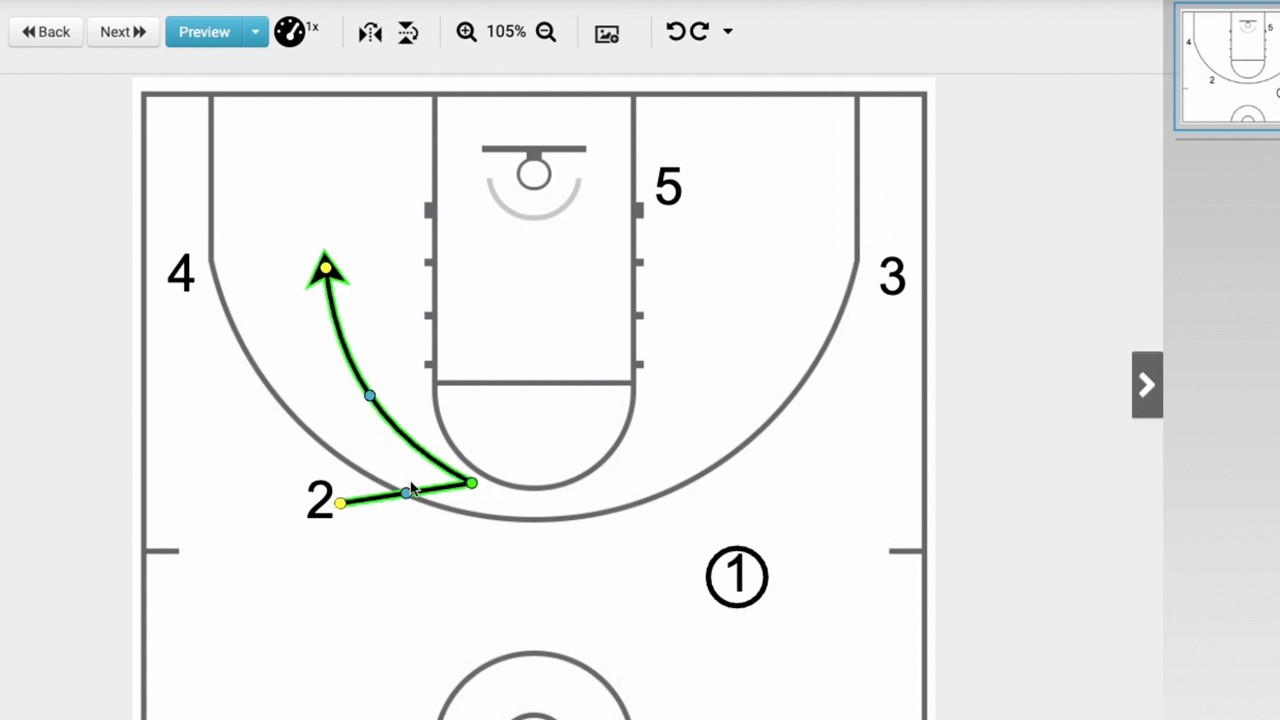
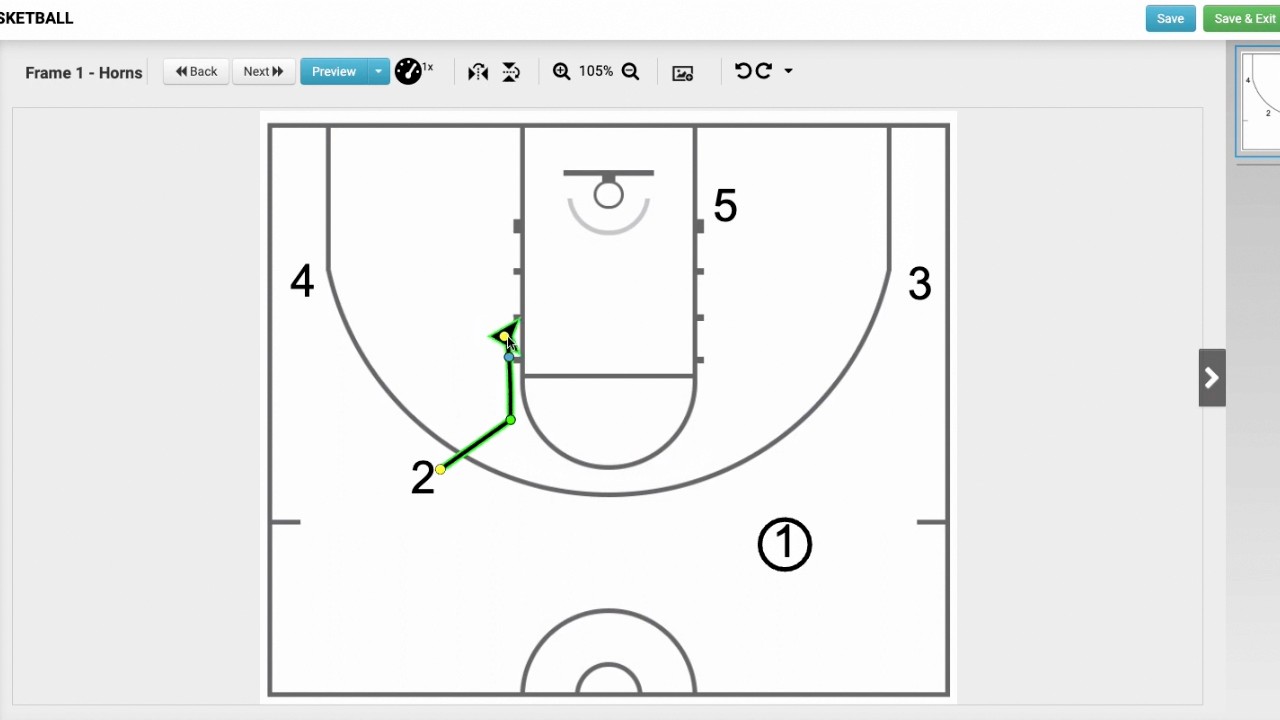
Identify the Issue: By default, when multiple lines are drawn for a single player, they may highlight together, causing all movements to trigger simultaneously. This can lead to unrealistic actions, such as a screen moving before it is set (1:24 - 1:40).
Apply Timing Delays:
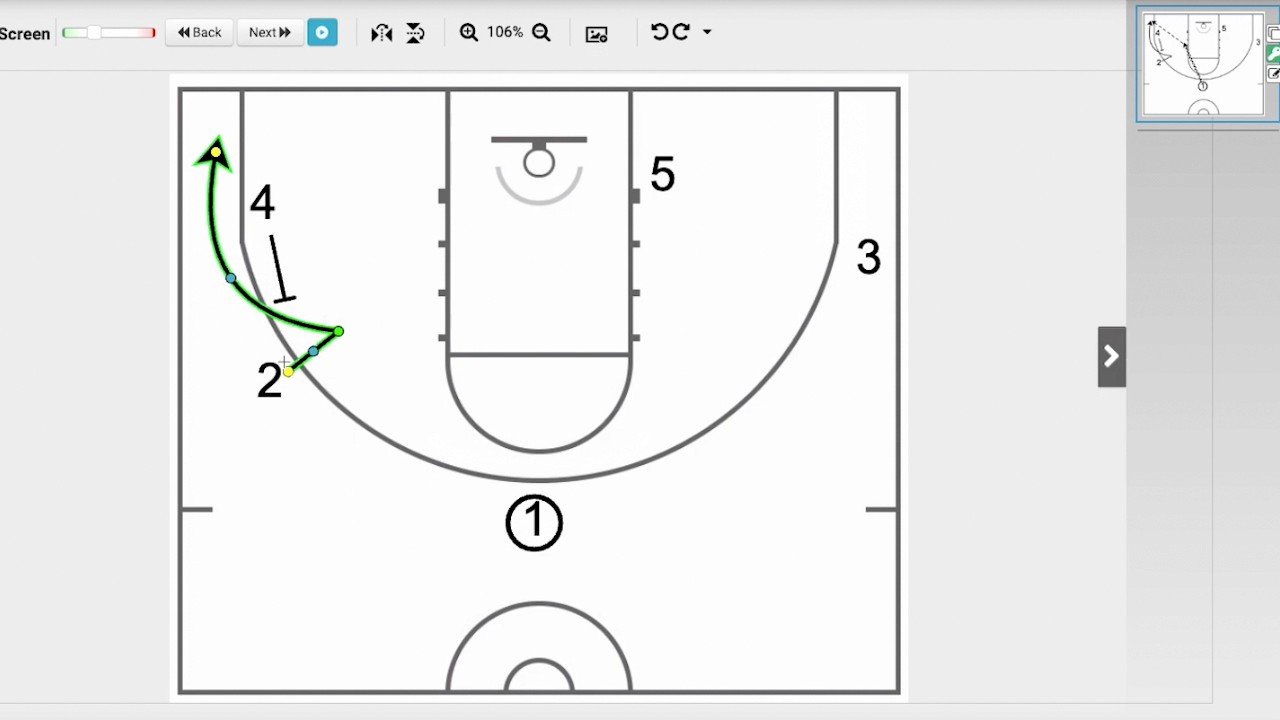
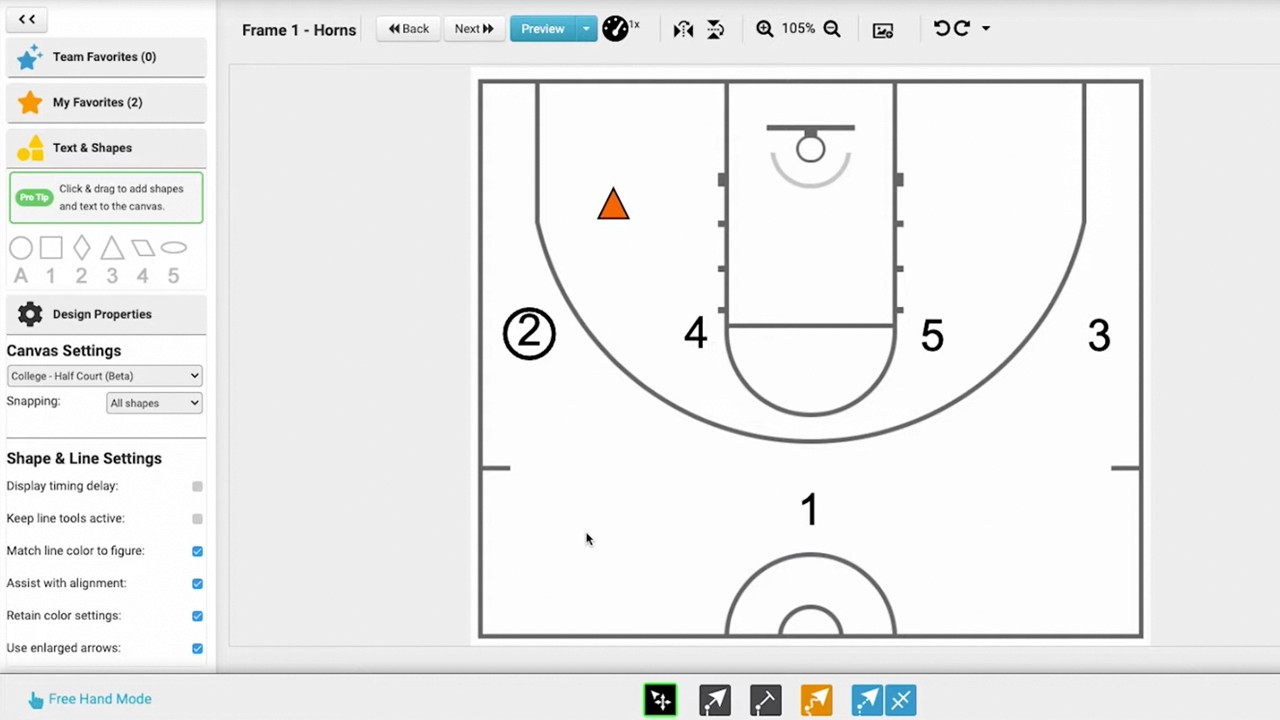
Single-click a line to open design properties on the left menu.
Set a one-segment timing delay to make a player movement wait for a screen to be set before proceeding (1:44 - 1:58).
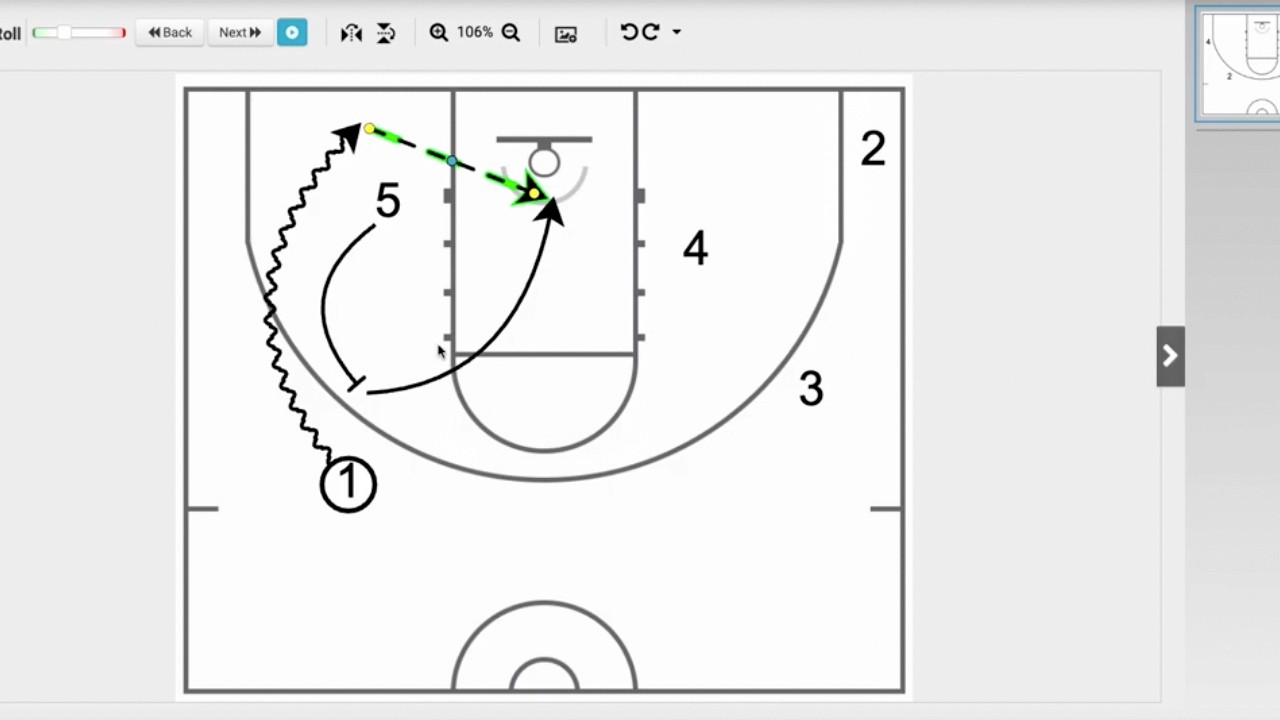
You can add similar delays to other players (like the 3-man) by double-clicking their lines to access the same menu (2:02 - 2:12).
Preview and Refine: Use the preview button at the top to view the animation of a single frame or the entire play start-to-finish. You can also adjust the playback speed using the speedometer tool (2:22 - 2:42).
By carefully setting these delays, you ensure the animation matches the specific flow of the play, such as preventing a pass from arriving before the receiver reaches their spot (2:48 - 3:00).