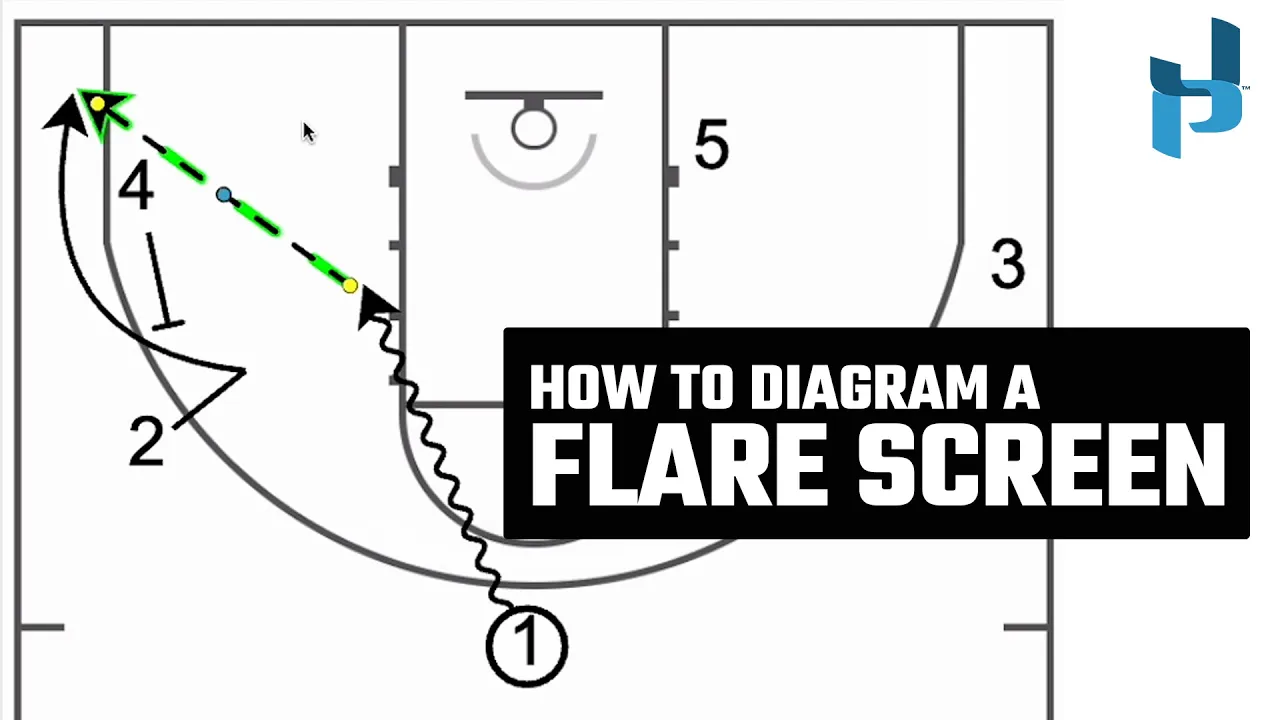
How to Draw a Flare Screen
|
Play Drawing
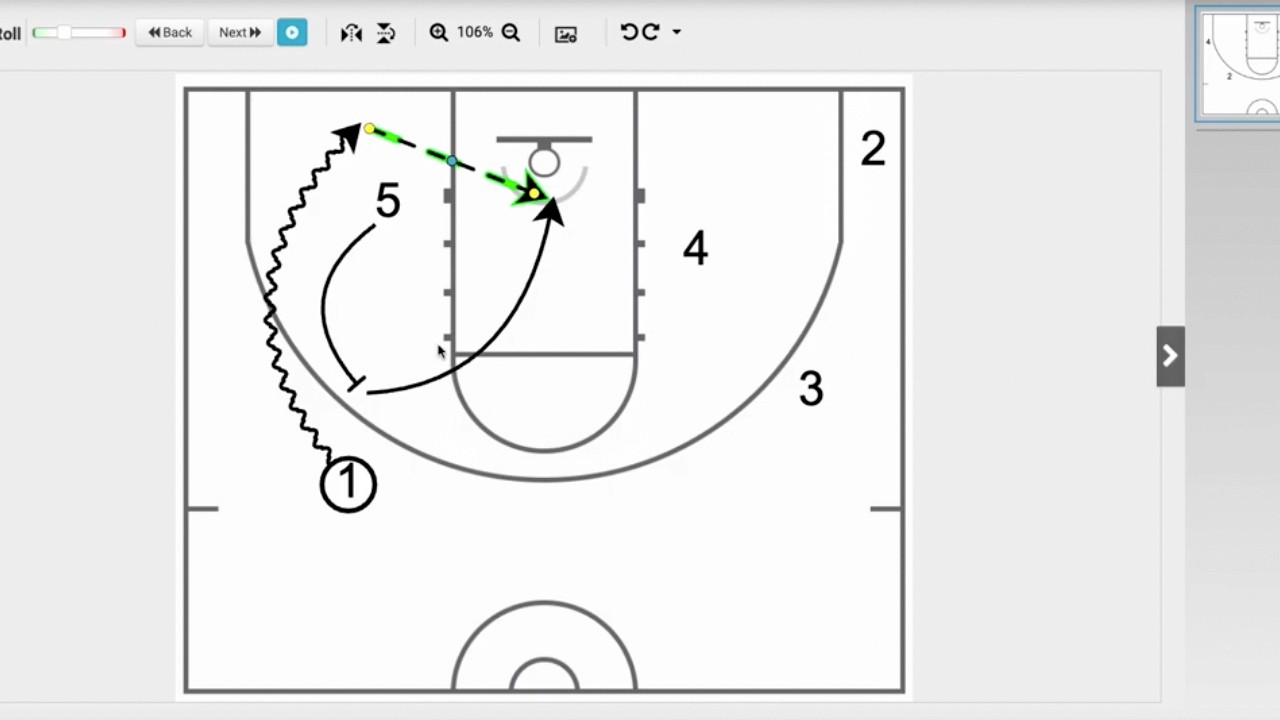
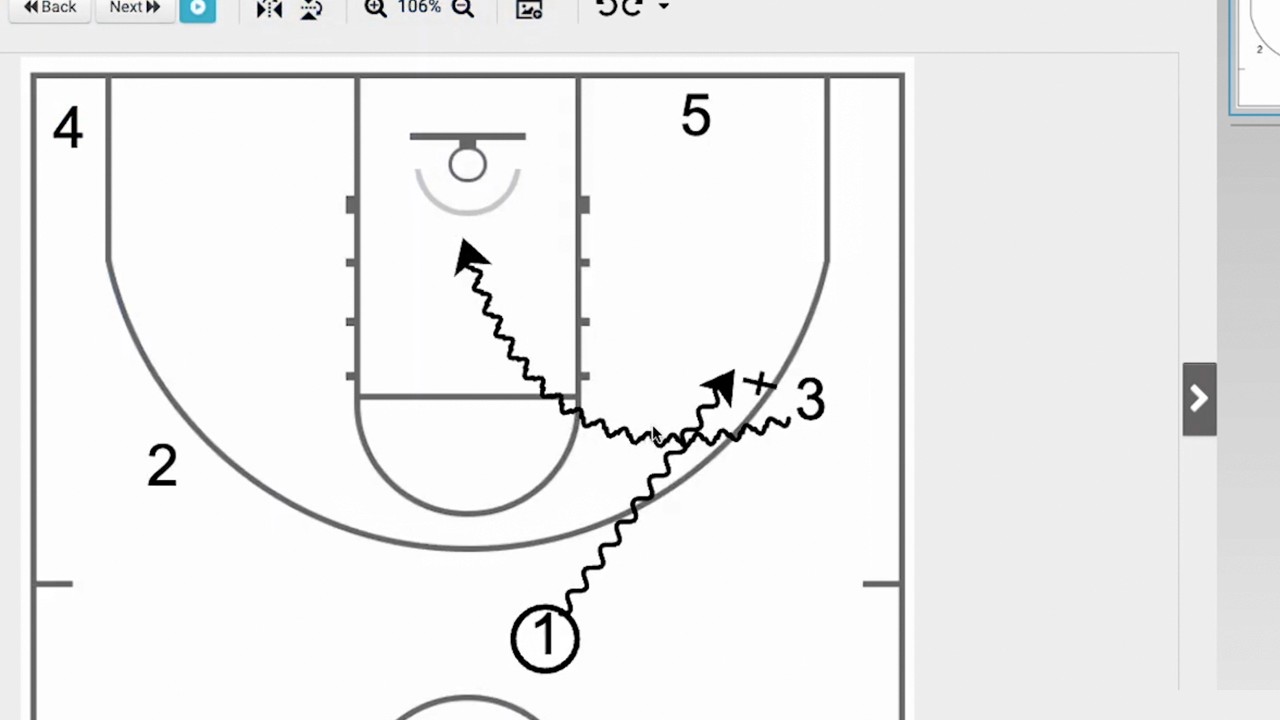
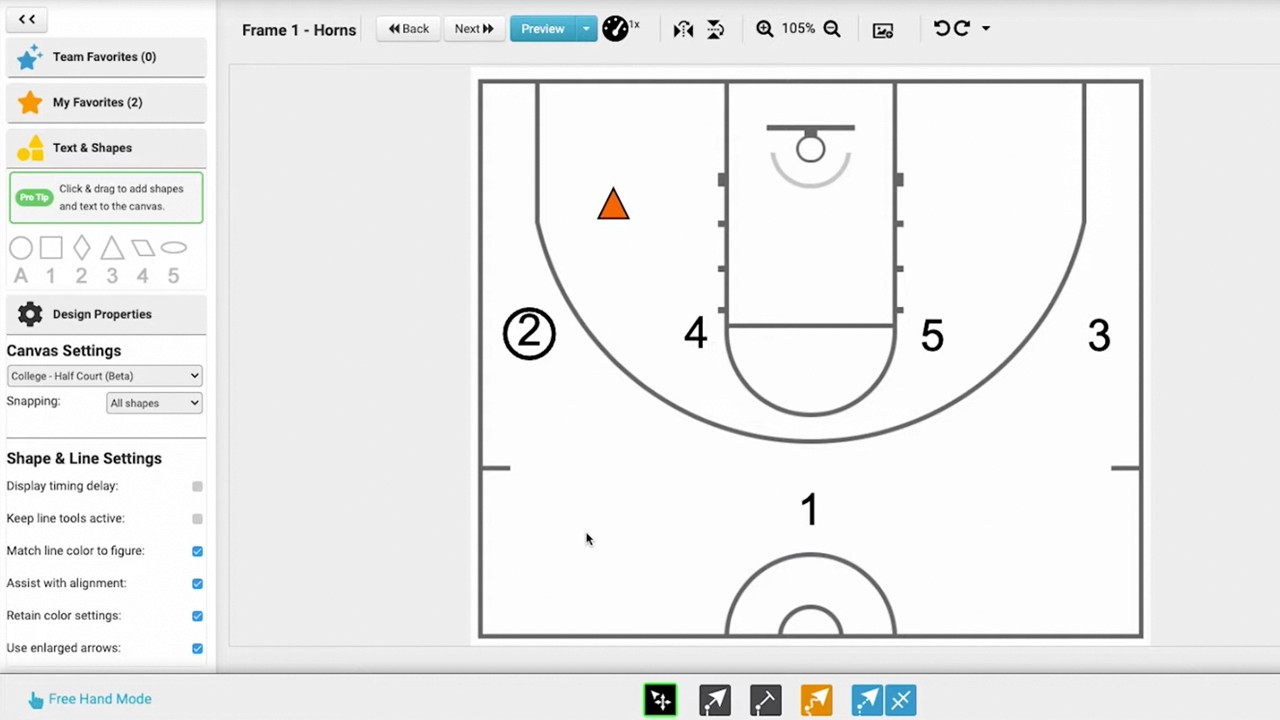
This video provides a step-by-step tutorial on how to use the freehand mode in Just Play Basketball to draw a flare screen play.
Here are the key steps covered:
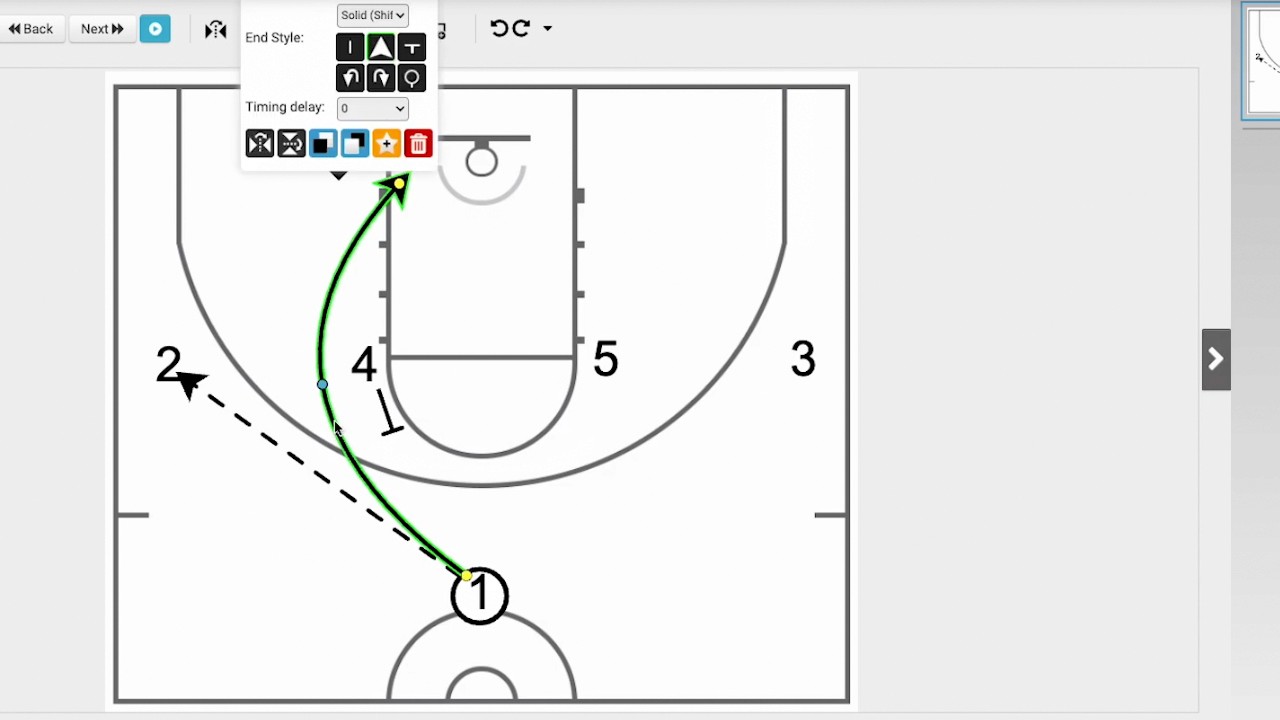
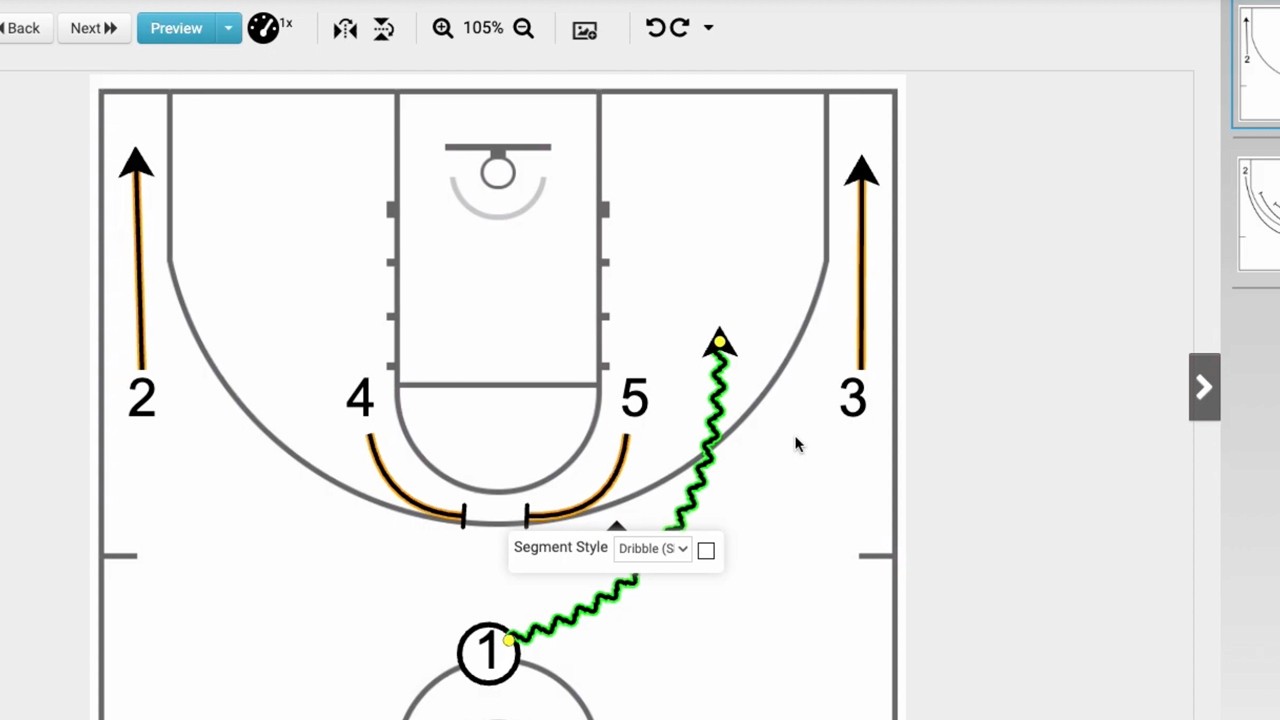
Setting the Screen: Select the screening tool, hover over the player (the '4') until a shadow appears to ensure it is connected, then drag and drop. You can adjust the screen using the yellow and blue dots (0:05-0:20).
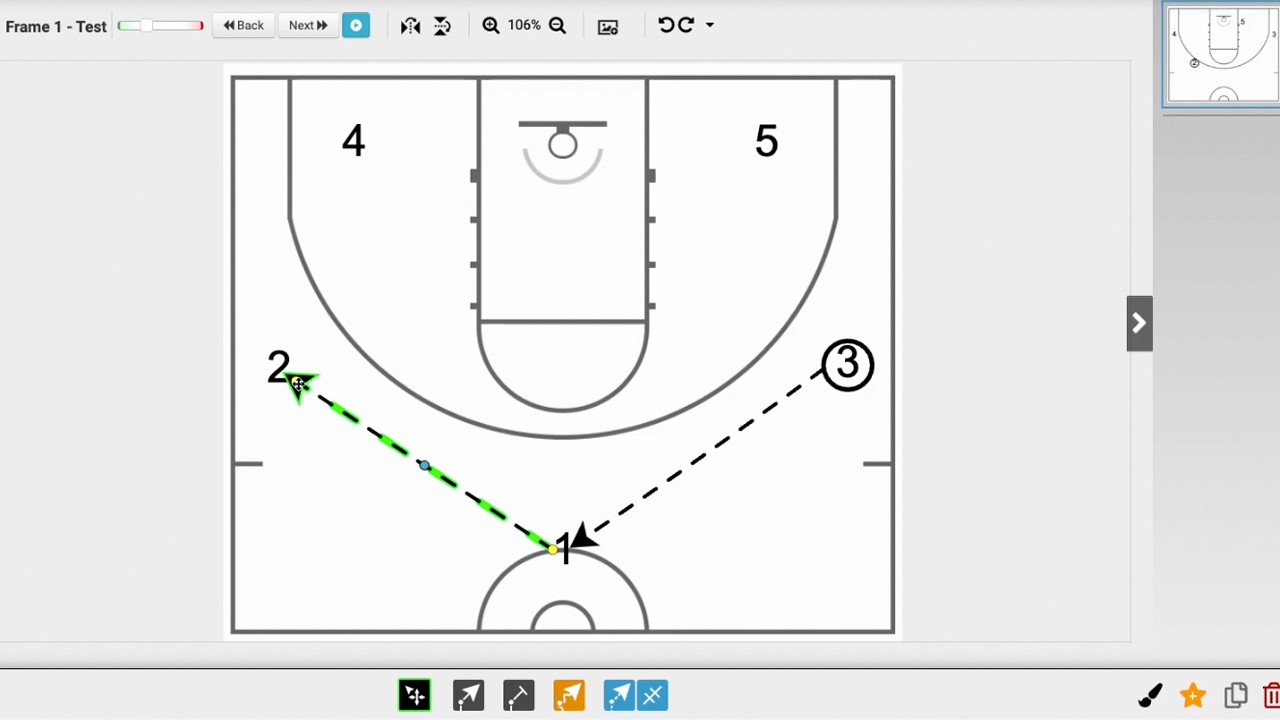
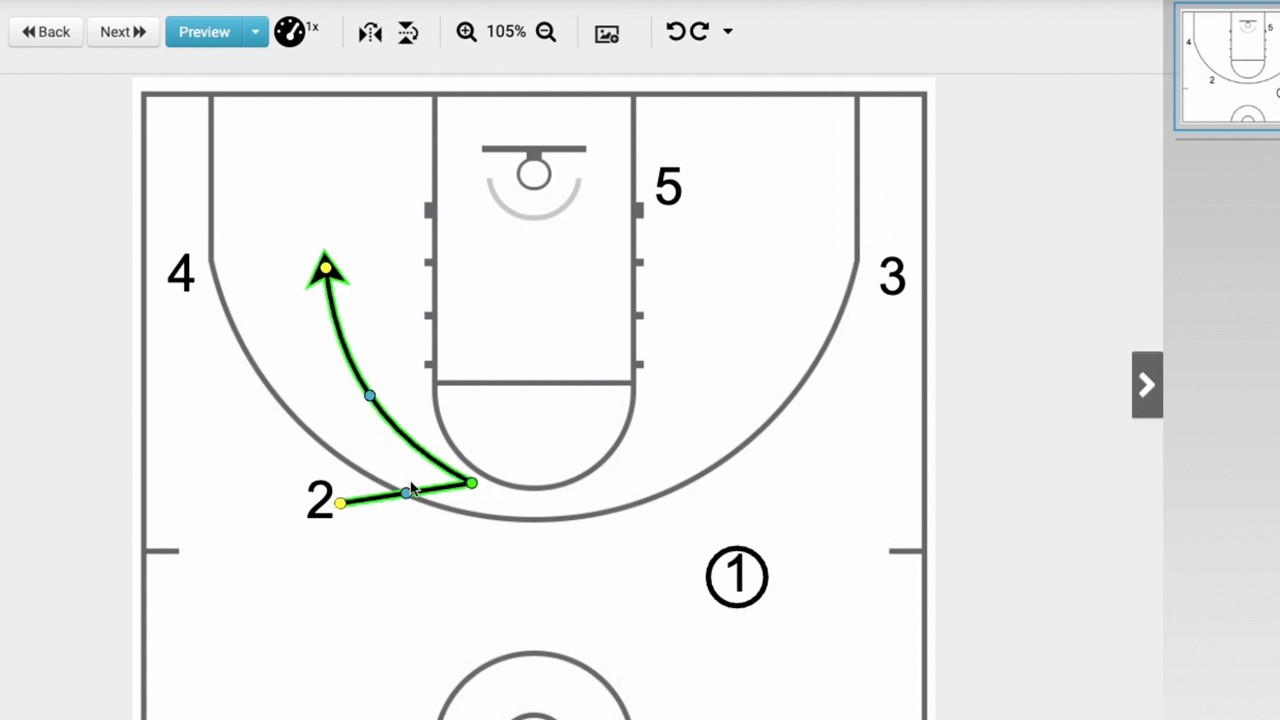
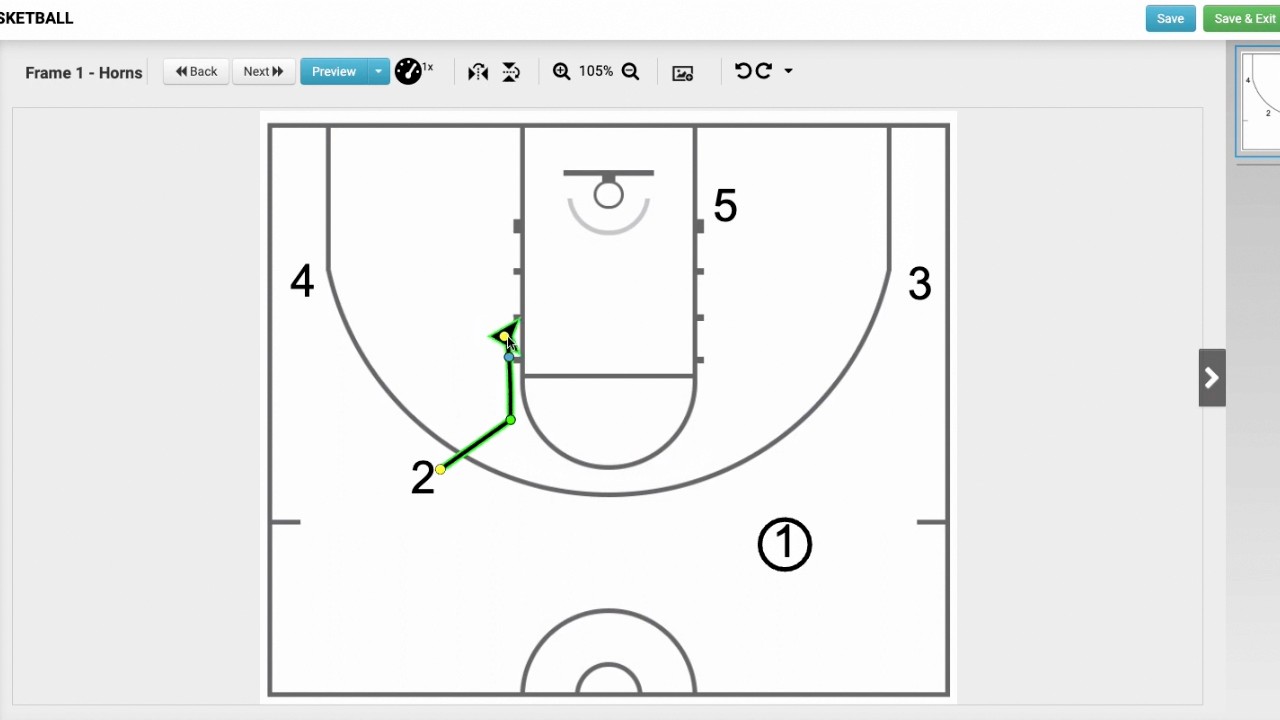
Drawing the Flare Cut: Choose the player movement tool, hover over the intended player (the '2'), and draw the path. To create a multi-segment line, pause while holding the mouse down until the connection dots disappear, then continue the path. Use the yellow and blue dots for final adjustments (0:21-0:54).
Executing the Play: Have the ball handler ('1') move downhill using the dribble tool, then select the passing tool, ensuring it connects to the end of the dribble line, to deliver the pass to the player in the corner for a shot (0:55-1:12).