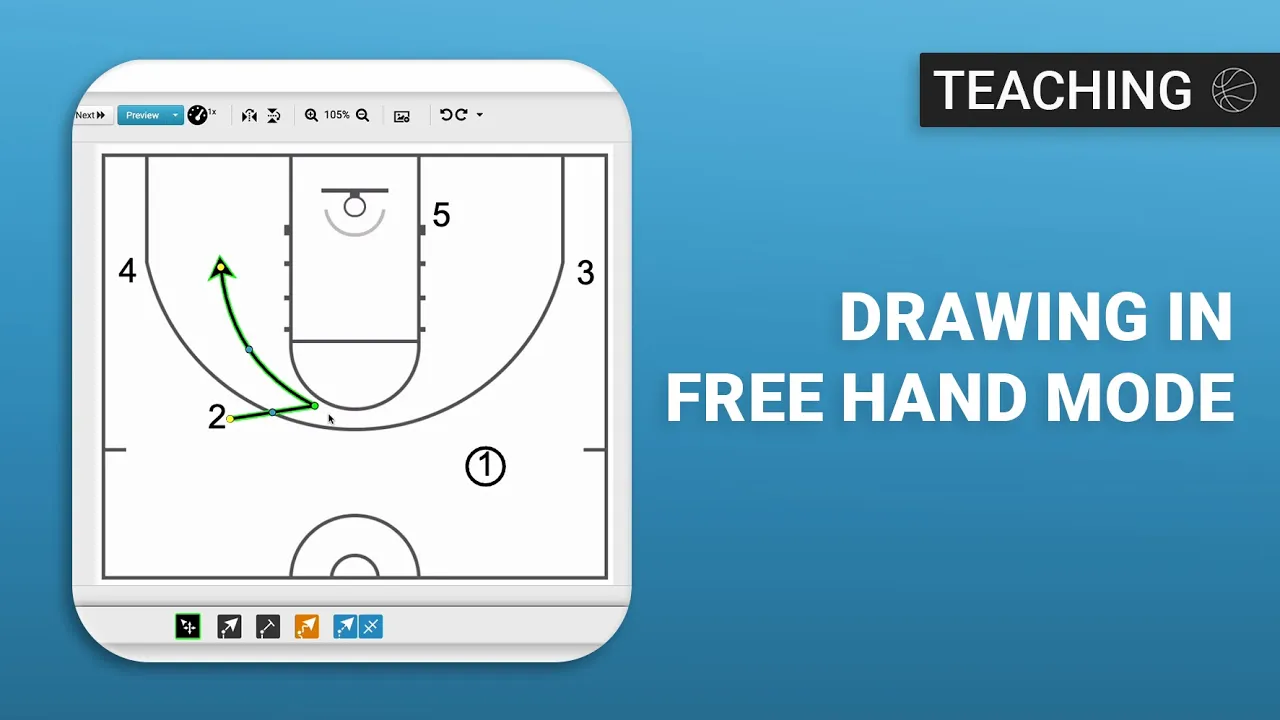
Drawing in Free Hand Mode
|
Play Drawing
This video provides a tutorial on using the freehand mode within the Just Play Basketball drawing tool to create basketball plays.
Here is a summary of the key steps and features covered:
Setup: You can start a new play, title it, and add it to your playbook using terminology tags (0:07 - 0:26). You can also base new diagrams on existing plays or scouting reports (0:26 - 0:41).
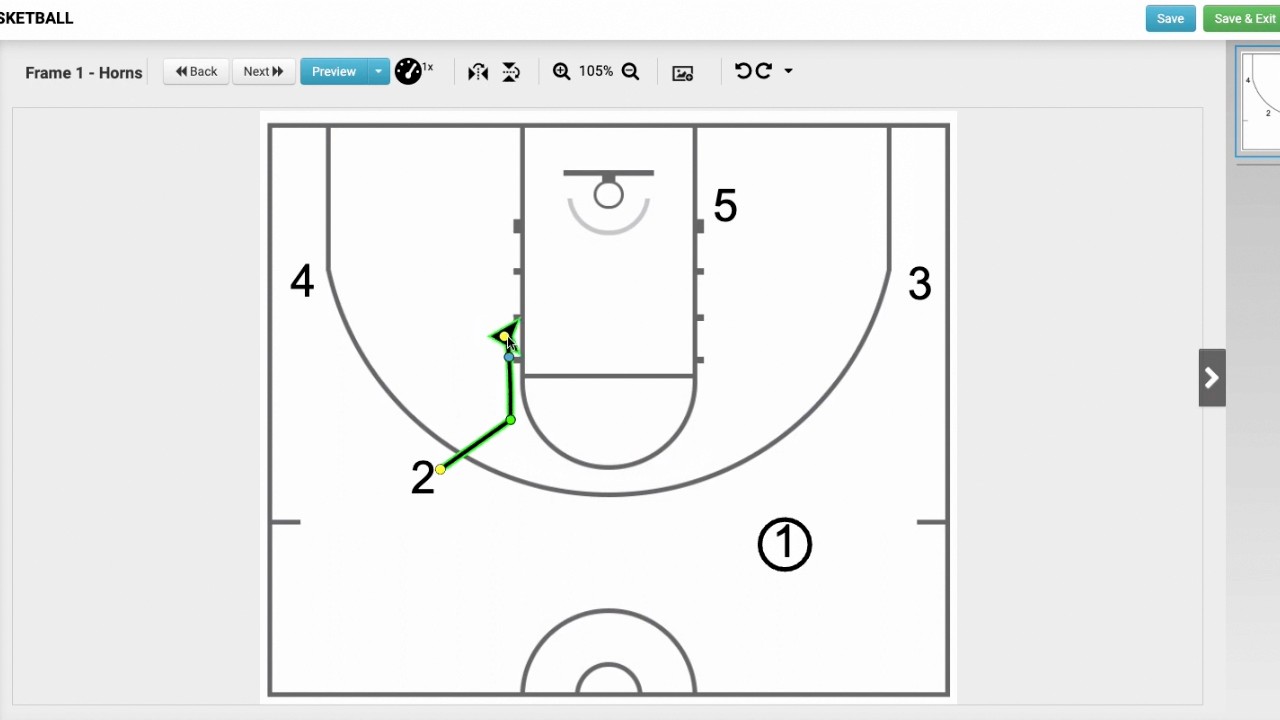
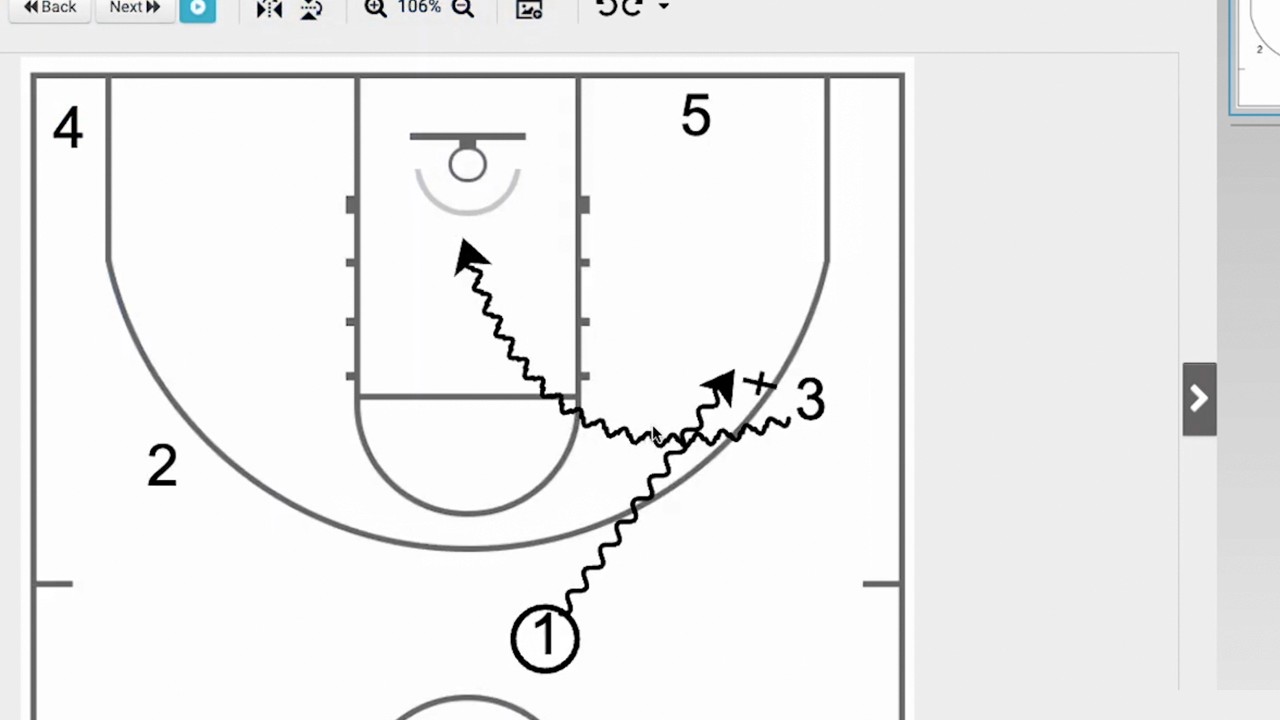
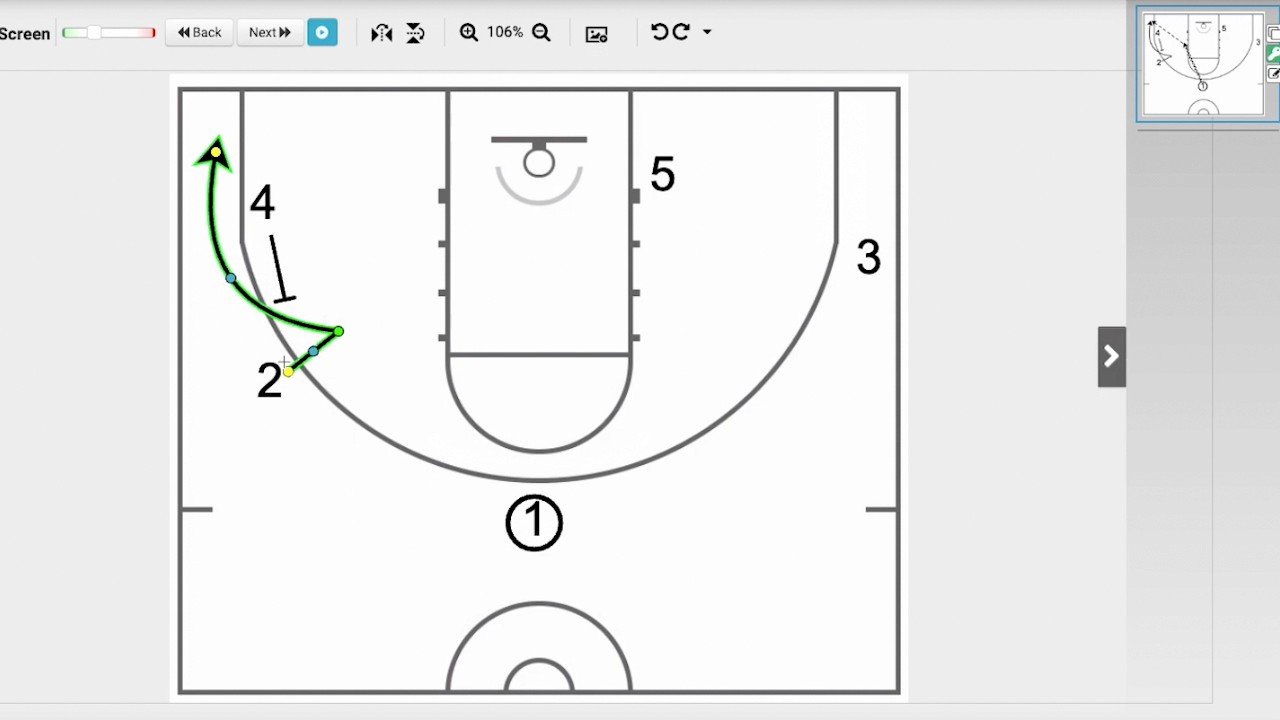
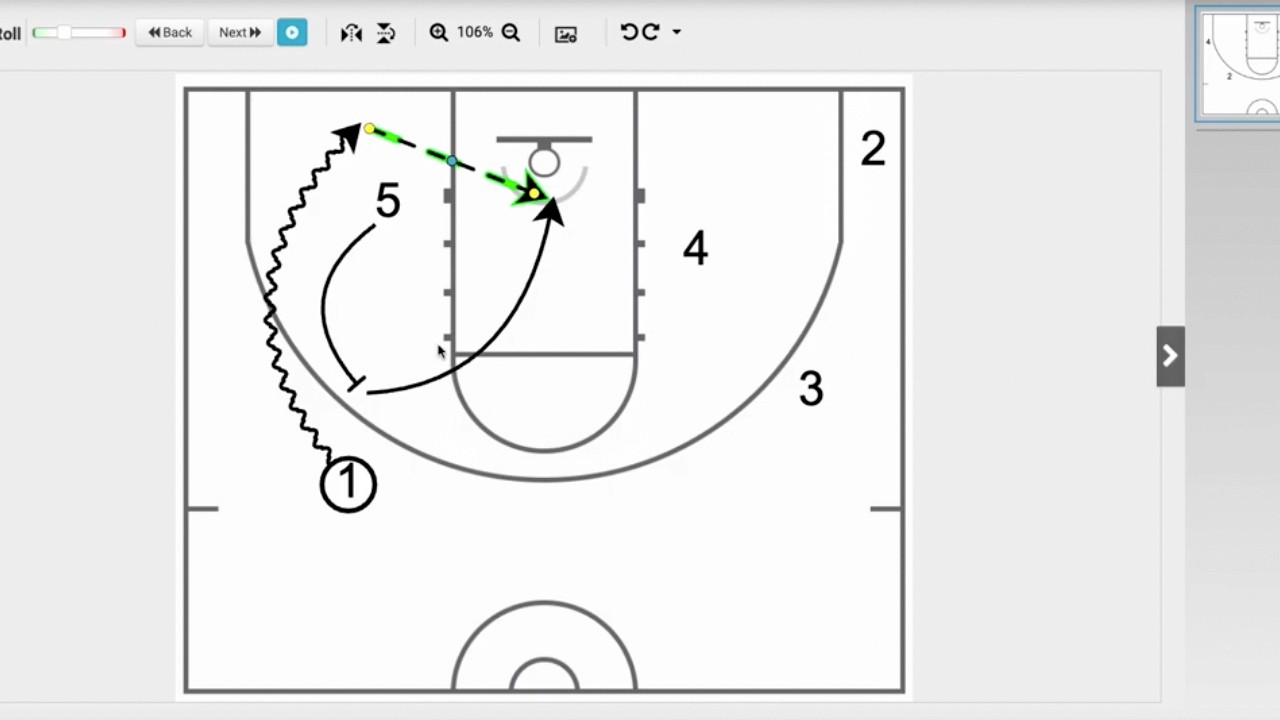
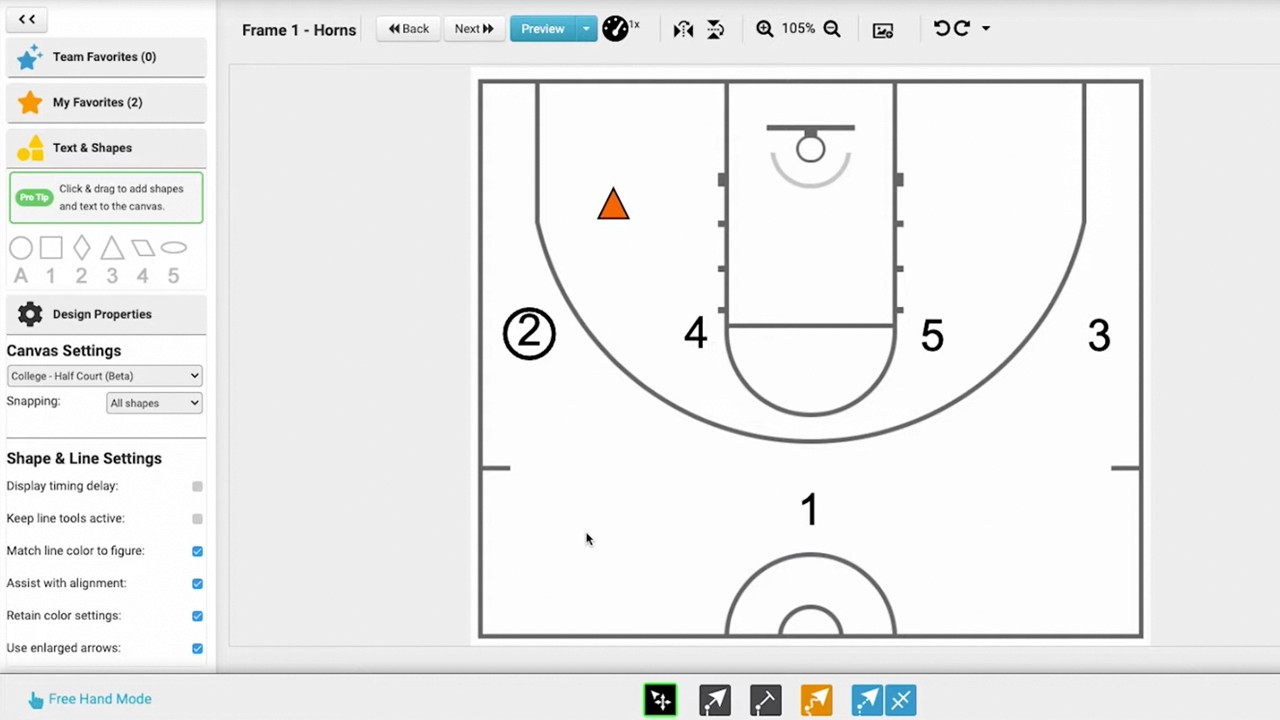
The Interface: Once in the drawing tool, ensure you are in freehand mode (0:46). The available tools include player movement (no ball), a screen tool, an orange squiggle for dribbling, and a blue dotted line for passing (0:58 - 1:16).
Drawing Techniques:
Player Movement: Always connect your lines to the player's shadow on the canvas to ensure correct previewing (1:18 - 1:27).
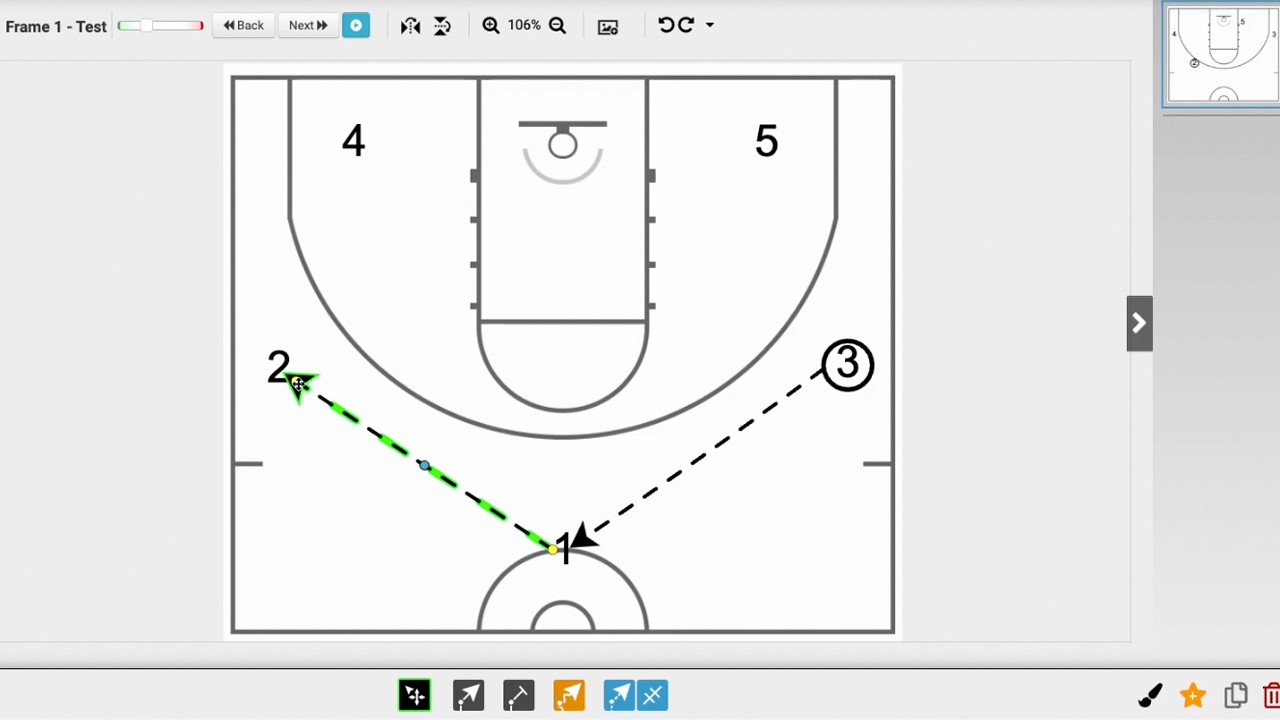
Straight Lines: Draw these by dragging across the canvas; you can adjust them using the yellow dot (1:41 - 2:00).
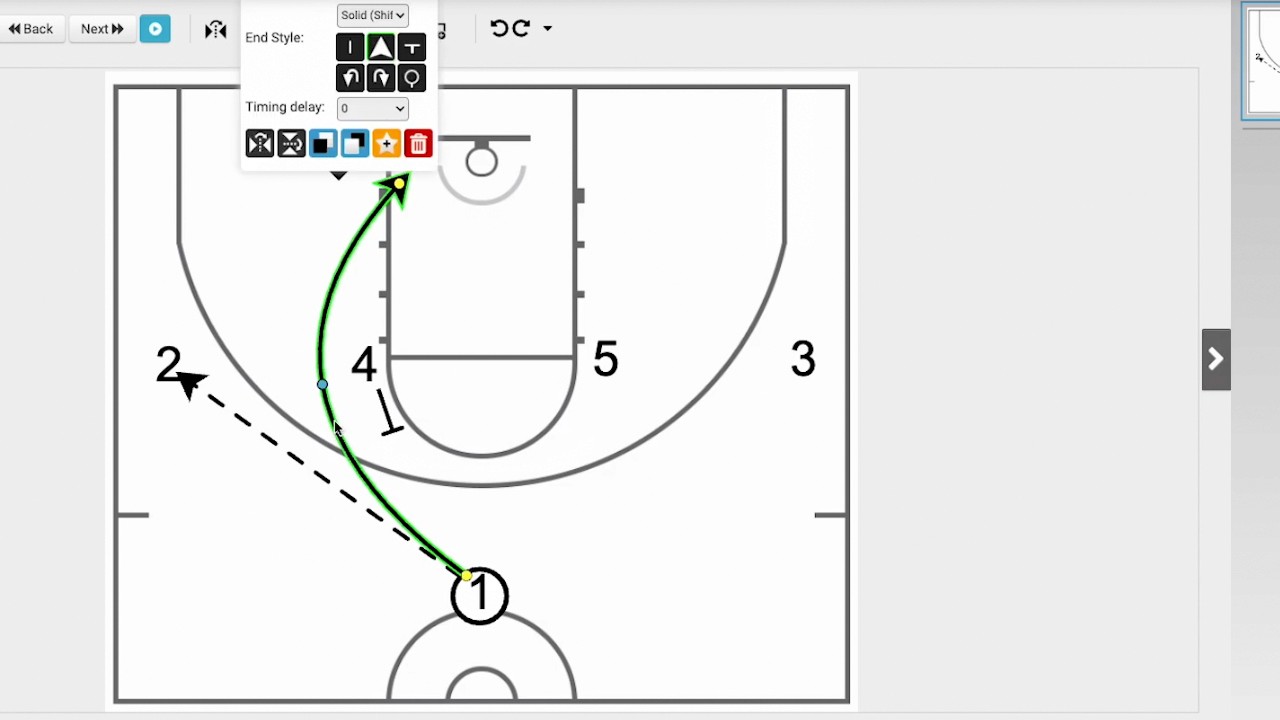
Curved Lines: Draw these freely like a pencil; a blue dot allows you to manipulate the curvature (2:09 - 2:30).
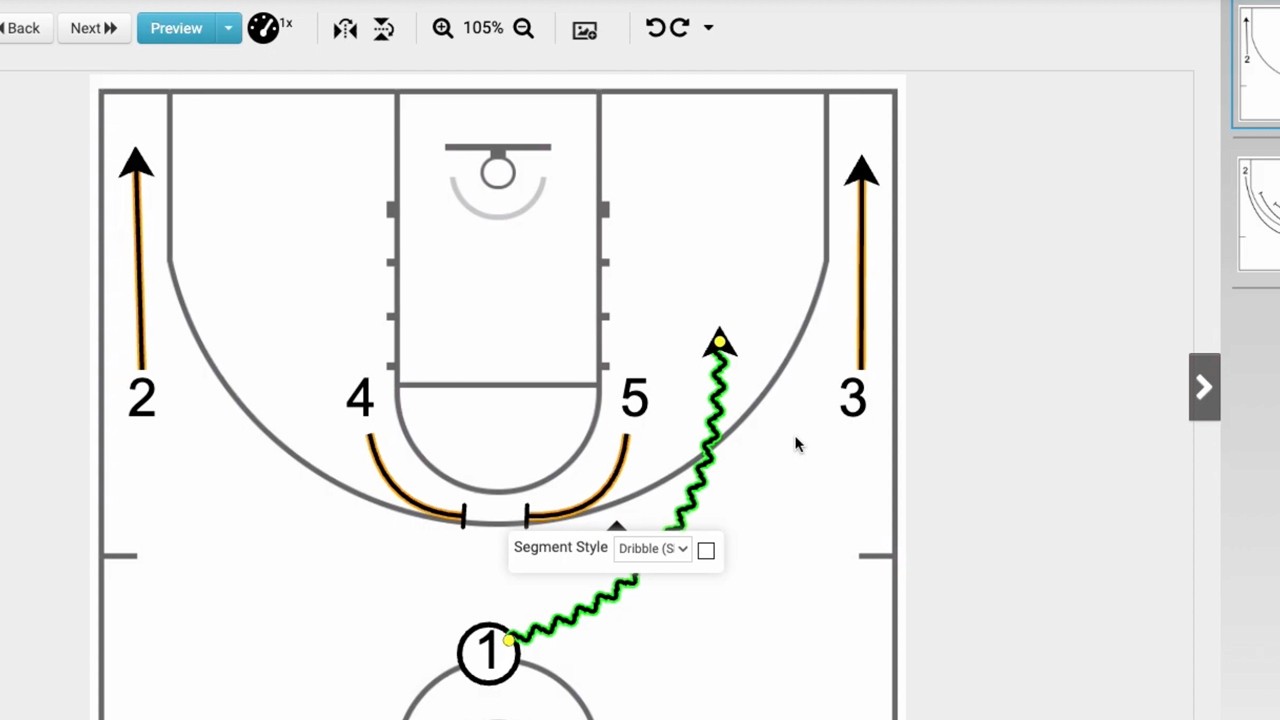
Multi-point Lines: Hold down your mouse click and pause to set a point, then continue drawing the next segment (2:34 - 3:07). This is ideal for actions like pin-downs or cutting off screens.
Editing: If you make a mistake, simply highlight the line in green and press the delete key on your keyboard to remove it (2:01 - 2:05, 2:30 - 2:32).