Other Drawing Features
|
Play Drawing
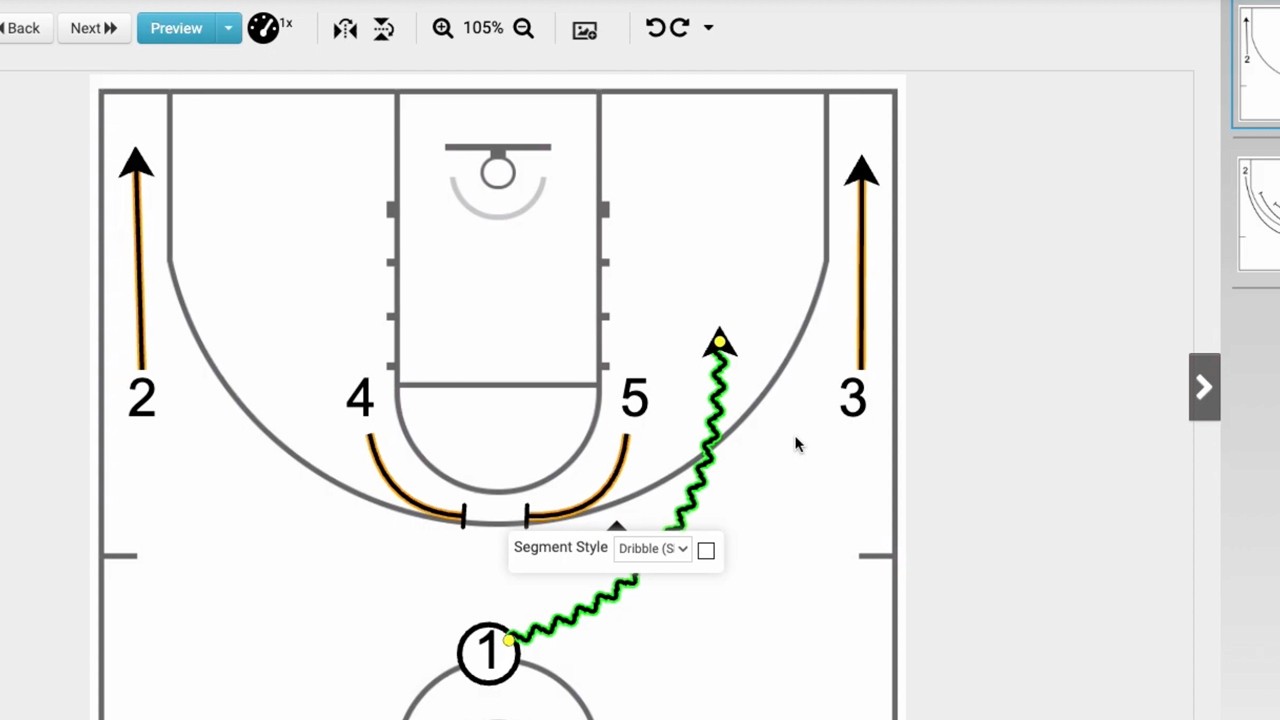
This video provides a walkthrough of the advanced features available within the Just Play basketball drawing tool, building on previous tutorials for freehand and mouse drawing modes.
Frame Controls and Organization (0:21 - 1:37):
Frame Management: You can copy frames, designate specific frames as thumbnails, add detailed text notes to each frame, and use the trash icon to delete unnecessary frames.
Navigation: Use the previous and next buttons to toggle through frames while adding notes, which the system recommends keeping in paragraph form for better readability during printing.
Drawing Tools and Customization (1:38 - 4:57):
Favorites: Create groups of players or items on the court and save them as favorites for quick access. These can be saved to your personal library or shared with the entire team.
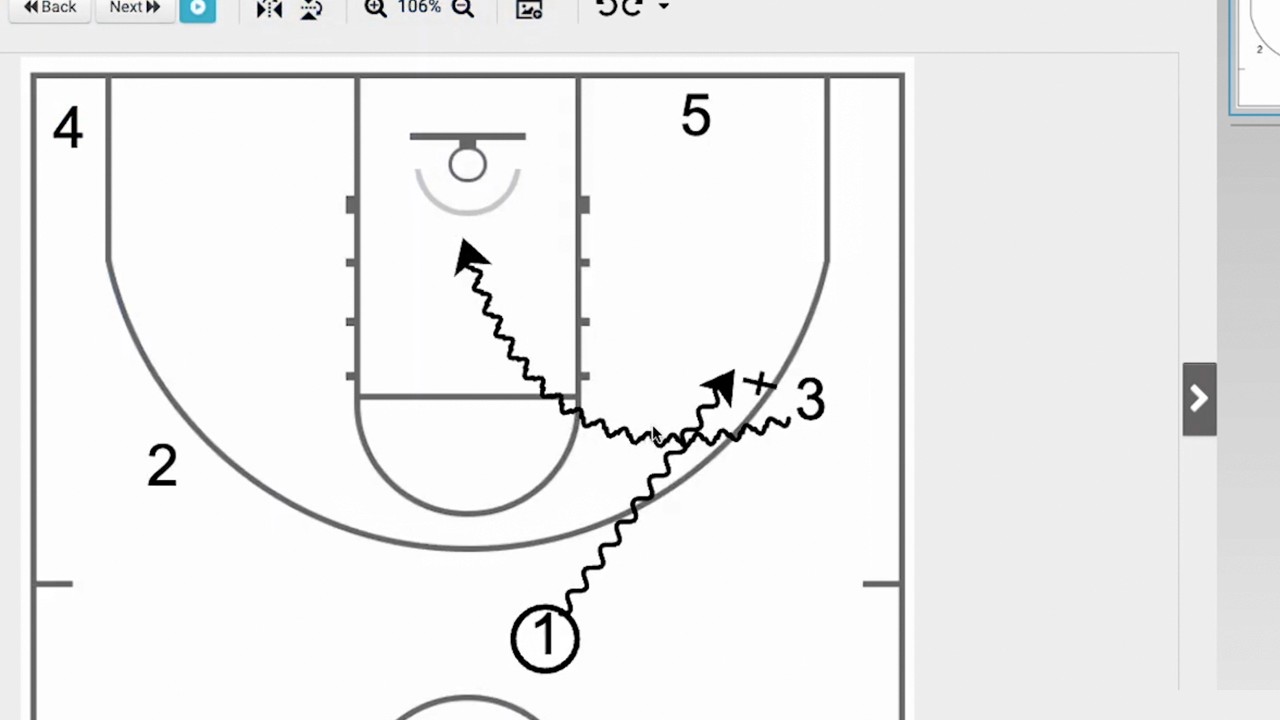
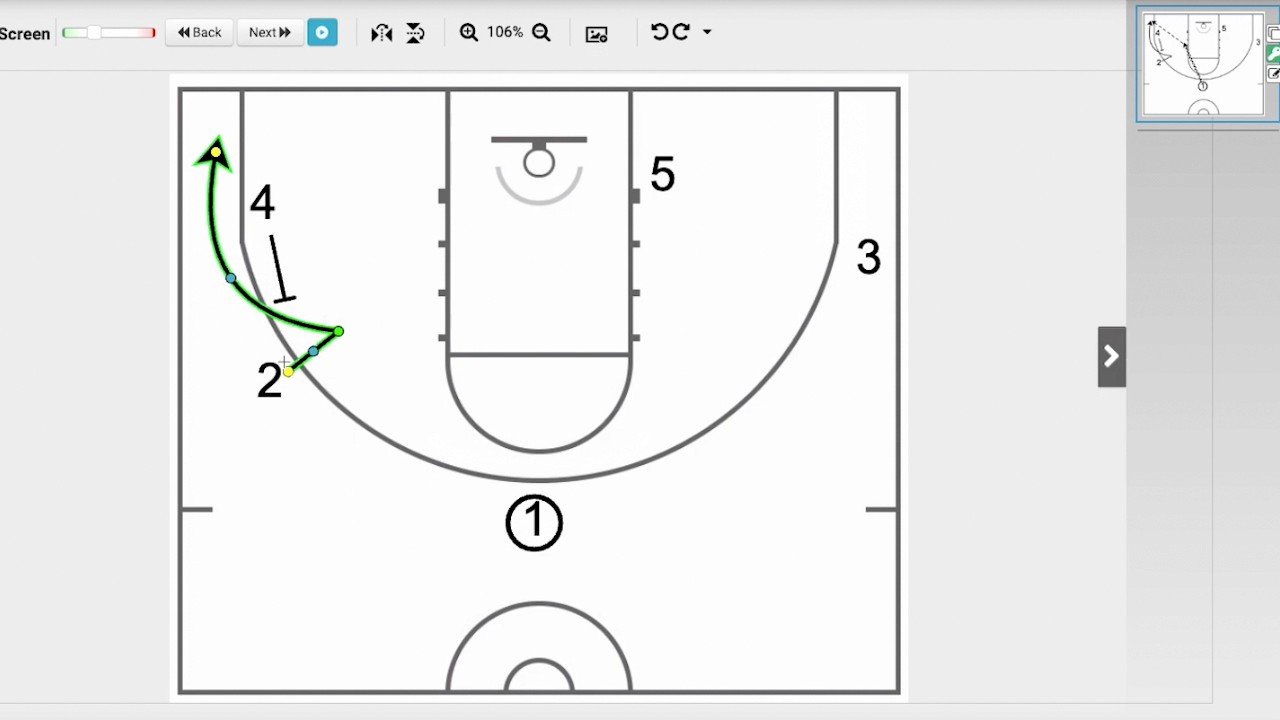
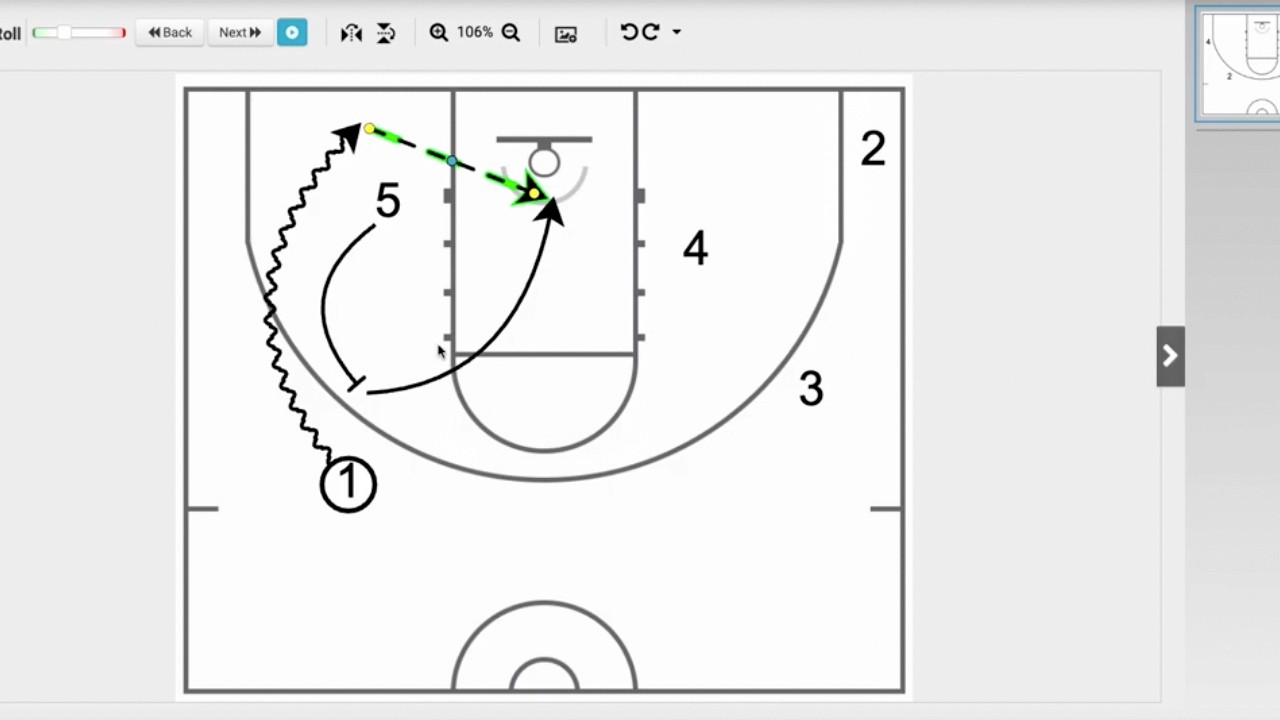
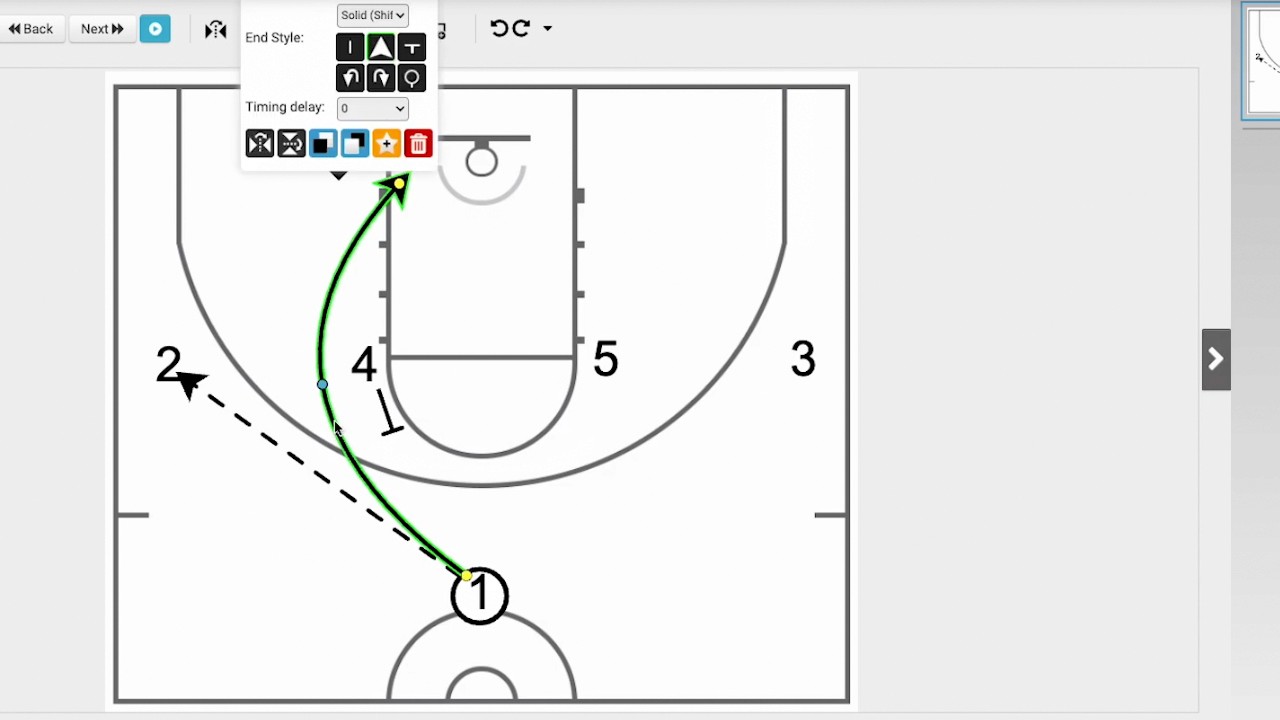
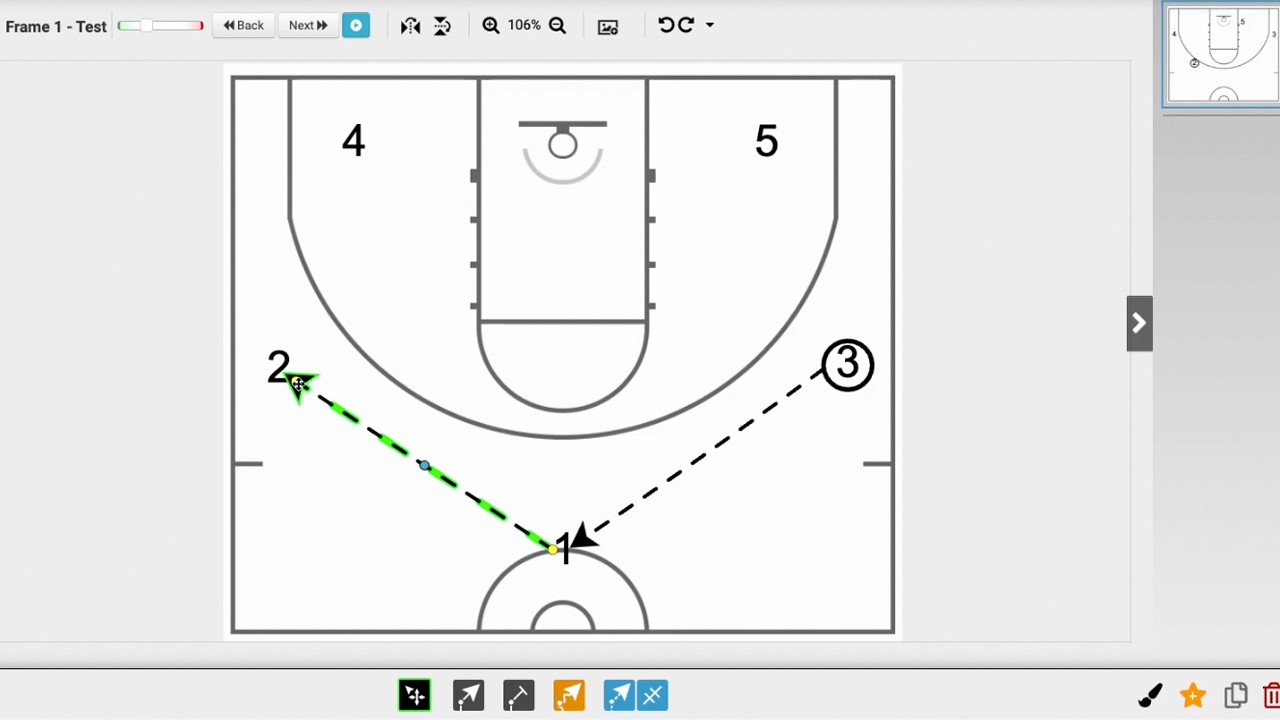
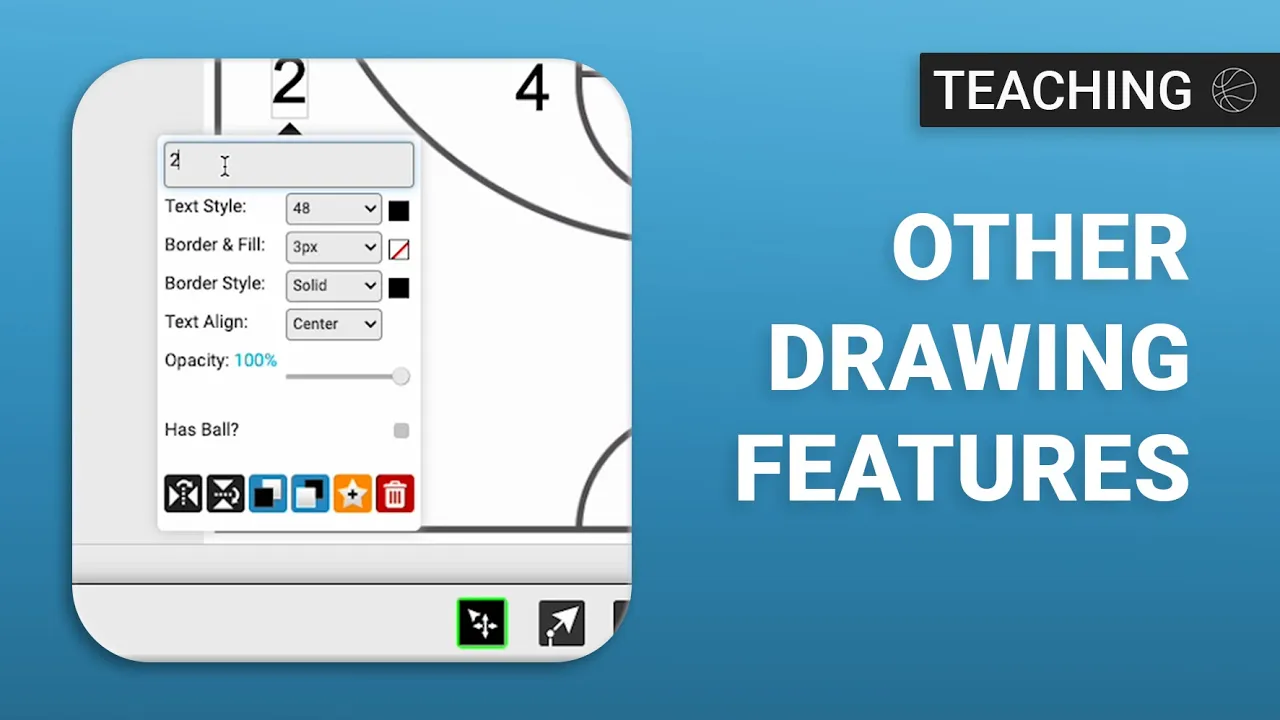
Player & Shape Properties: Players are essentially text boxes that can be edited (numbers/initials), and you can toggle who has the ball. You can also drag shapes, such as triangles or squares, to mark specific spots or drills on the court.
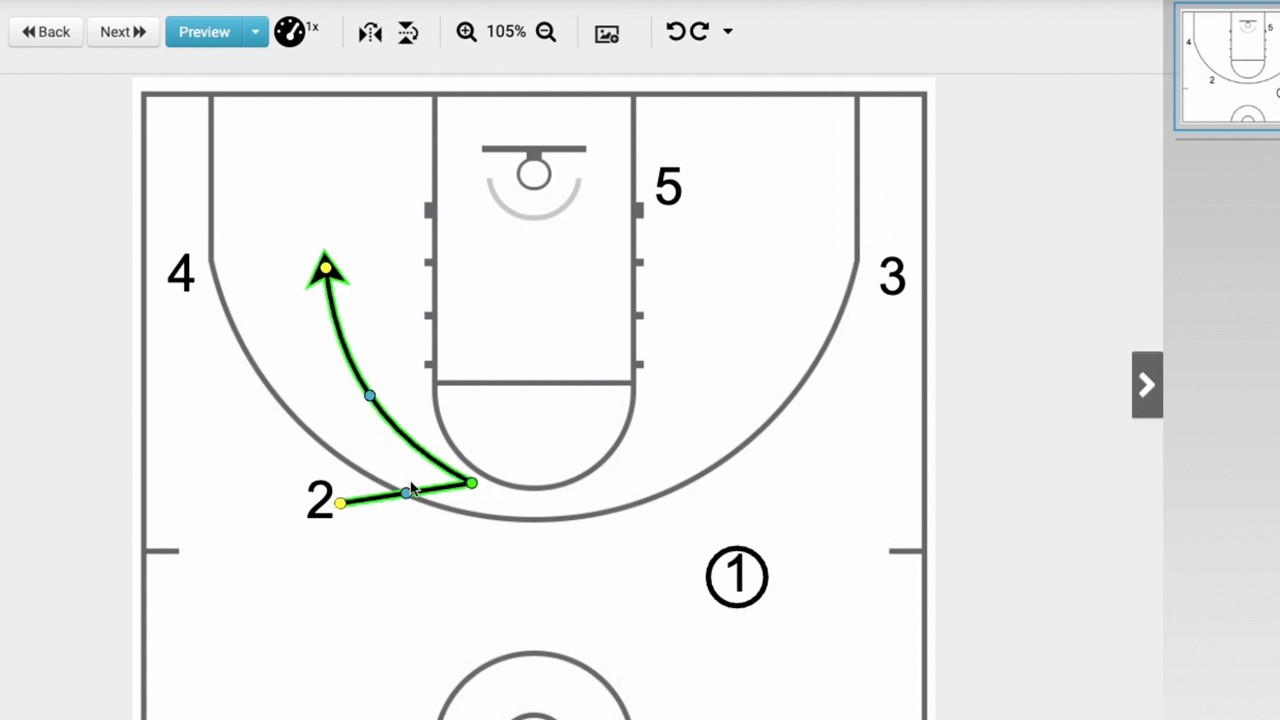
Settings: The tool offers canvas adjustments (e.g., side out of bounds), alignment assistance, and visual options like enlarged arrows, which are recommended for clarity.
Finalizing and Managing Plays (4:58 - 6:58):
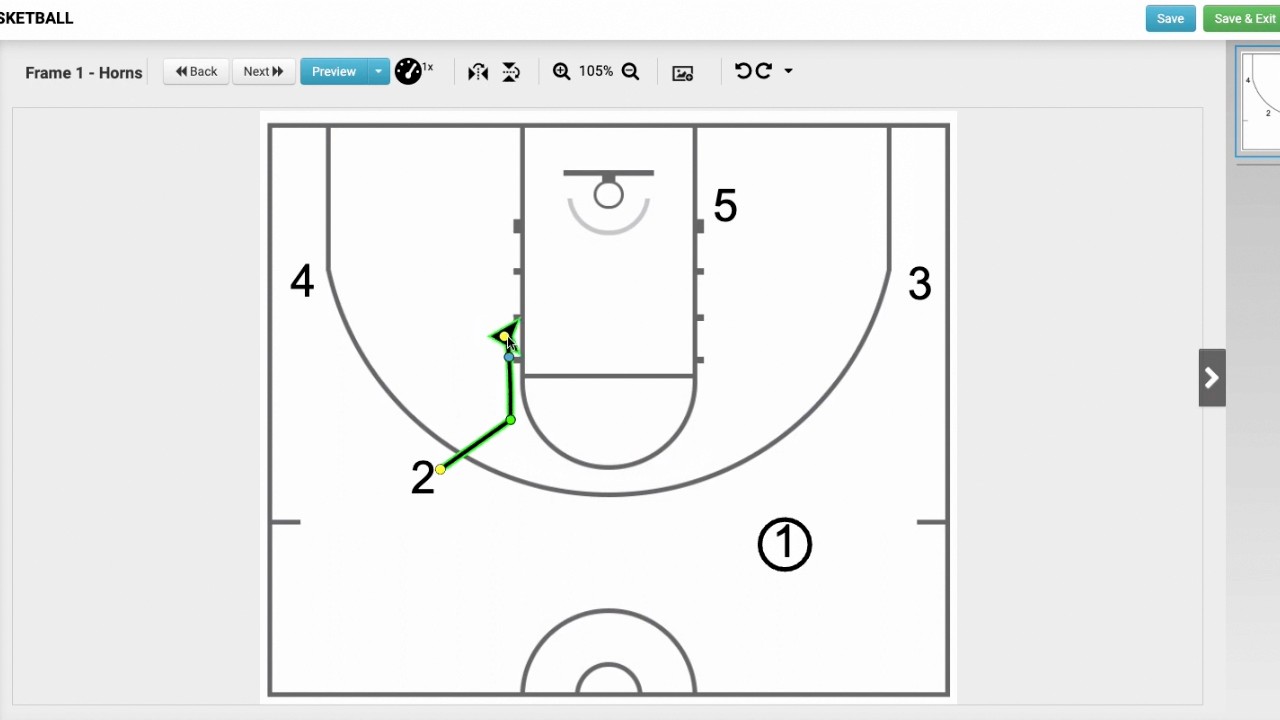
Saving: Always use the Save and Exit button to ensure all drawings and notes are stored correctly.
Adding Content: You can attach video files (e.g., MP4/MOV) directly to your plays for additional context.
Actions Menu: This allows you to add plays to presentations, toggle their status between active and inactive (to control what the team sees on the app), duplicate plays for variations, or print hard copies.