How to Build Scout Templates
|
Opponent Scouting
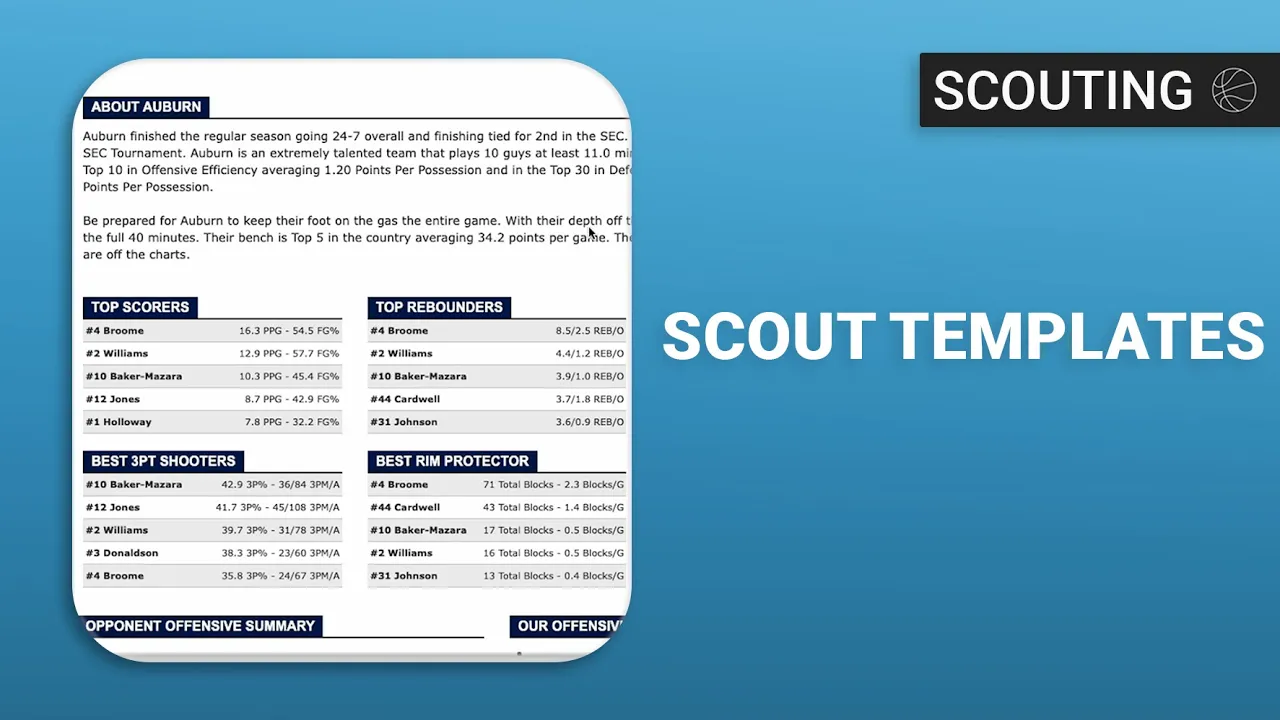
This video provides a step-by-step guide on how to create a scouting template within the Just Play Basketball platform. This template acts as the backbone for all future scouting reports throughout the season, ensuring consistency in data and presentation.
The scouting template section is divided into three primary areas:
Scout Templates: The main structure of the report.
Print Templates: Customizes how the report looks when printed (1:07 - 1:13).
Stat Profiles: Allows you to select and customize the specific stats that appear in the report (1:16 - 1:37).
Key Configuration Steps
Team Tab: Set up the "quick look" view using the pencil icon to determine which tiles appear (1:49 - 2:00).
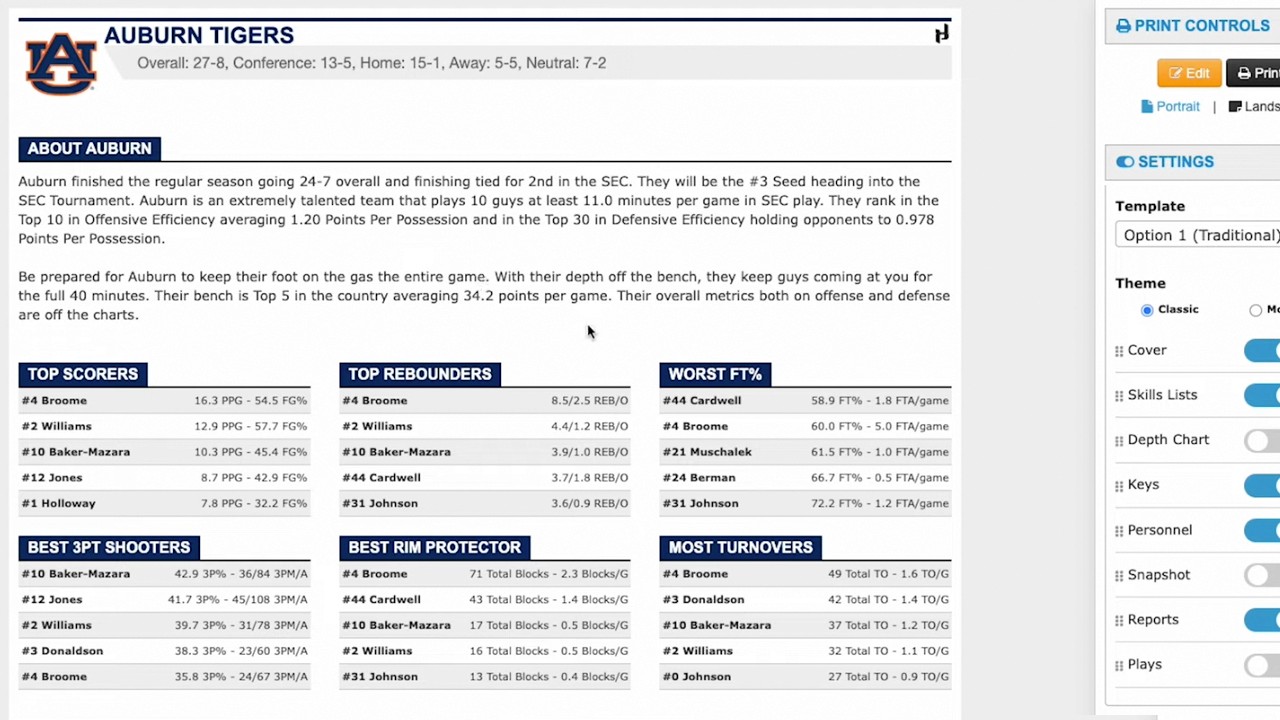
Keys: Create recurring keys for your scouting reports so you don't have to rebuild them each time. You can drag, drop, and resize these sections as needed (2:16 - 3:12).
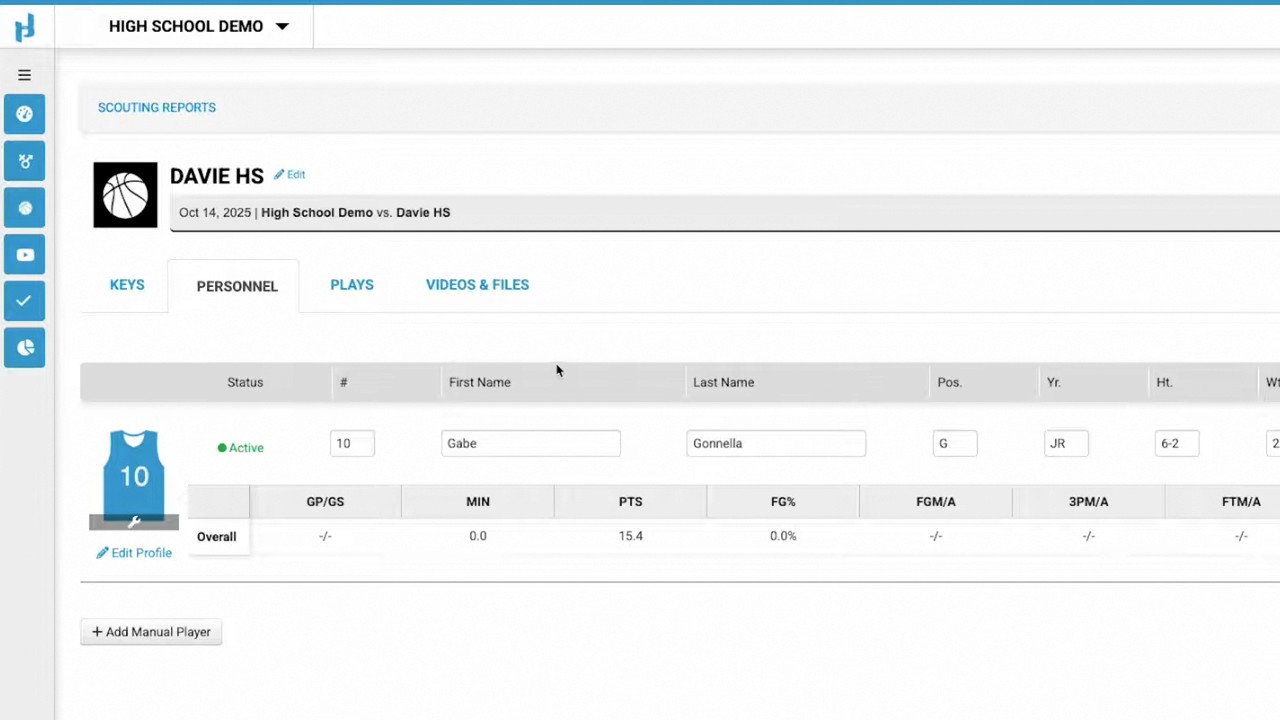
Personnel: Define the default format for player profiles, including "what he does" and "how to guard" sections (3:14 - 3:30).
Depth and List: Build custom skills lists (like "top scorers") with sorting options, split configurations, and advanced rules to ensure data accuracy (3:31 - 4:22).
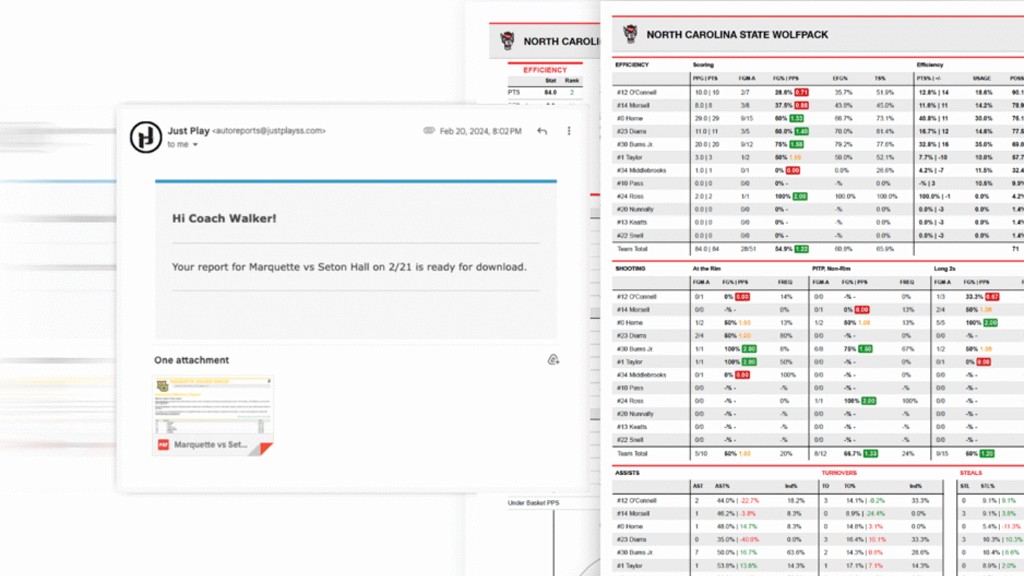
Reports: Choose which specific reports, such as team summaries or comparison reports (advanced/traditional), should populate for each scout (4:32 - 5:10).
Additional Features
Print Templates: Provides a drag-and-drop interface to organize the layout for physical or PDF printouts (5:27 - 6:03).
Stat Profiles: Enables users to pick and choose specific stats (totals, per game, or conference-specific) to keep reports focused and relevant throughout the season (6:04 - 6:30).