How to Diagram Pass Down Pick Down
|
Play Drawing
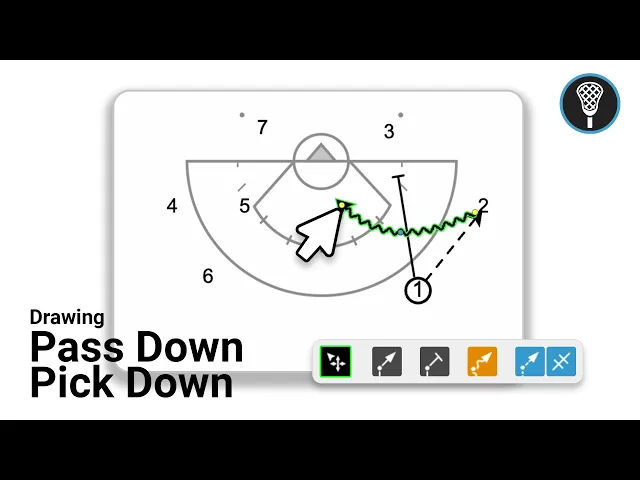
This video serves as a tutorial for coaches on how to use the Just Play software to diagram a pass down, pick down lacrosse play. The process is broken down into clear, manageable steps:
Initial Setup: After creating a new play and organizing it with text, navigate to the diagrams section to select a starter template (0:00-0:30).
Drawing the Action:
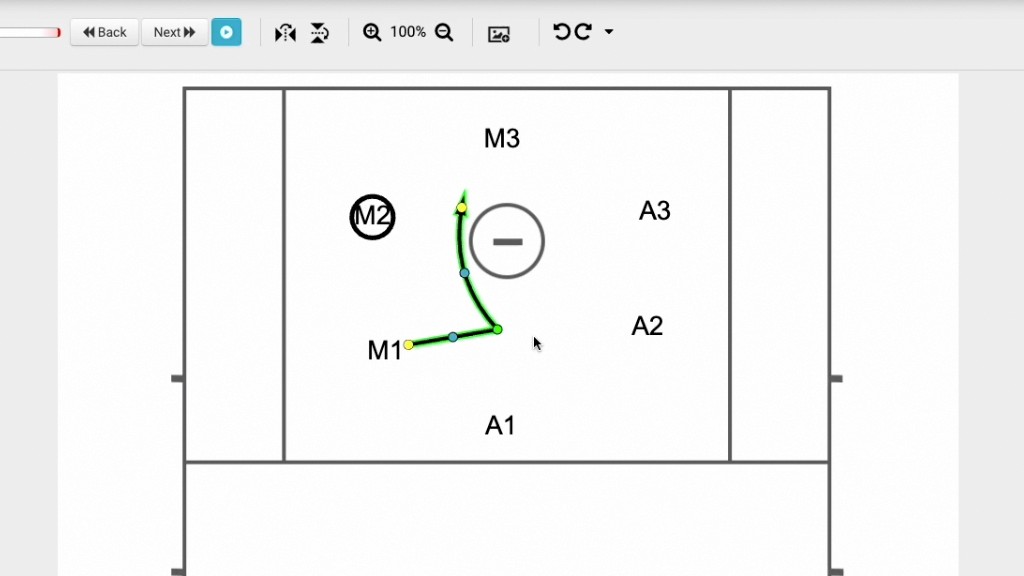
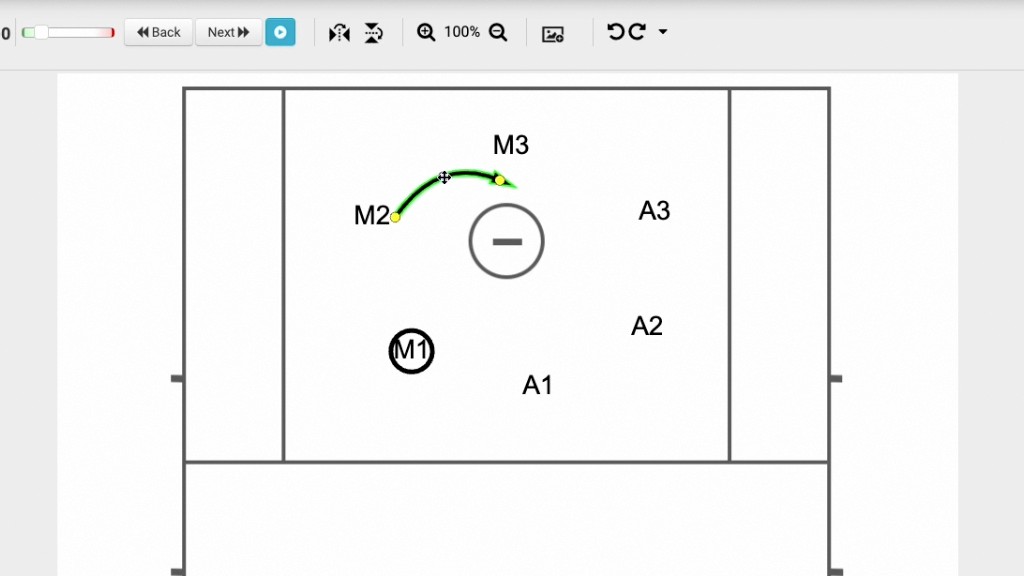
Use the drawing tool to position players by clicking and dragging them on the canvas (0:39-0:51).
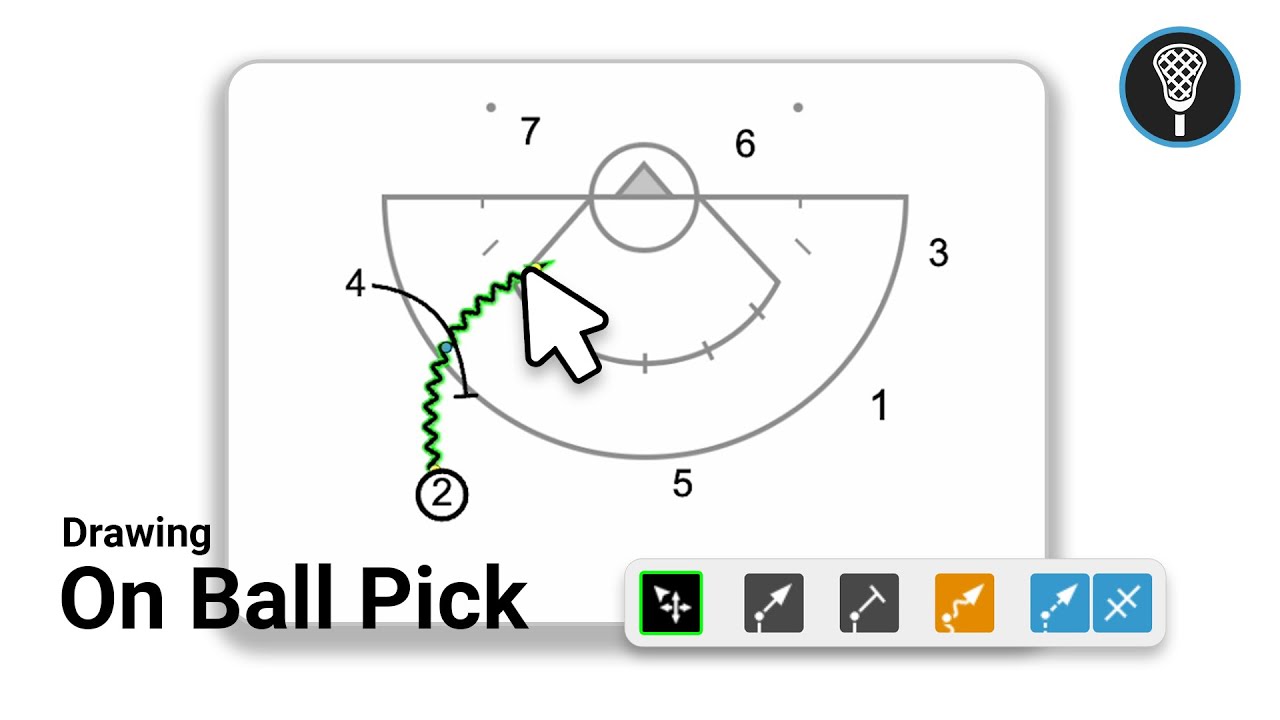
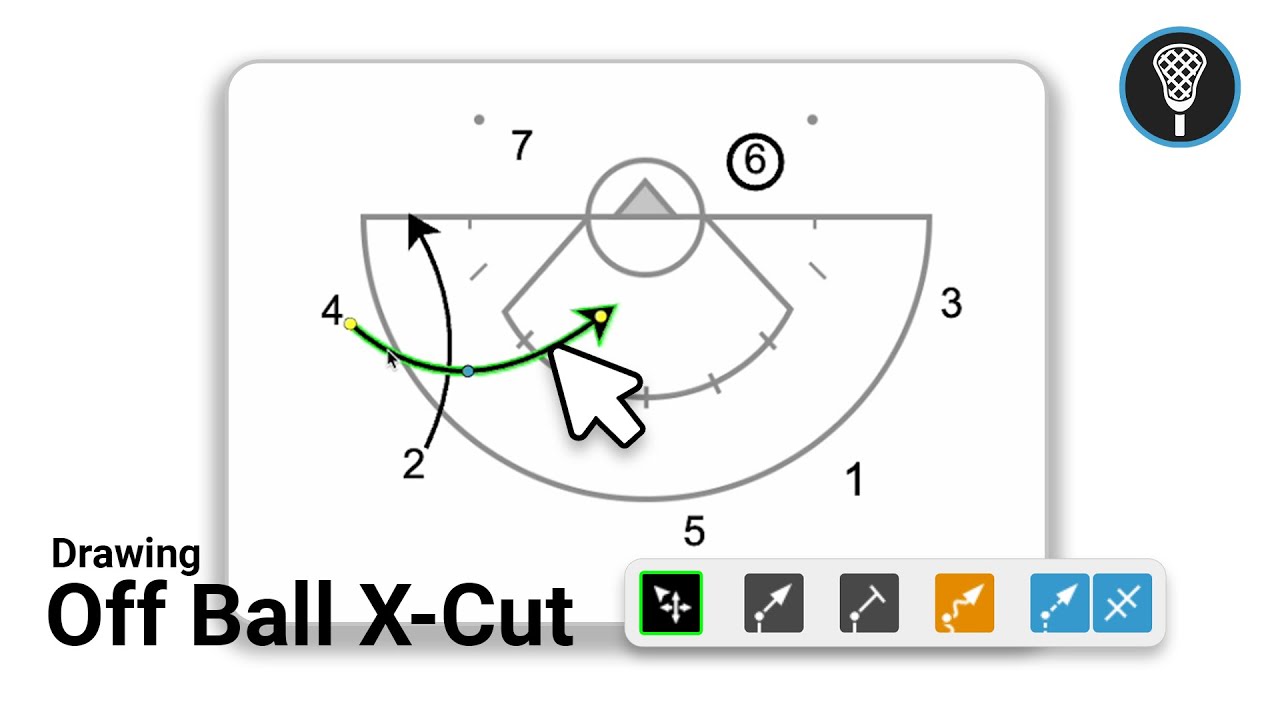
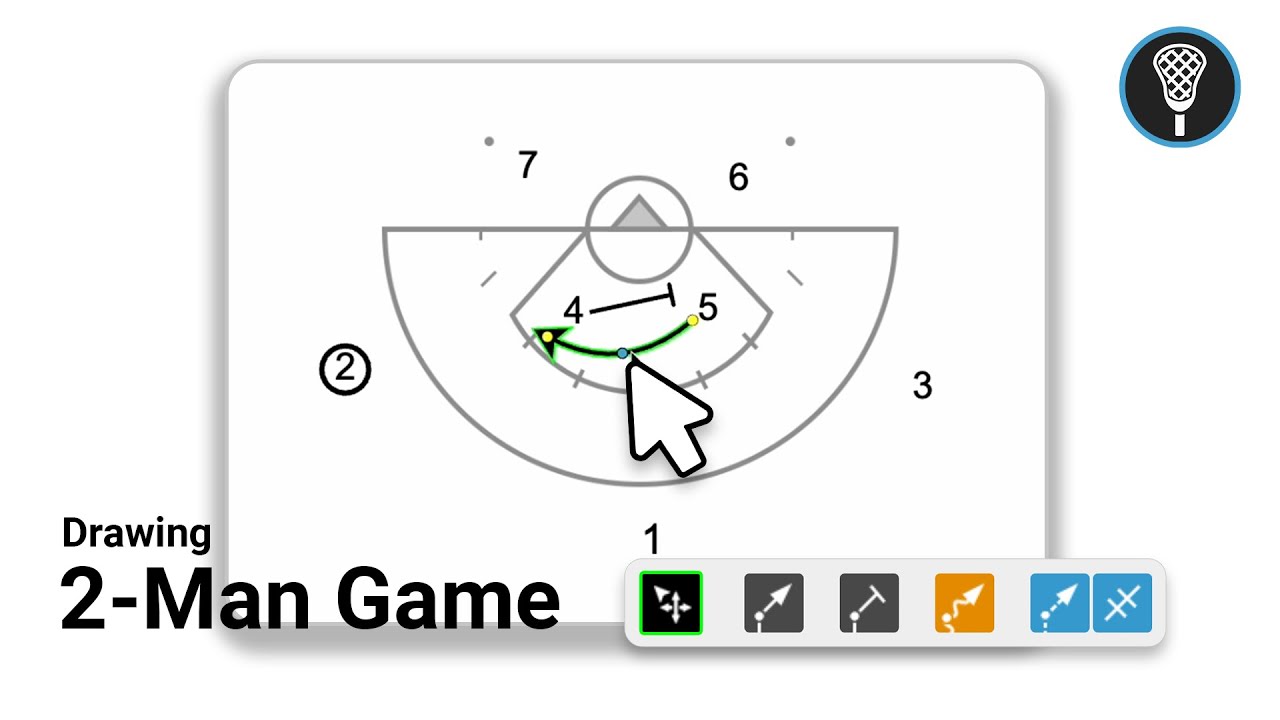
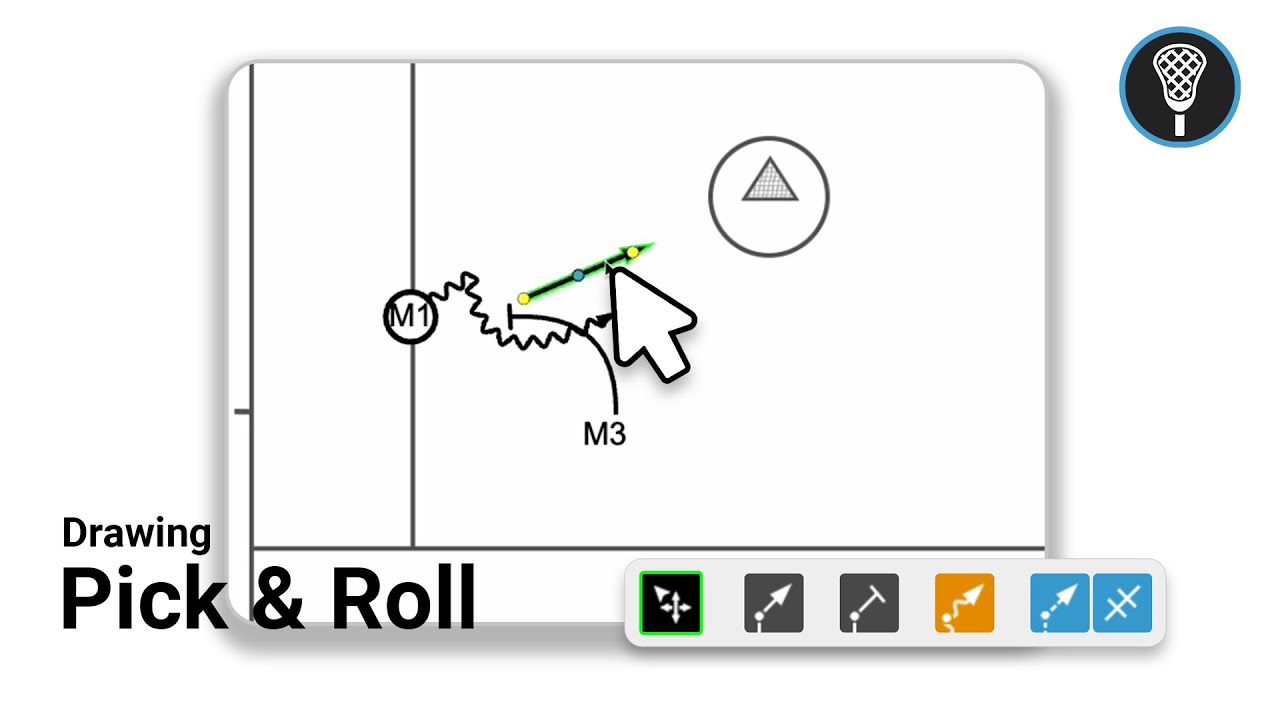
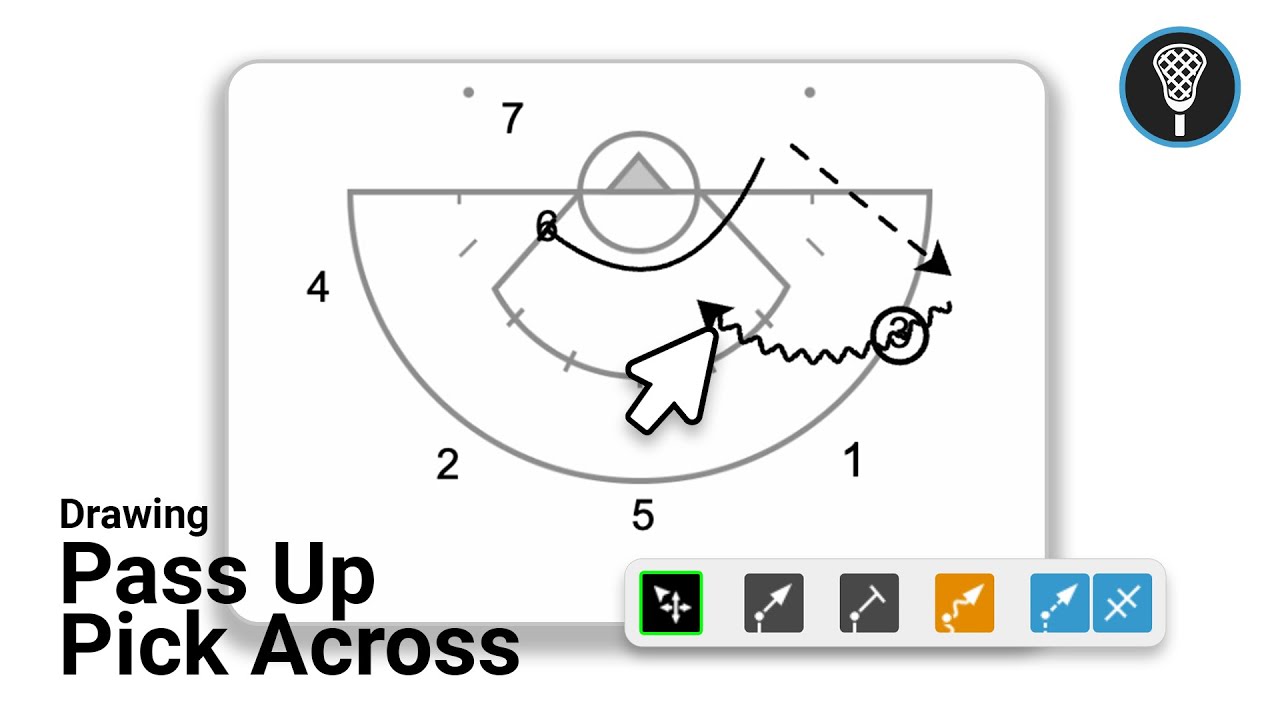
Use the blue dotted line tool to illustrate the pass and the Dodge line tool to represent movement (1:04-1:53).
Adjust the paths of your lines using the blue and yellow adjustment dots (1:34-1:41).
Refining the Play:
Use the speedometer tool to adjust the animation speed and preview the play to ensure the timing is correct (1:56-2:09).
Add new frames using the next button to continue the sequence, keeping frame counts and notes minimal to ensure the play prints clearly on a single page (2:14-2:57).
Saving and Editing: Once complete, click save and exit. You can return to edit the play or add further frame notes using the edit or details buttons located in the interface (2:59-3:25).