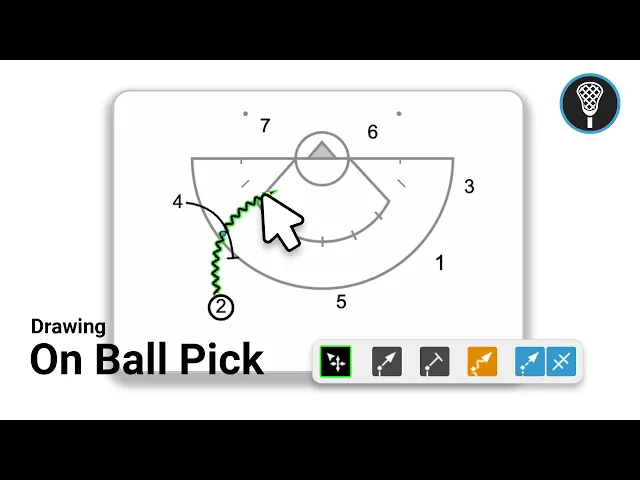
How to Diagram an On Ball Pick
|
Play Drawing
This video serves as a tutorial for coaches on how to use the Just Play platform to diagram an on-ball pick in lacrosse. The guide covers the entire process from setting up a canvas to finalizing the animation for a play.
Key steps for diagramming a play:
Canvas Setup: After creating a play and tagging it, select a canvas from the starter diagrams page to begin drawing (0:12).
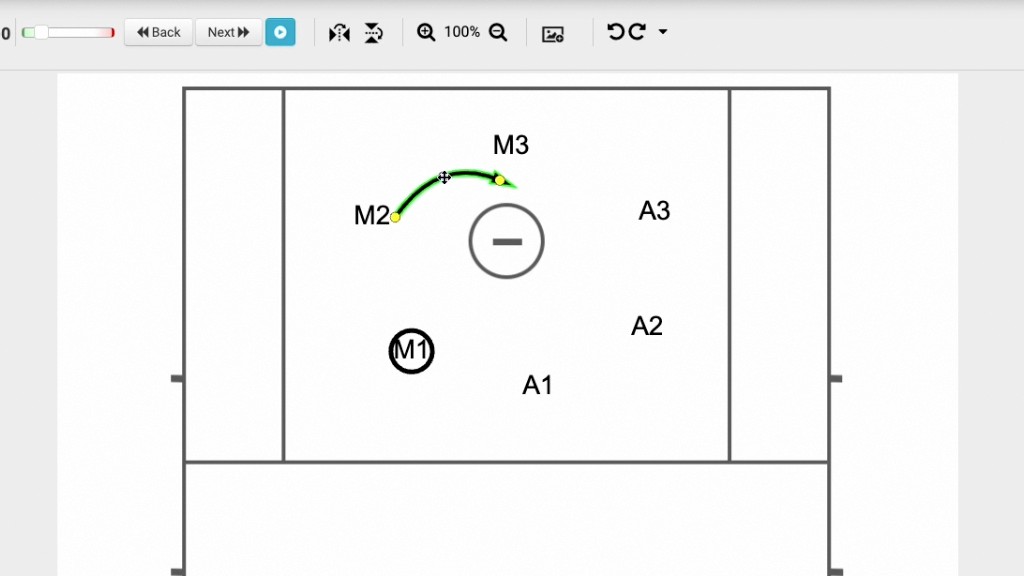
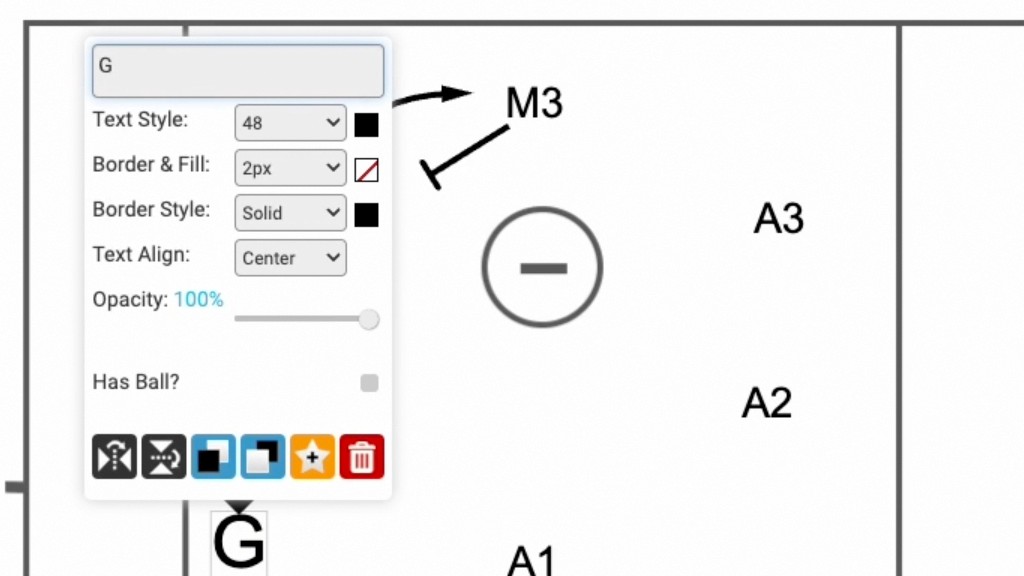
Player Positioning: Move players by clicking and dragging them, and use the double-click menu to designate which player has the ball (0:39).
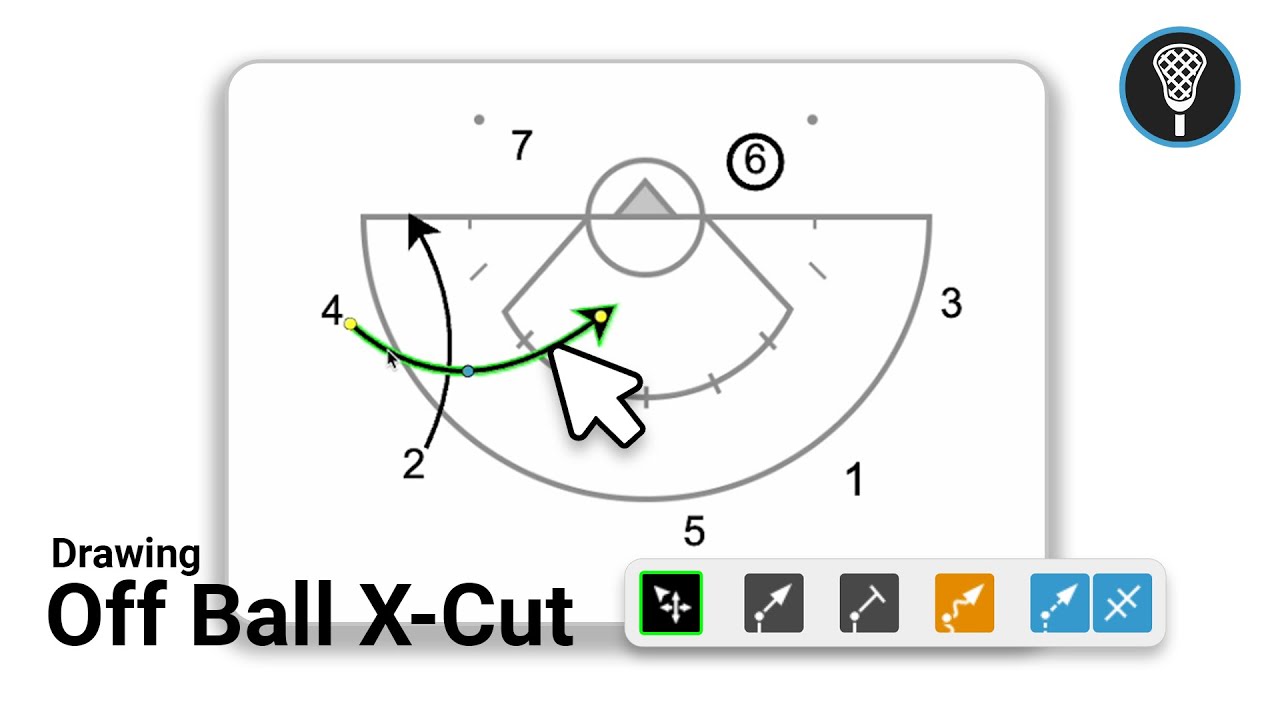
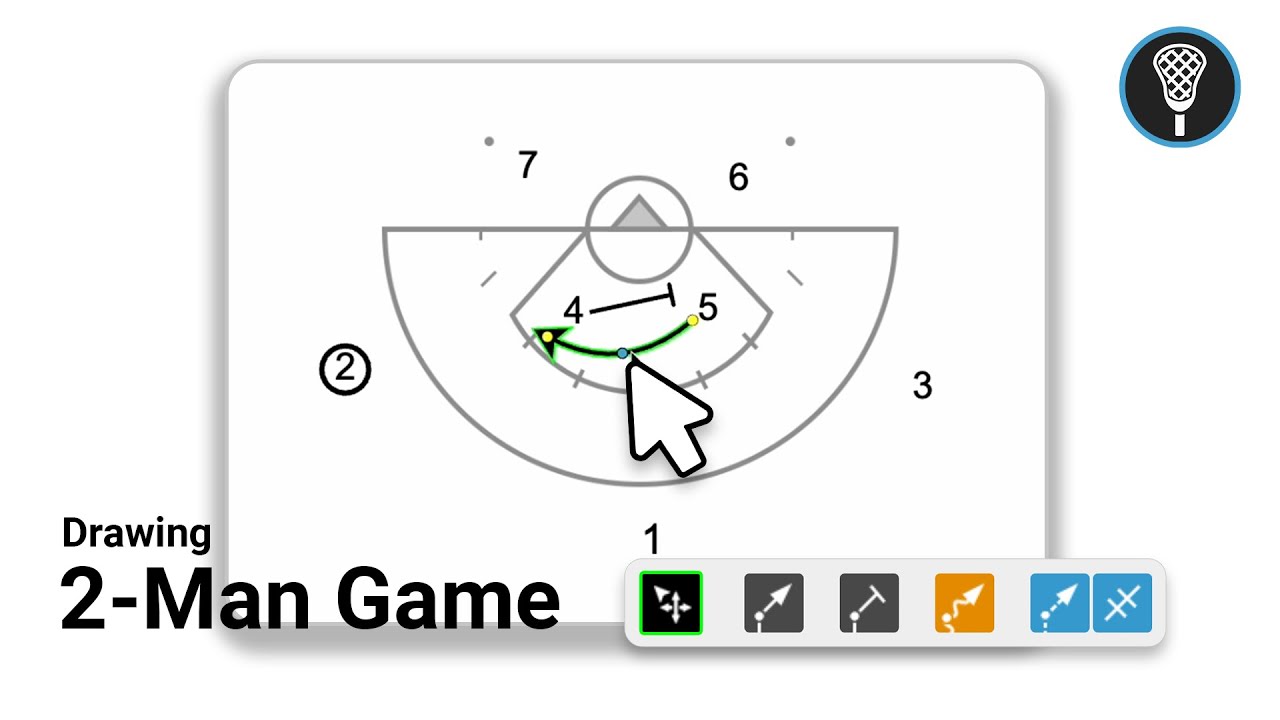
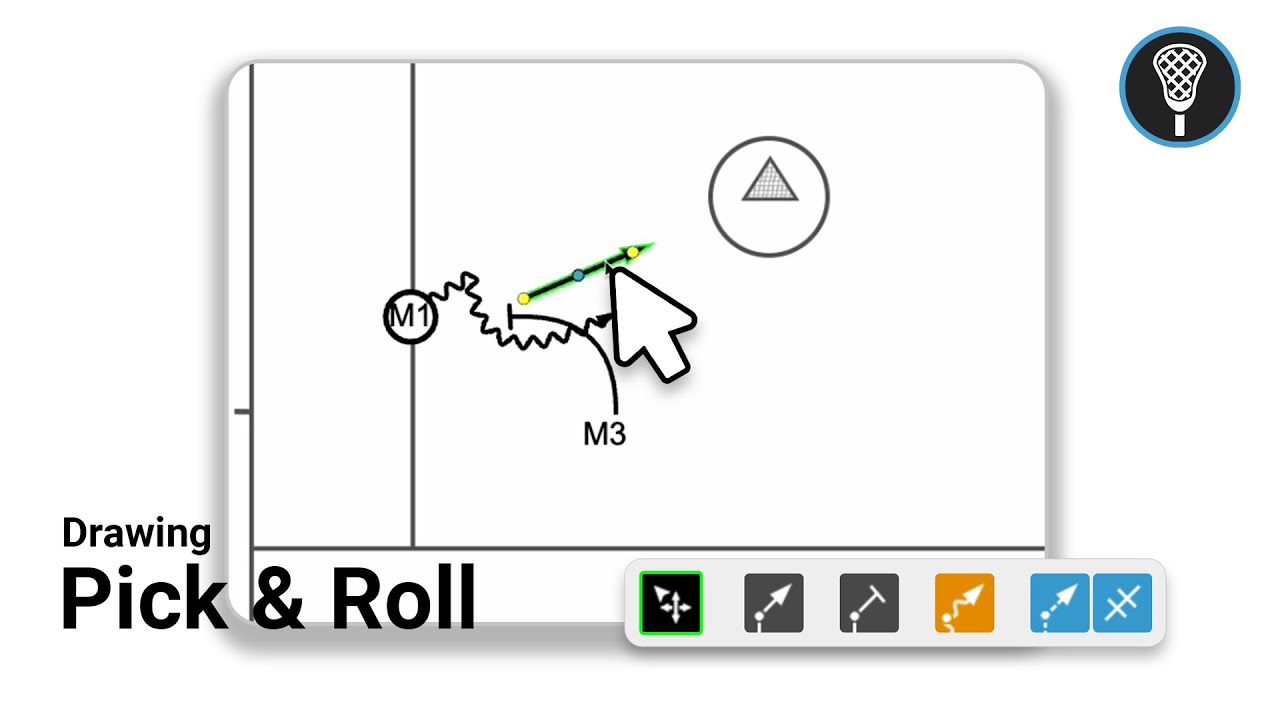
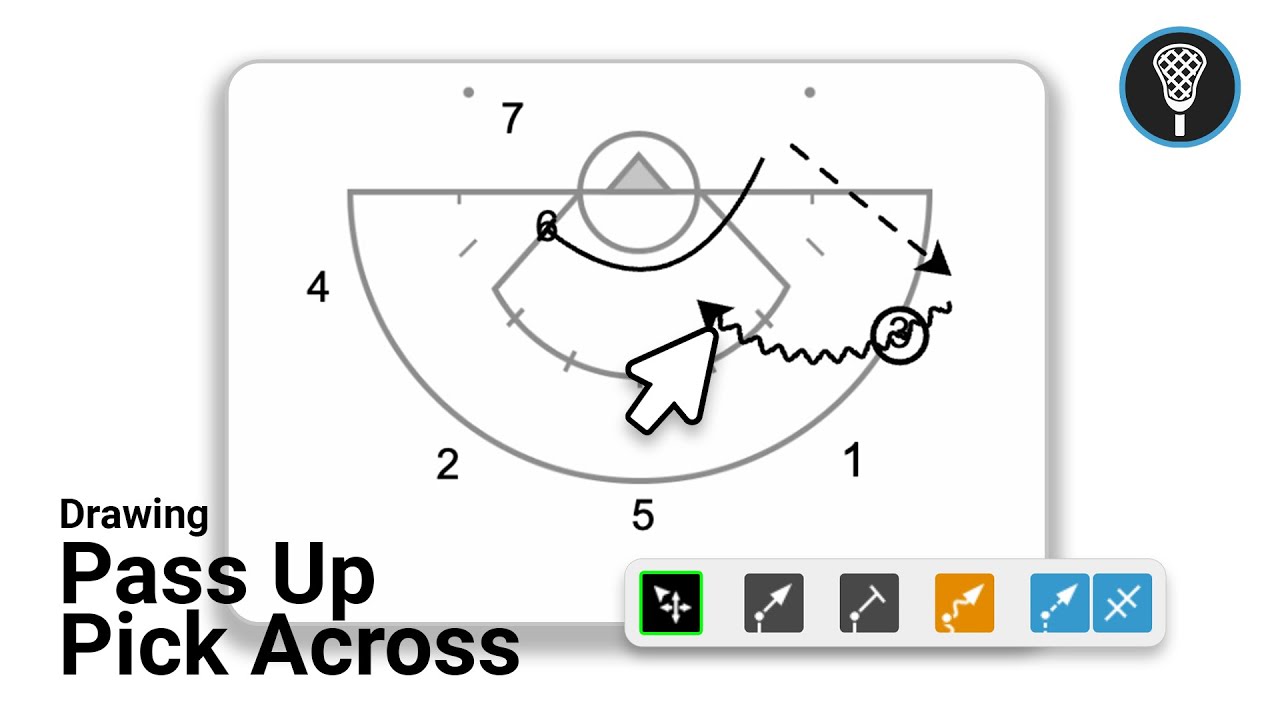
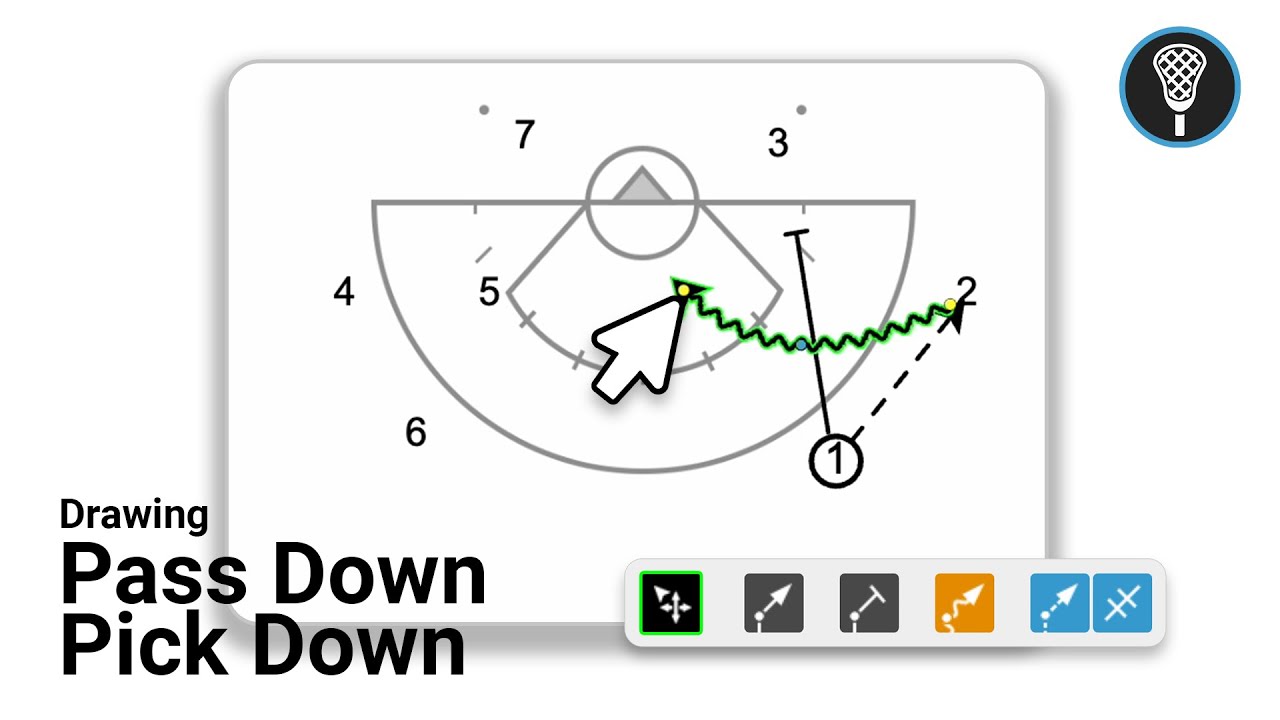
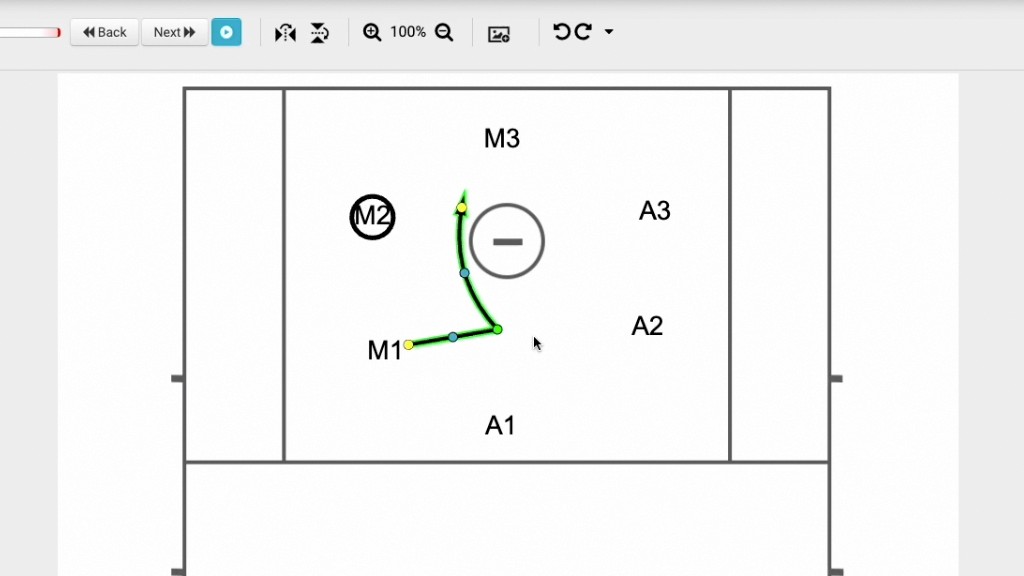
Drawing the Action: Ensure you are in freehand mode (1:00). Use the Pick tool to map the pick (1:11) and the Dodge tool to illustrate the movement of the player coming off the pick (1:41).
Refining the Animation:
Use enlarged arrows for better visibility by adjusting design properties (1:57).
Implement timing delays to ensure the players move in the correct sequence rather than simultaneously (2:28).
Organization and Documentation:
Keep plays between 2 to 4 frames for clarity (3:09).
Add diagram notes using the pencil icon for each frame (3:26).
Use the Save and Exit button to store your work, or use the details button to add notes after exiting the drawing tool (3:47).