How to Use the Buttons within the Drawing Tool
|
Play Drawing
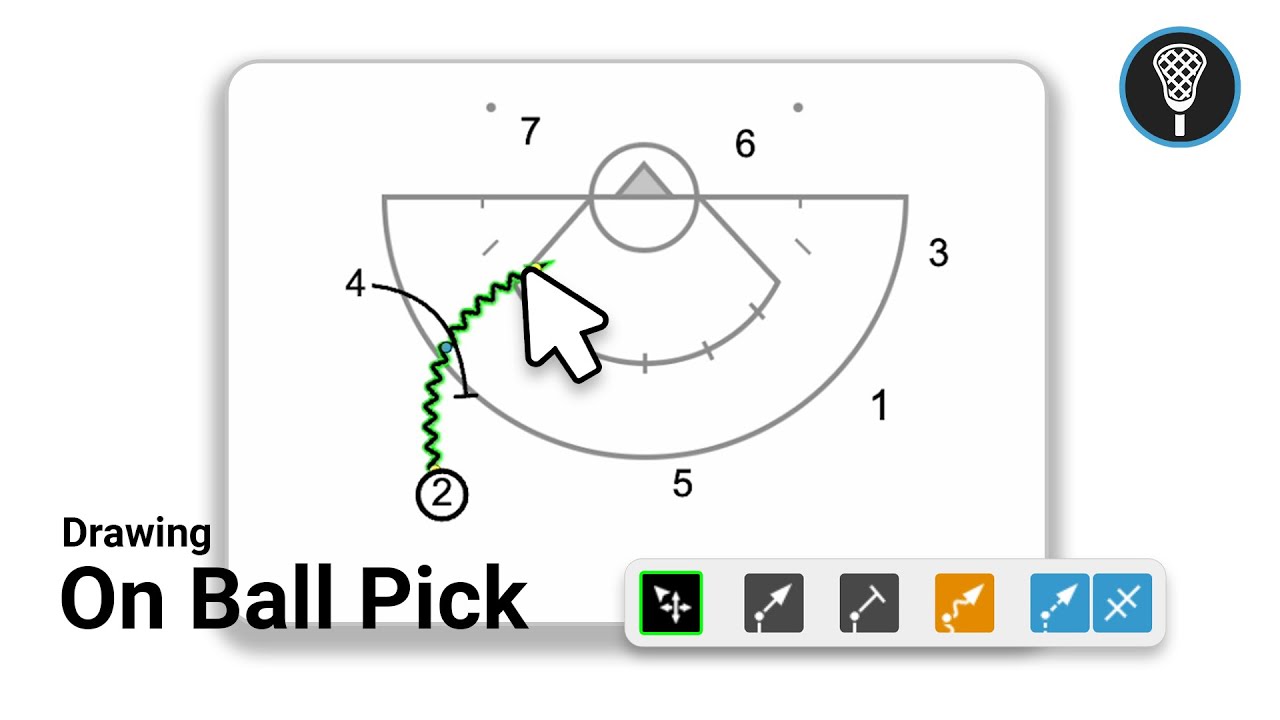
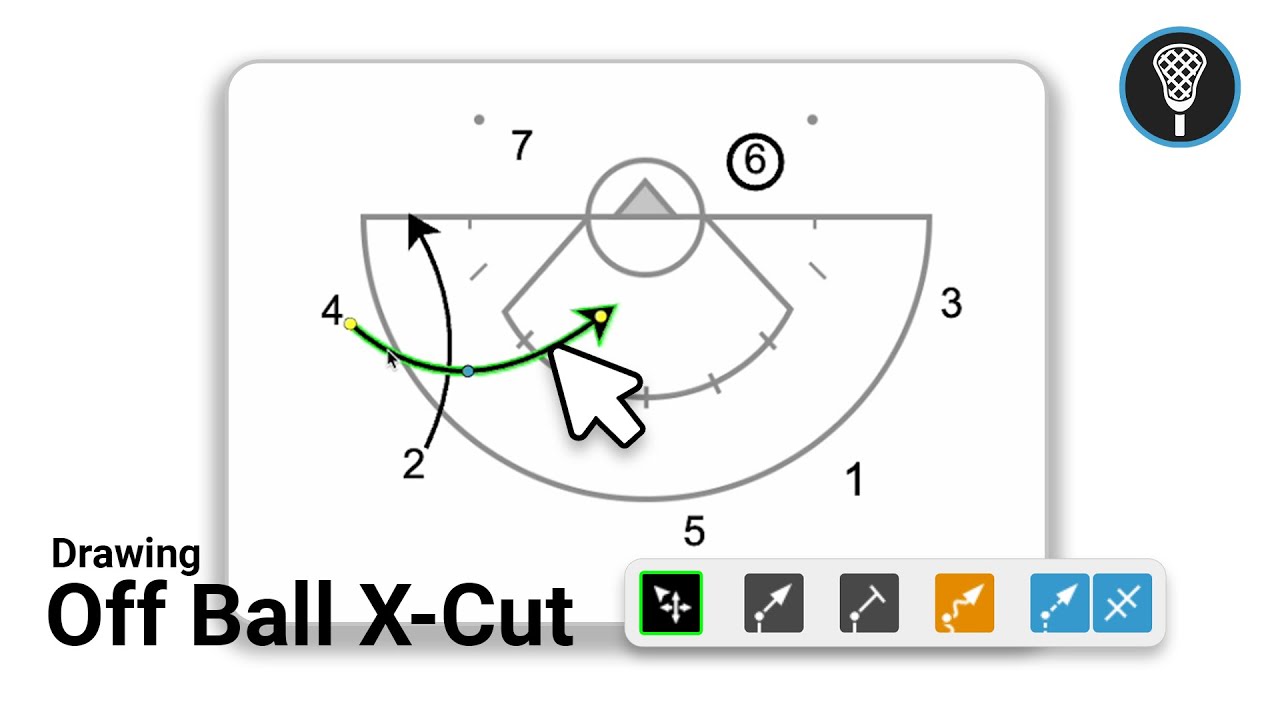
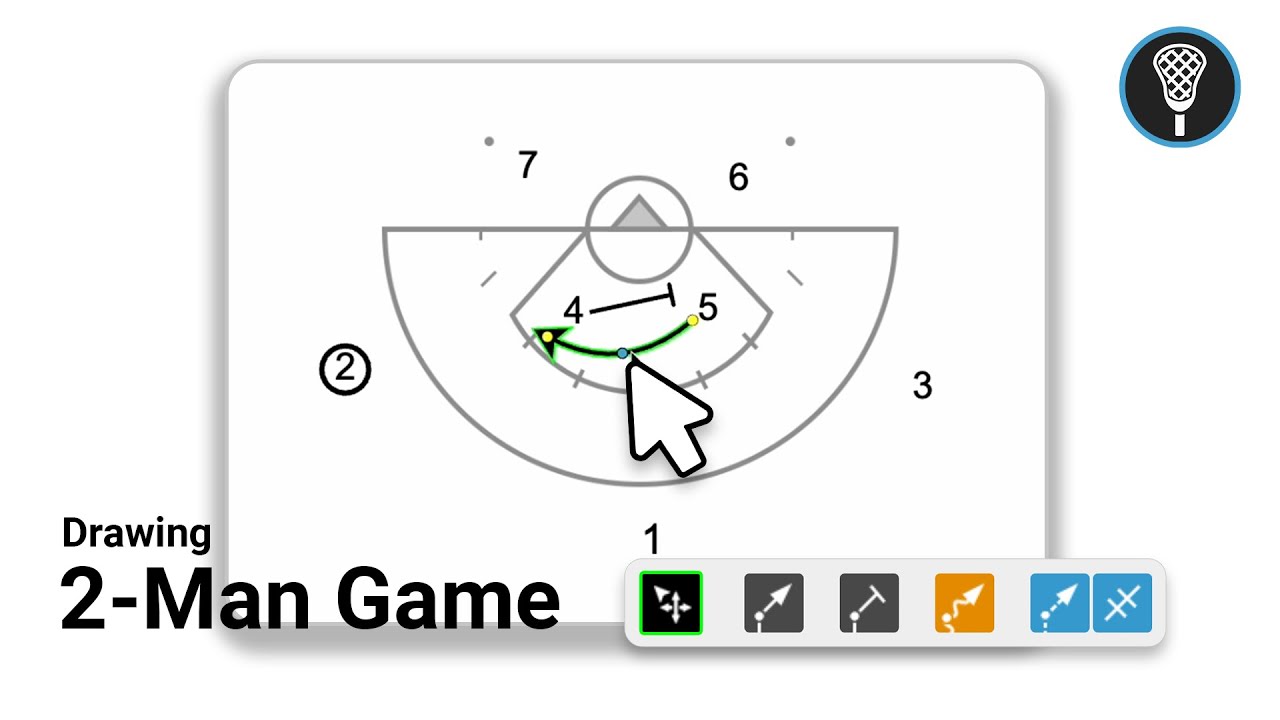
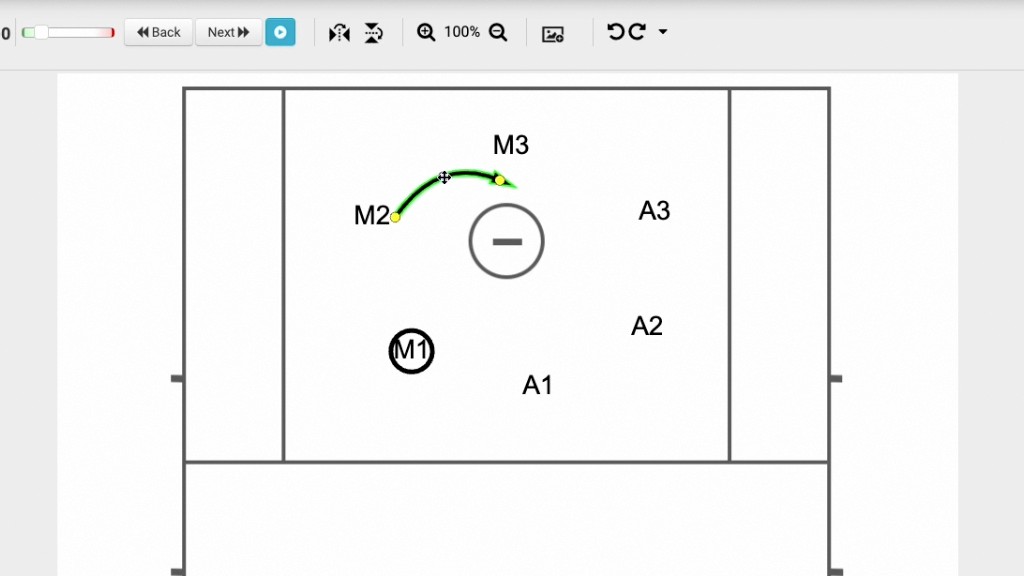
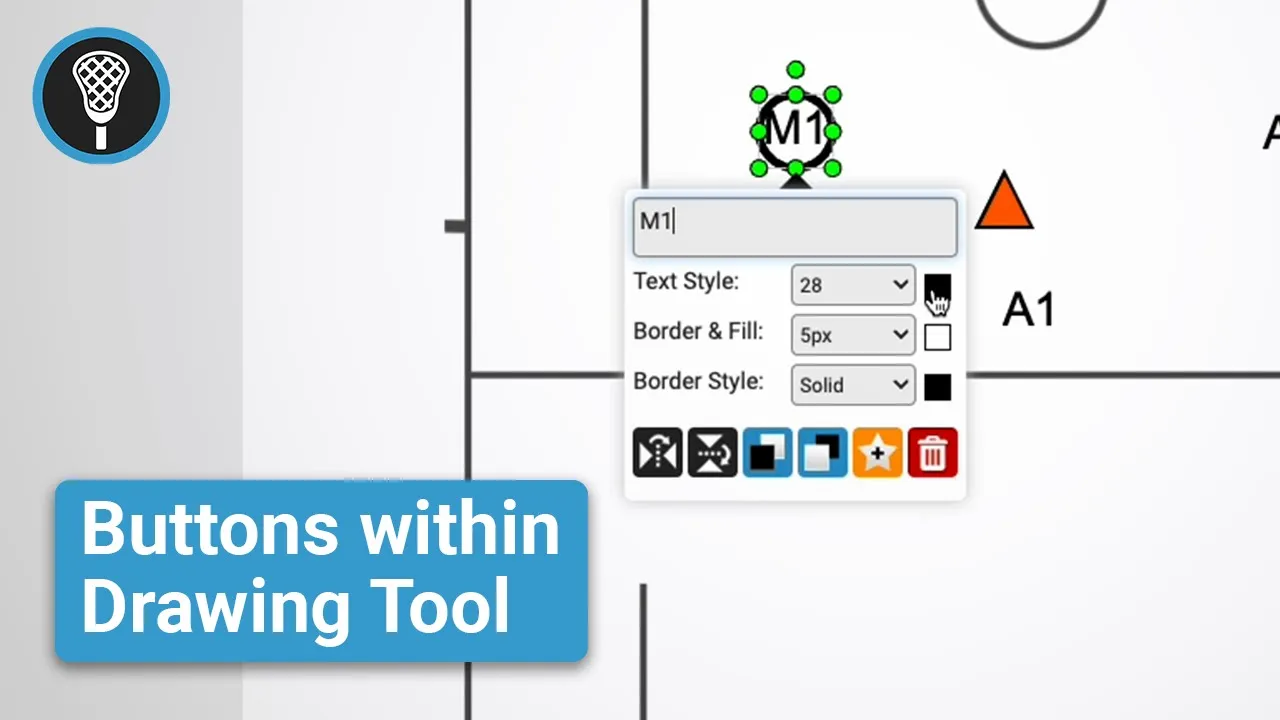
This video provides a walkthrough of the drawing tool features within the Just Play Lacrosse platform, specifically focusing on managing frames and utilizing creative tools.
Frame Management
Located on the right side of the screen, these tools help organize your play sequences:
Copy Frame: Use the two-square icon to duplicate an existing frame (0:23).
Thumbnail Selection: Set the 'Key' button to choose which frame acts as the play's thumbnail (0:33).
Notes: Use the edit button to add descriptions. It is recommended to keep these to about three lines of text so they print correctly (0:47-1:40).
Editing: You can delete frames (1:47), insert new frames between existing ones (2:07), or reorder them by dragging and dropping (2:16).
Drawing and Customization Tools
Located on the left side, these tools offer various ways to customize your diagrams:
Favorites: Save frequently used plays by grouping objects and clicking the star button. You can choose to save these for yourself or share them with your entire team (2:30-3:50).
Text and Shapes: Drag and drop numbers or text boxes to label players. You can also use shapes like triangles to represent objects like cones (3:58-4:35).
Color Customization: Change line colors to distinguish between players or denote defenders (4:38-5:05).
Canvas Settings: Toggle features like display timing delay, assist with alignment (which provides red guide lines), and adjust arrow sizes for better visual clarity (5:08-6:07).