Adding Personnel to Your Scout
|
Opponent Scouting
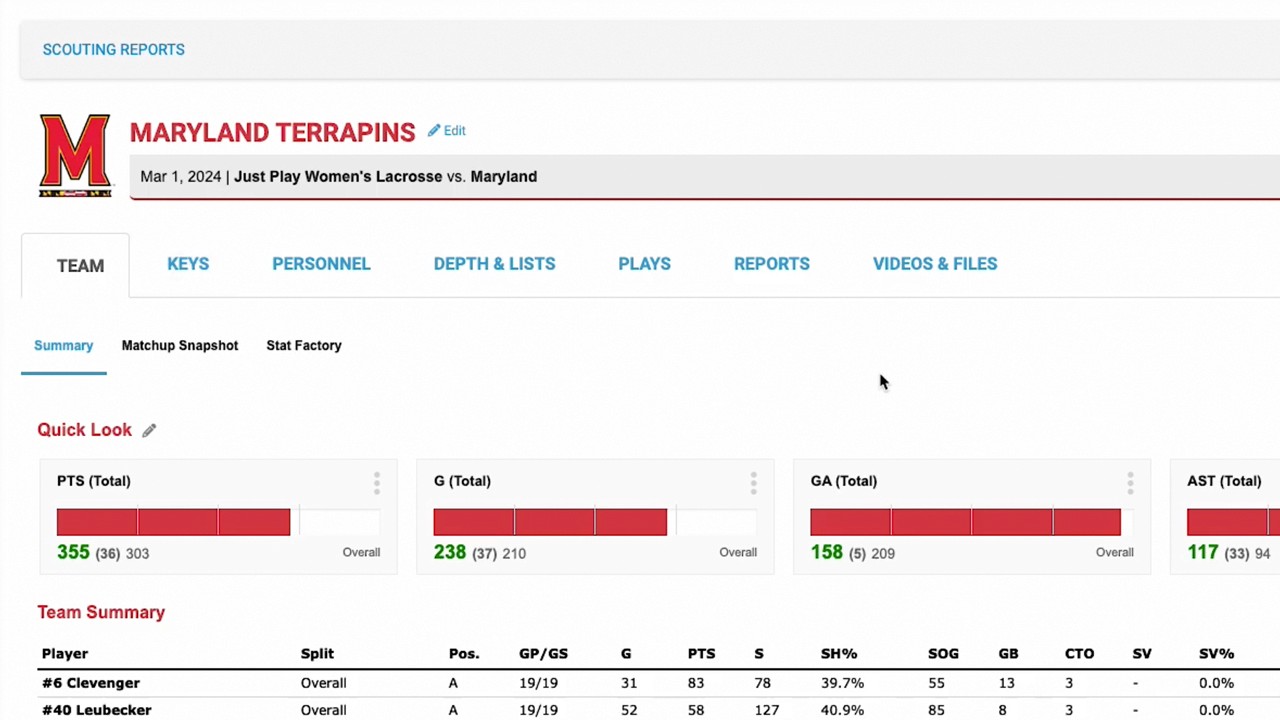
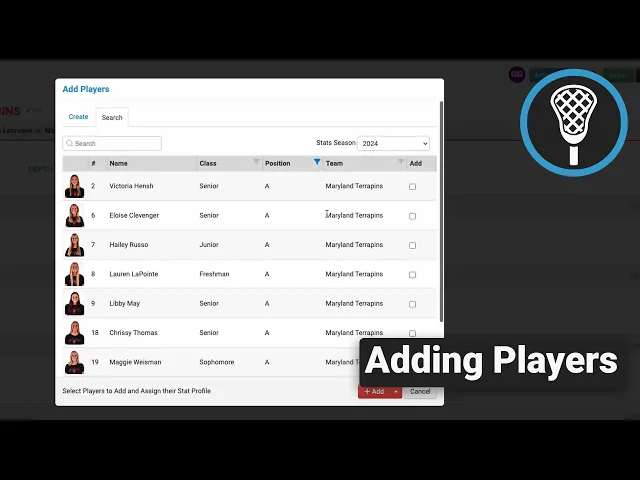
This video provides a step-by-step guide on how to add and organize personnel within a Just Play Lacrosse scouting report. It covers the workflow for importing players, categorizing them, and updating their statistical profiles.
Key steps for managing personnel:
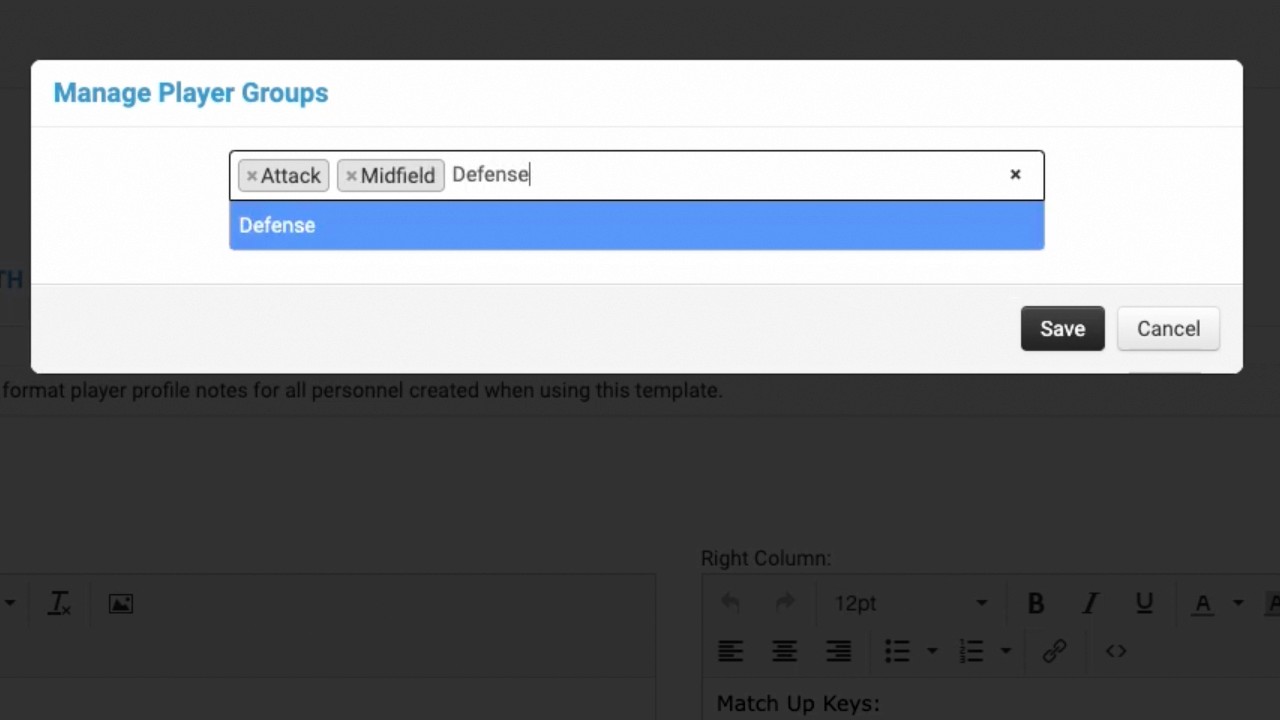
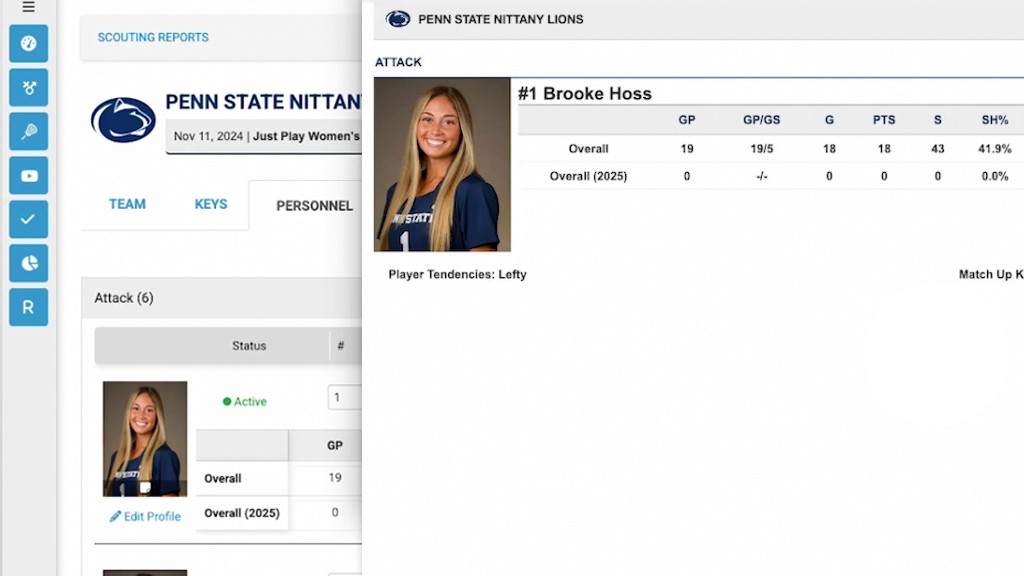
Adding Players: Navigate to the Personnel tab within your scout. You can add players to specific groups (like Attack or Midfield) by clicking Add Players, which opens the roster based on your selected game date. You can filter by position to easily find specific athletes (0:46-1:06).
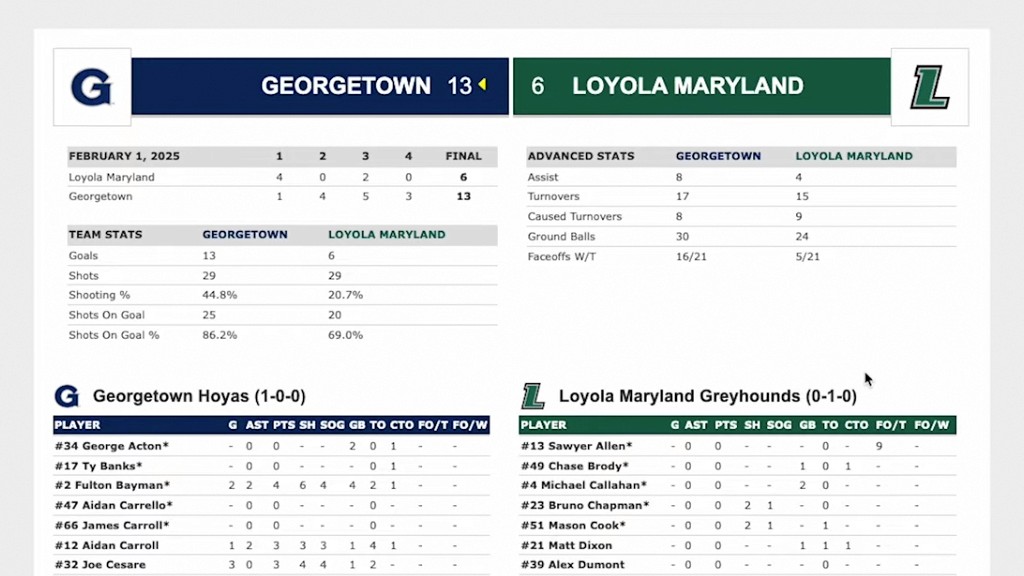
Assigning Stat Profiles: When adding players, it is crucial to select the correct stat profile (e.g., Attack/Midfield stats) so the software tracks the appropriate metrics for those positions (1:12-1:36).
Managing Groups: You can add players to a general "Other" group and then use the Reorder Players tool to drag and drop athletes into their correct positions or reorder the groups themselves (2:03-3:06).
Starter Selection: Easily designate starters by checking the box next to a player’s profile or using the bulk editing features in the Reorder Players menu (3:43-4:01).
Running Stat Updates: Before finalizing your scout, click Run Stat Update. Ensure the "Use assigned stat profile" option is selected and the "Skills list" box is checked to ensure all reports, depth charts, and skill lists are populated with the most recent data (4:10-5:12).