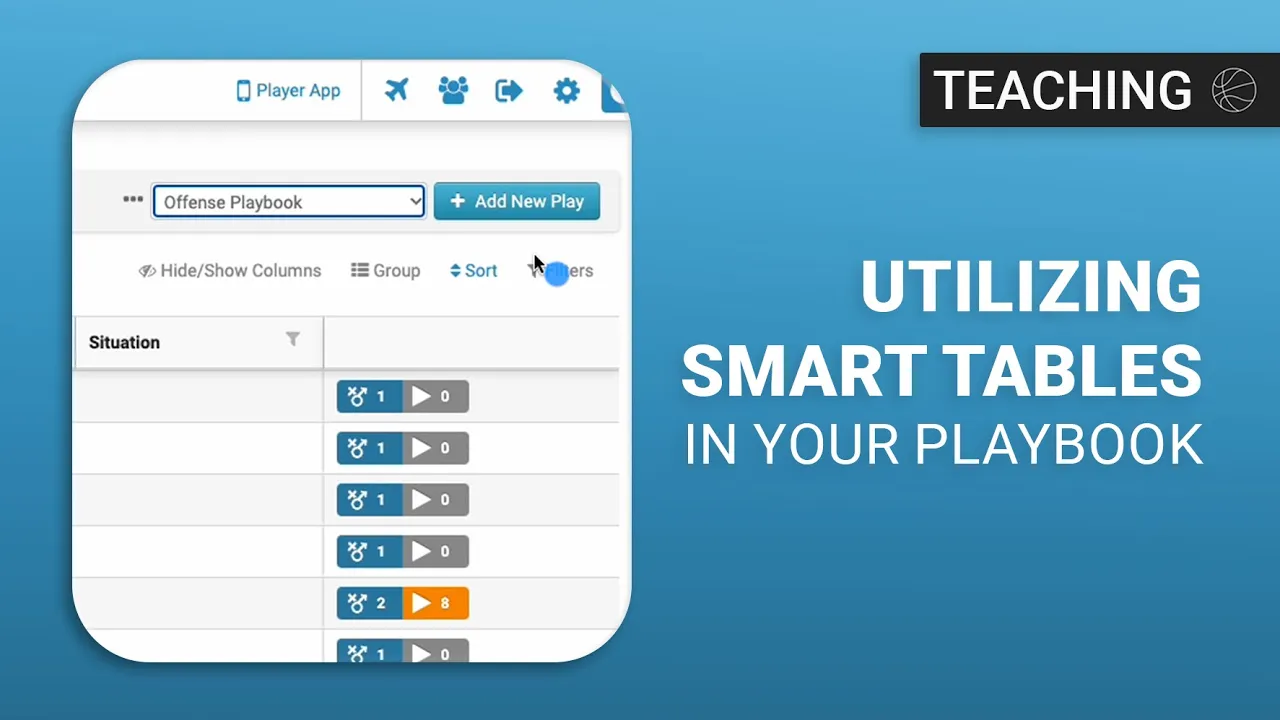
Utilizing Smart Tables In your Playbook
|
Playbook Organization
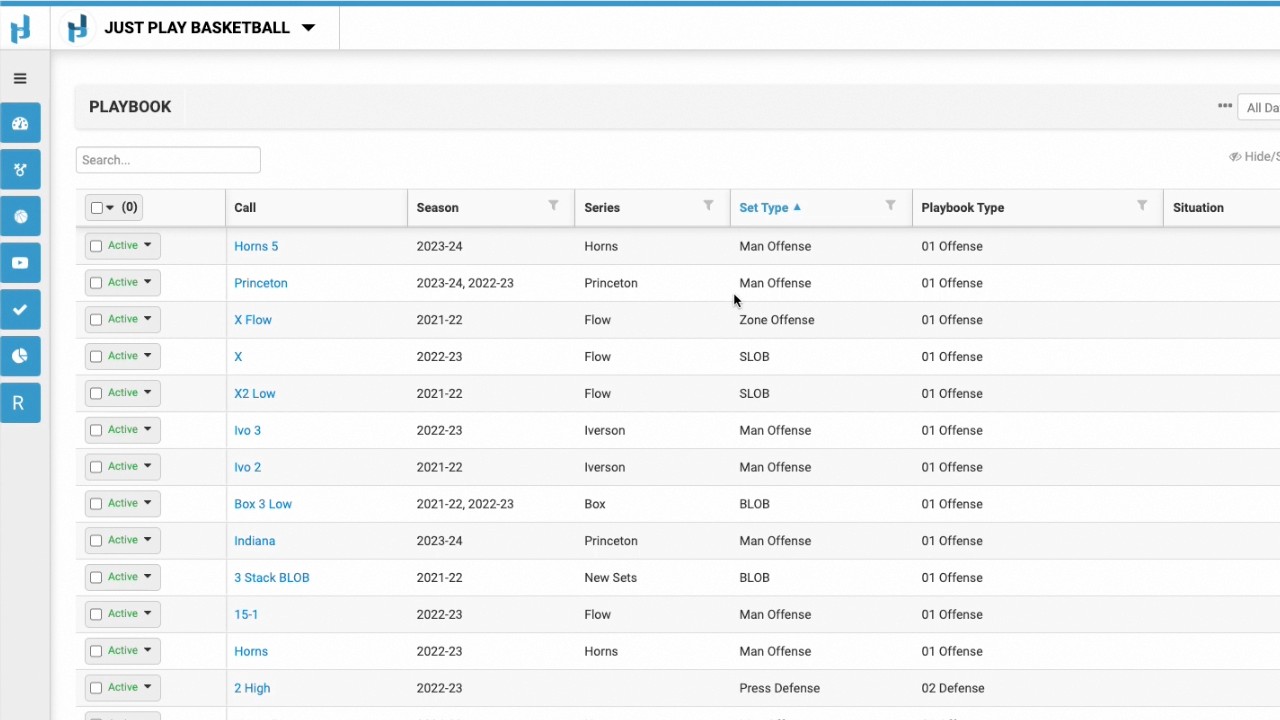
This video provides a tutorial on how to use Smart Tables within the Just Play Basketball platform to organize your playbook efficiently. By default, users begin with an "All Data" view, but the feature allows for much greater customization.
Key Functionality:
Creating Custom Views: You can clone existing tables (0:07 - 1:17) and rename them (e.g., "Offense Playbook" or "Defense Playbook") to organize plays based on specific criteria (1:20 - 1:30).
Applying Filters: Once a new table is created, you can use the filter tool to isolate specific types of content, such as only offensive or only defensive plays, making your playbook easier to navigate (1:35 - 2:27).
Sharing with Staff: You can share your custom tables with other staff members by clicking the three dots next to the table name and selecting "Share" (2:40 - 2:53). You can either select specific users or make the table "public" for all admin users in your account (3:00 - 3:08).
Important Notes:
Read-Only Access for Shared Views: When you share a view with other staff, they will be able to see the content, but they cannot modify the filters or settings (3:15 - 3:25). Any adjustments must be made by the original creator of the view (3:26 - 3:30).
Account Access: If you do not see the Smart Tables dropdown in your account, it is recommended to reach out to your Just Play representative to have the feature enabled (0:18 - 0:25).