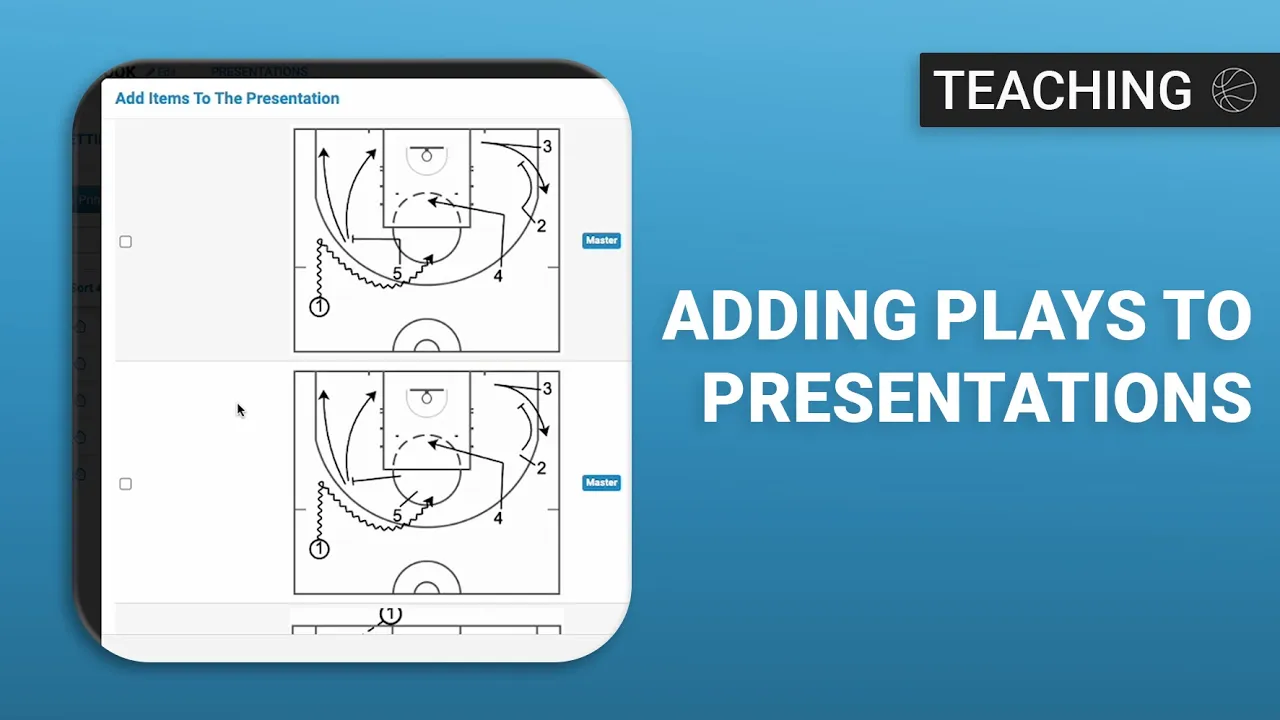
Adding Plays to Presentations
|
Playbook Organization
This video provides a tutorial on the various methods to add plays to presentations within the Just Play system.
Here are the primary ways to accomplish this:
1. From the Playbook:
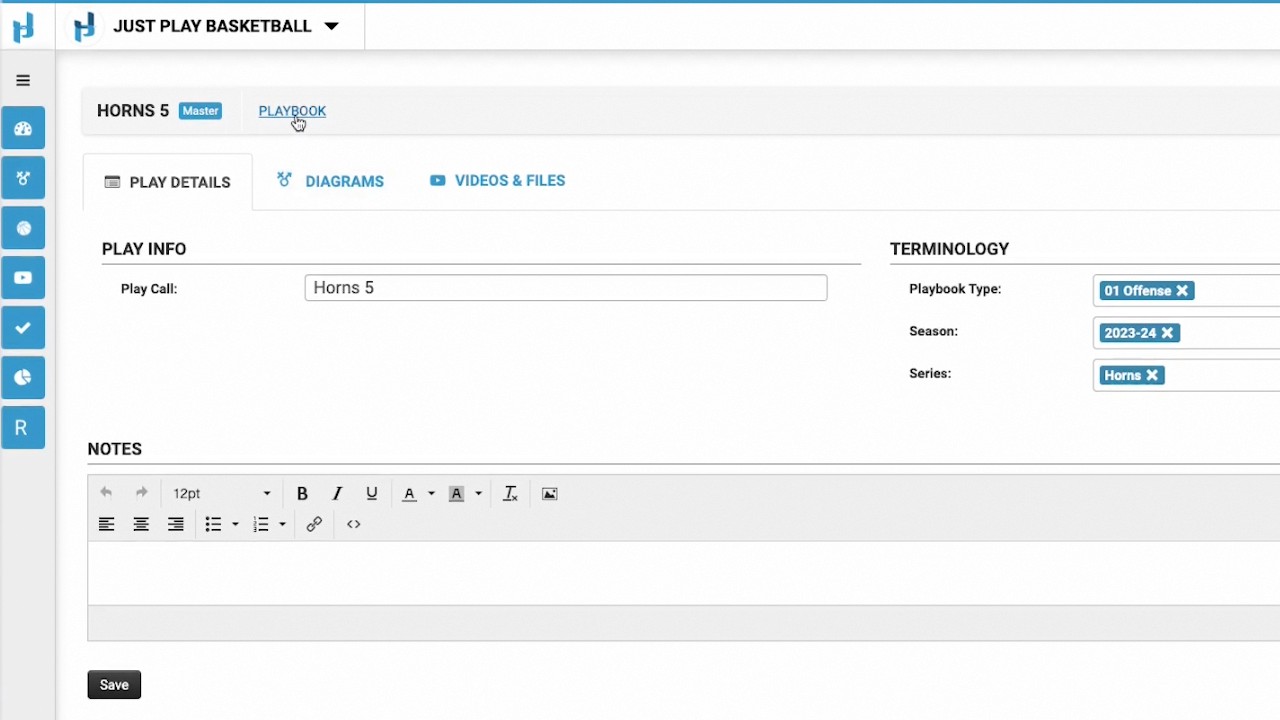
Individual Play: Navigate to a specific play within your playbook, click the Actions button in the top right, and select Add to presentation (0:15 - 0:30).
2. Via the Playbook Table:
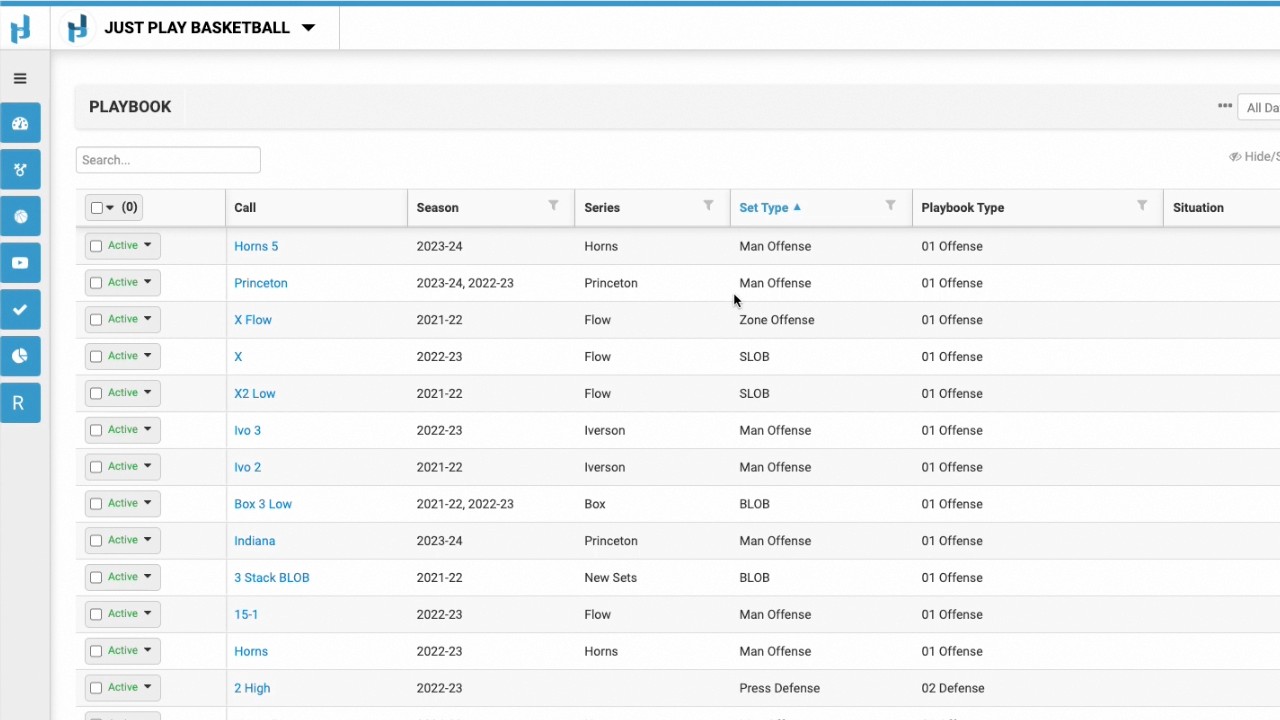
Single or Bulk Actions: In the playbook table, you can select the drop-down menu next to a specific play to add it to a presentation. Alternatively, you can select multiple checkboxes and use the bulk actions menu to add several plays at once (0:31 - 1:00).
3. Directly inside a Presentation:
Go to your Presentations and select a specific one (e.g., Offensive Playbook). Click the Add items button in the top left corner. You have three options here:
From Master Playbook: Adds a live link to your master play; any changes made in the presentation will update the master version (1:13 - 1:28).
Copy Tool: Allows you to create a version of a master play to edit within the presentation without affecting the original master play (1:29 - 1:47).
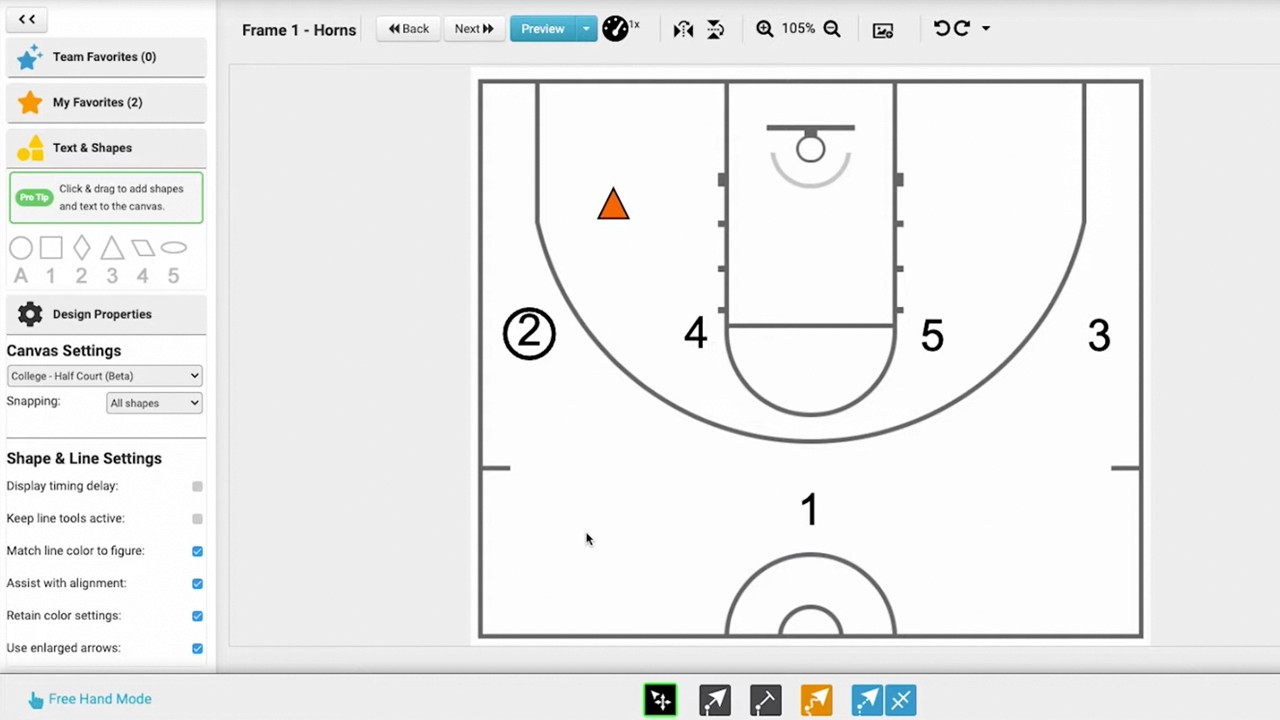
Create New: Enables you to draw a completely new play from scratch within the presentation (1:49 - 2:49).
4. Converting Strategy Plays:
If you create a new play labeled as Strategy, you can later promote it to your Master Playbook by selecting the active button next to the play and choosing Convert to Playbook (3:09 - 3:33).