Using the Hudl Wizard in Just Play
|
Integrations
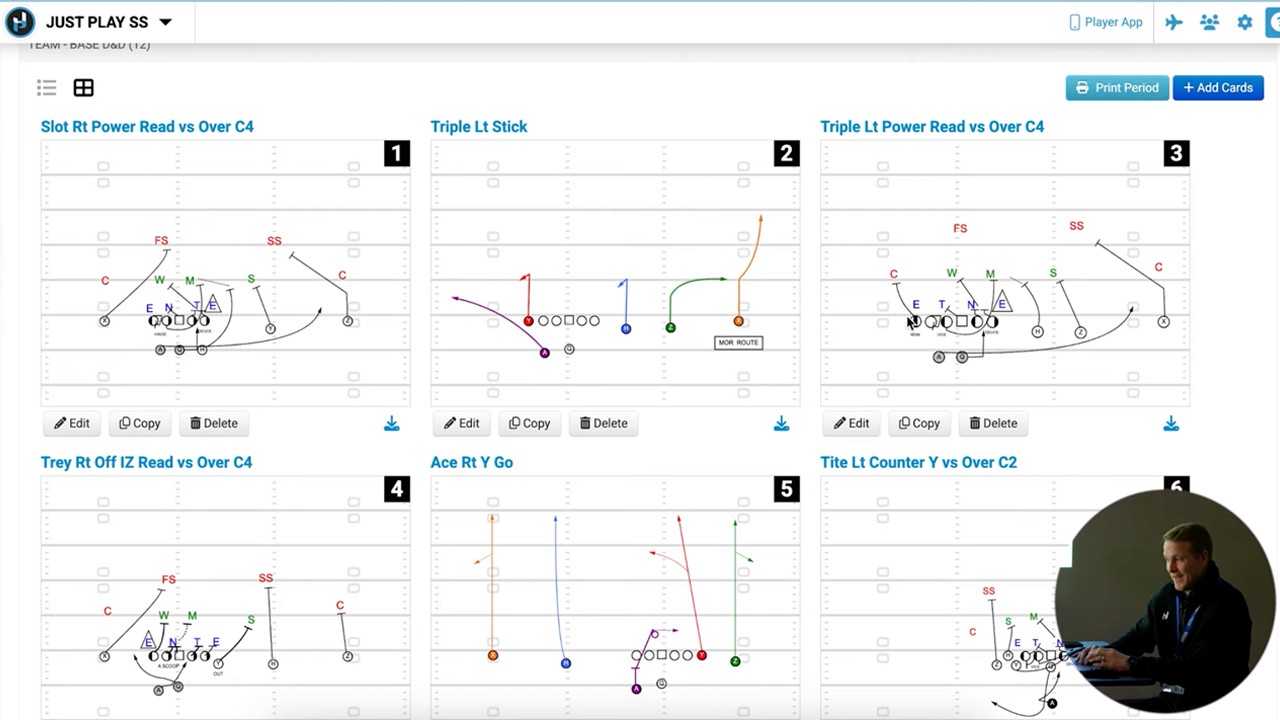
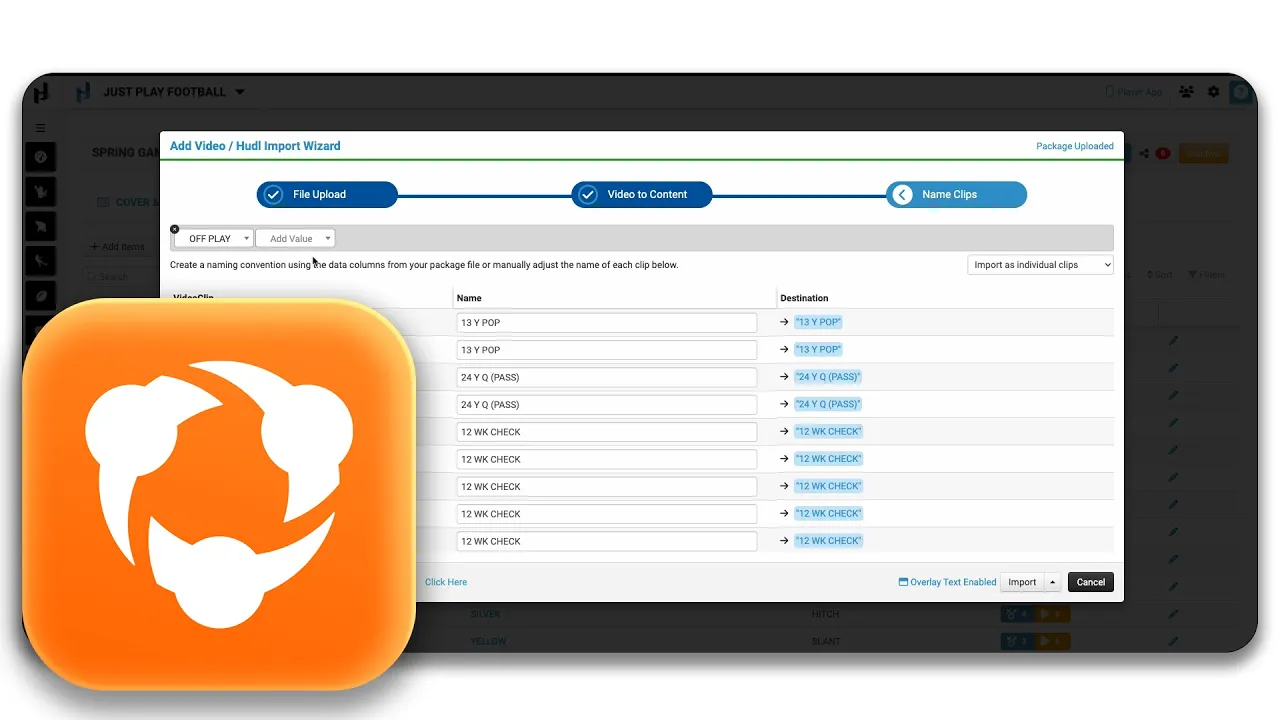
This video demonstrates how to use the Hudl Wizard within the Just Play system to efficiently import video clips from Hudl into your presentations, scouting reports, or playlists. By using this tool, you can associate video content with specific plays in bulk, avoiding the need for manual downloading and uploading.
Key Steps for Using the Hudl Wizard:
Accessing the Tool: Navigate to the Actions button in the top-right corner of your presentation and select Hudl Wizard (0:46).
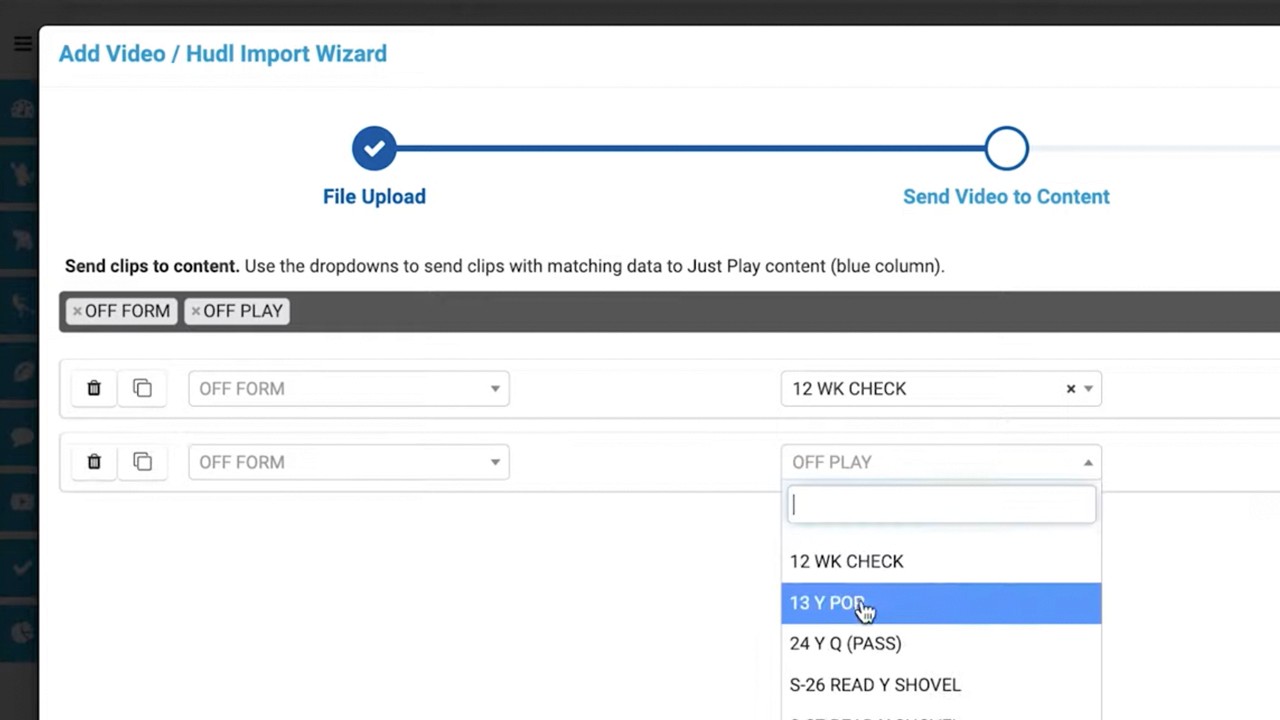
Data Mapping (0:51 - 3:15): Once you upload your Hudl package file, the wizard reads the available data points. You can map clips to existing plays or use the tool to create new plays directly within the presentation.
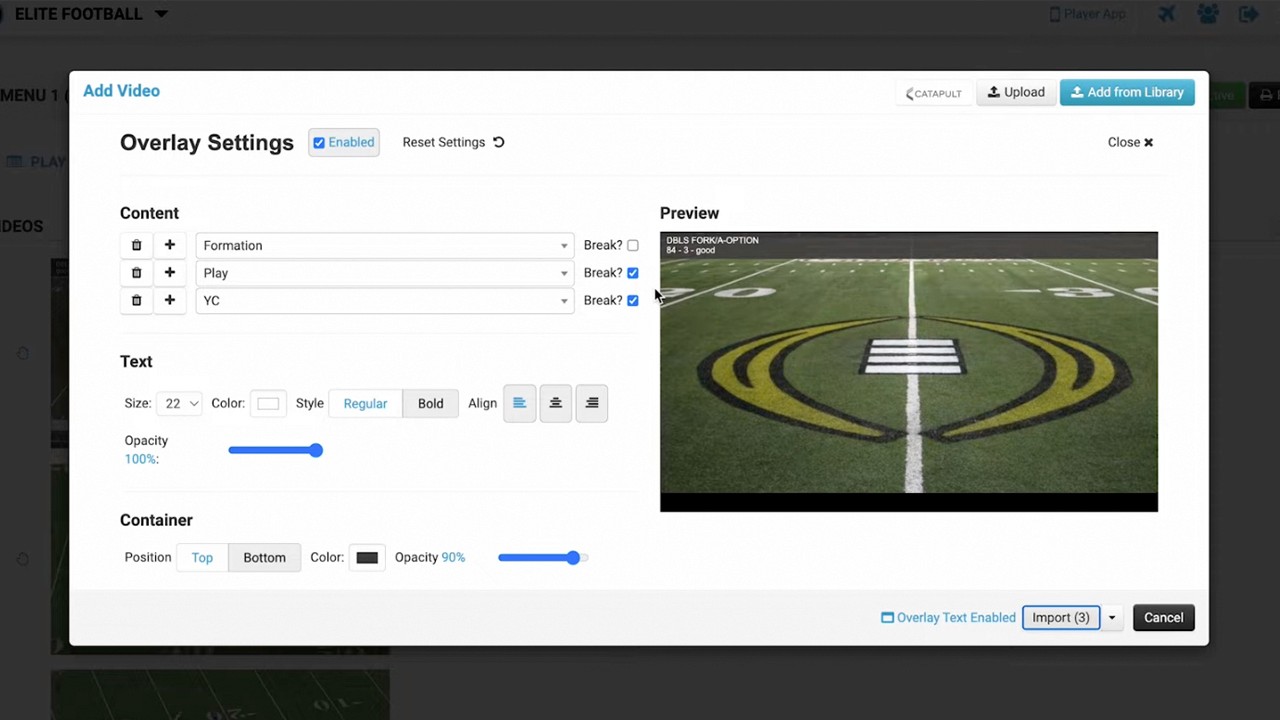
Video Customization (4:15 - 5:40): You can select specific camera angles (e.g., tight, wide) and reorder them. You also have the option to add overlay text to the video using data from your import file.
Import Settings (5:50 - 6:50): Choose whether to import as individual clips or combine them into a single video file. You can also use a naming template to automatically apply names to your clips based on the data points.
Finalization (7:05 - 9:15): After the import processes and the videos finish transcoding (which ensures device compatibility), you can preview exactly how the content will appear to players on the Just Play app.
Strategic Note: The video clarifies the difference between Master plays—which update across your entire Master Playbook when changed—and Strategy plays, which only affect the specific presentation (8:02 - 8:32).