Adding Text Overlays to Hudl Video
|
Integrations
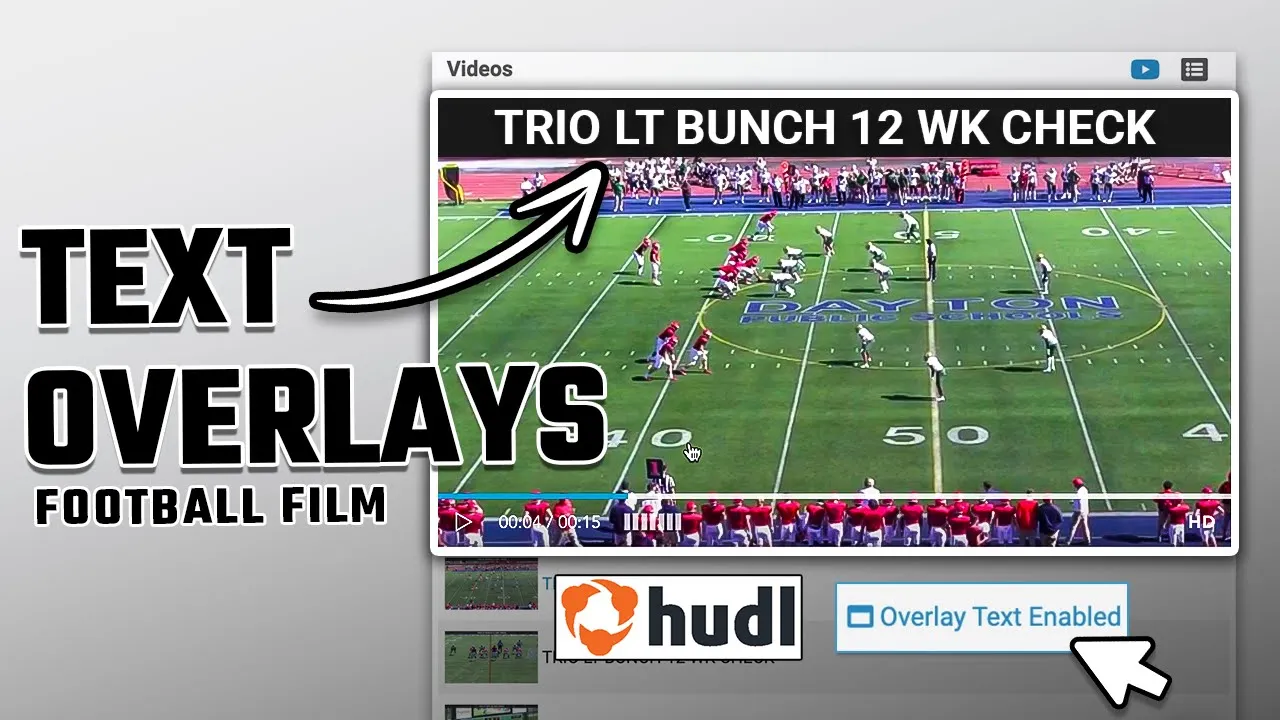
This video provides a brief tutorial for Just Play clients on how to utilize the new text overlay feature when adding videos to presentations.
Steps to add text overlays:
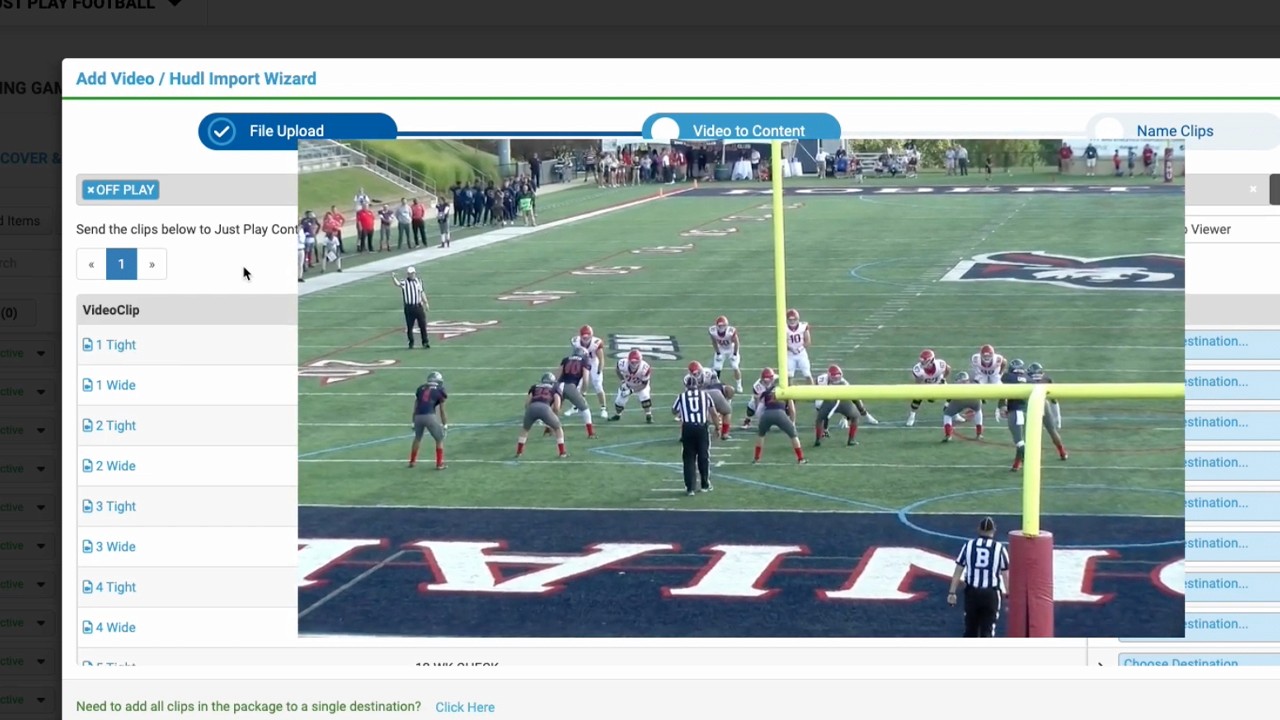
Configure Data and Destination: Initially, select the data you want to associate with the video and specify its destination within your system (0:08 - 0:16).
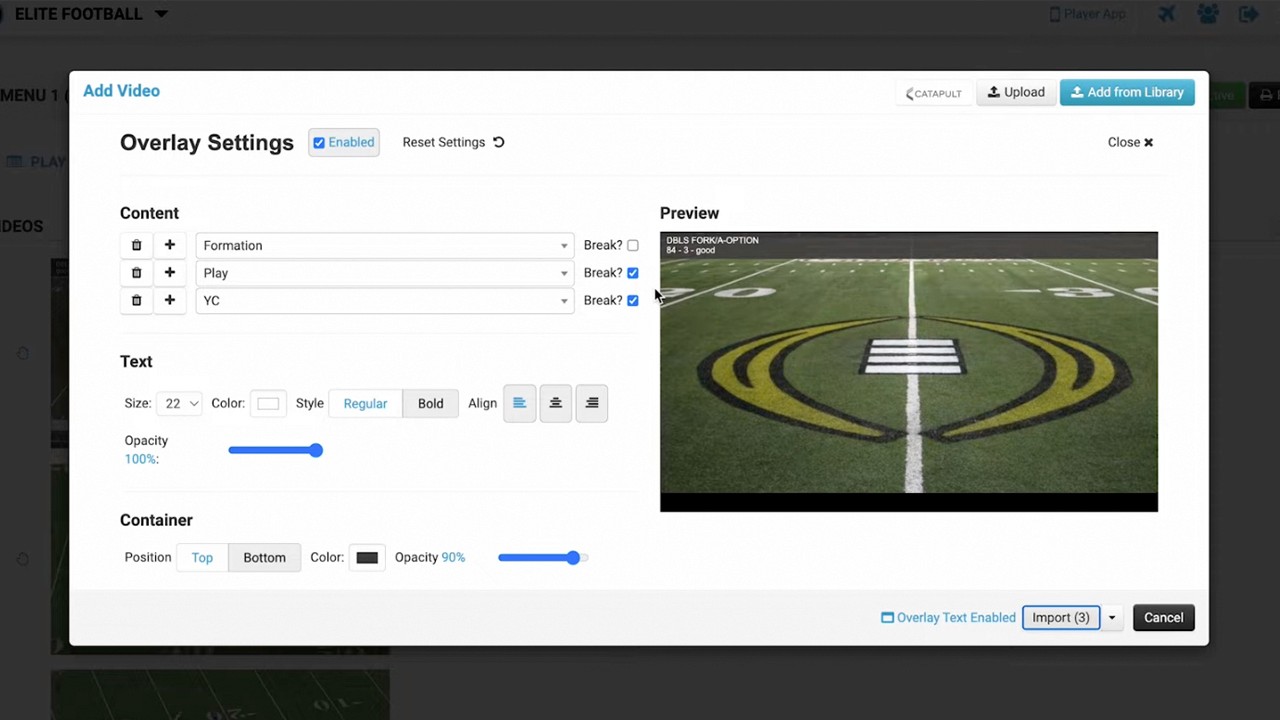
Enable Overlays: Navigate to the bottom right and toggle the overlay text enabled option (0:22 - 0:27).
Customize Content: Choose the specific information to display on the video and select your preferred visual styles. You can view a live preview on the right side of the screen (0:27 - 0:39).
Finalize: Once configured, close the menu and click import to apply the changes (0:39 - 0:45).
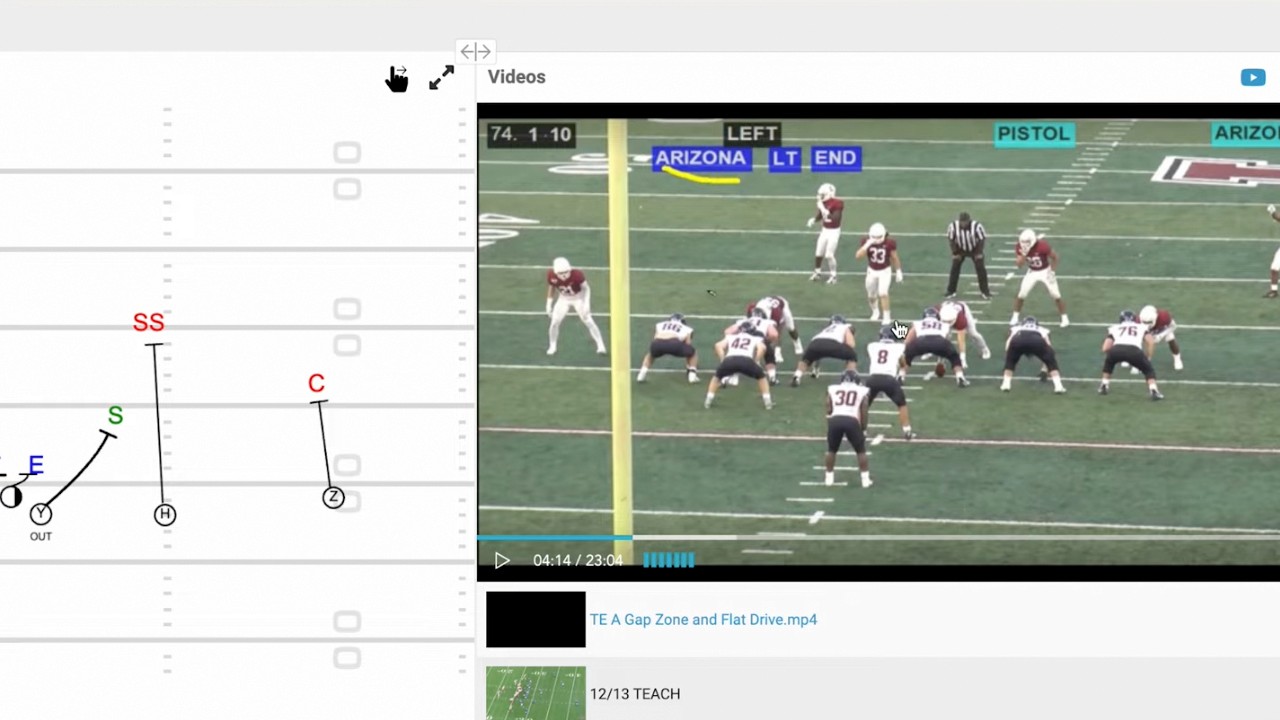
By using this feature, coaches can provide players with better context, allowing them to see specific information at the top or bottom of the screen while watching their videos (0:45 - 1:11).