Creating Manual Scouting Reports
|
Opponent Scouting
This video provides a step-by-step guide on creating a manual scouting report and adding players within the Just Play basketball platform.
Key steps for creating a manual scouting report:
Report Initialization: Start by creating a new report (0:09), entering the opponent's name, selecting the game date, and choosing a scout template (0:12-0:24). You can further customize the report by editing the title, adding team colors, or uploading a logo (0:28-0:34).
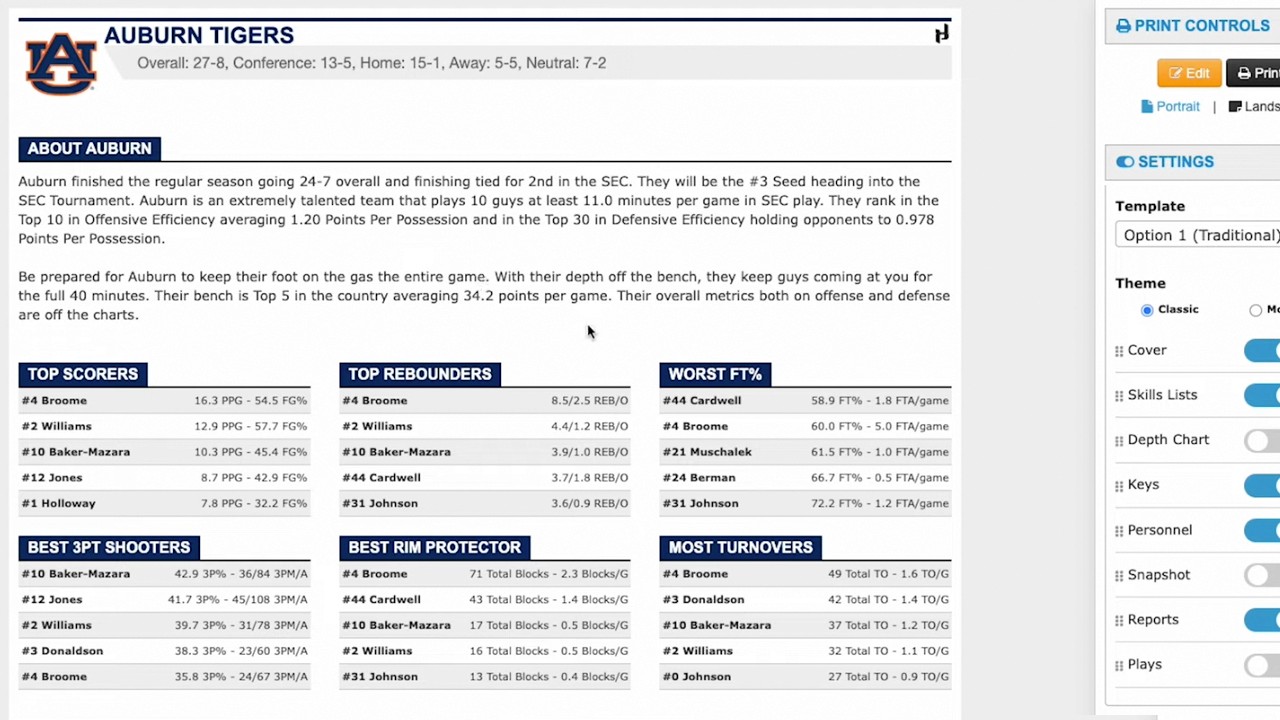
Defining Keys: Use the "Keys" tab to outline important scouting points for the opponent (0:38-0:43).
Managing Personnel: Toggle to the "Personnel" tab to manually add players to the roster (0:43-0:56). Manually added players are identified by a wrench icon (1:24-1:28).
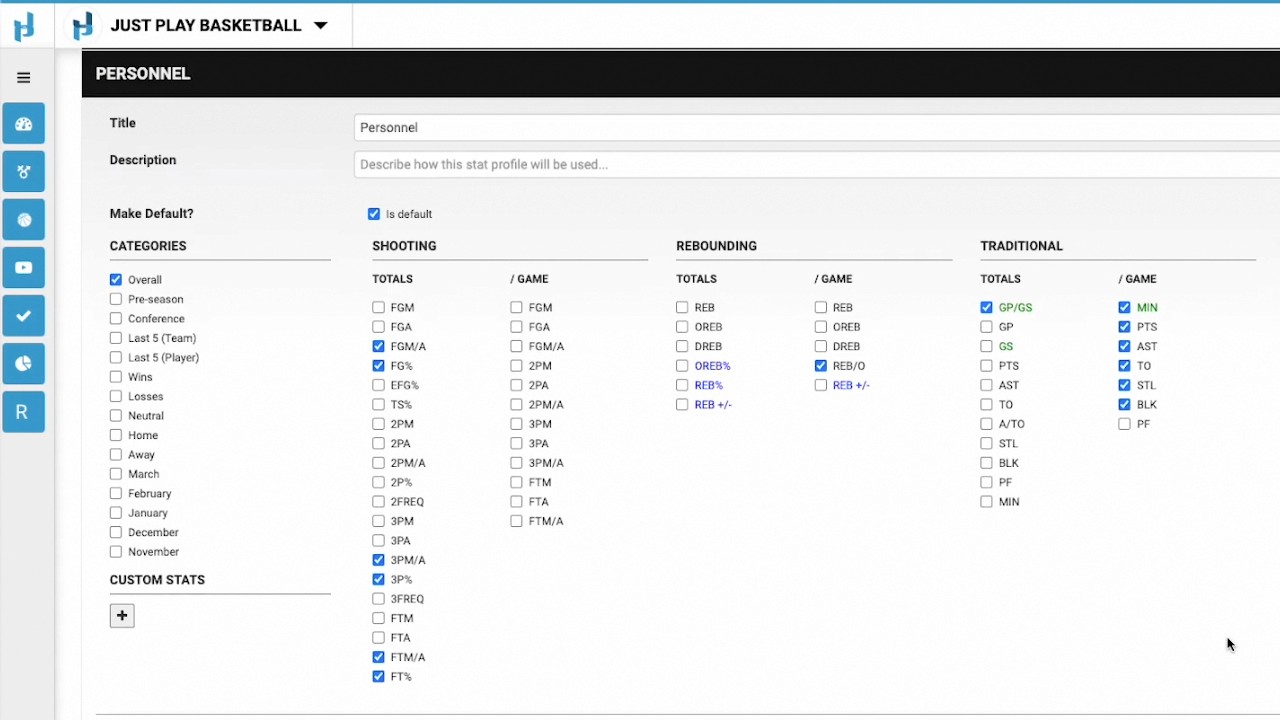
Assigning Stats: To include statistics, use the "Actions" dropdown next to a player, select "Assign stat profile," and run the update (1:35-1:52). You can then manually input data directly into the stat fields (1:57-2:08).
Player Profiles & Media: Access "Edit Profile" to add player notes, photos, or video content (2:10-2:38). You can also set specific matchups for your athletes to view on their app (2:35-2:38).
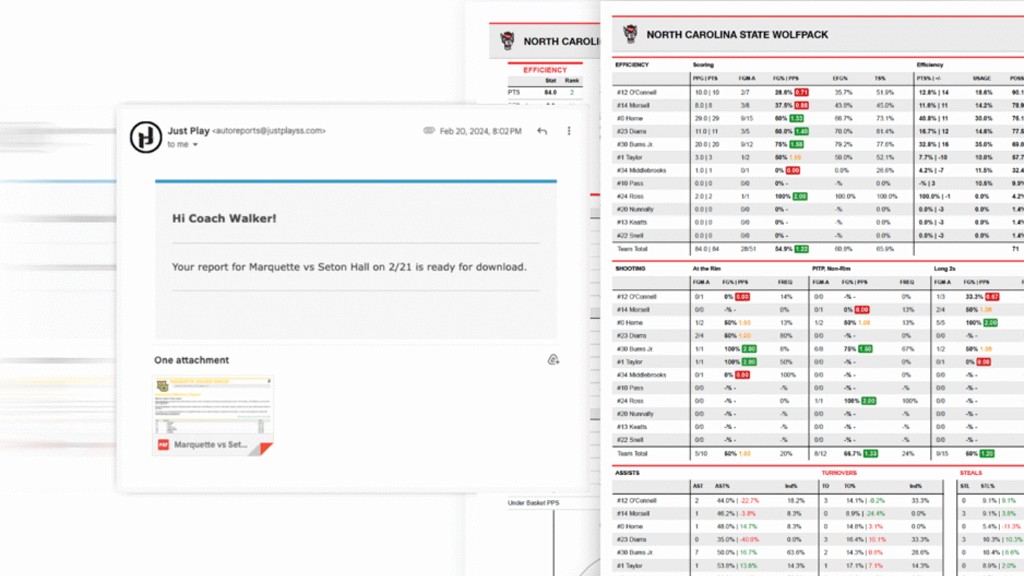
Finalizing & Sharing: Once the personnel are set, you can add team-wide notes or video in the main scout area (2:50-3:05). Finally, share the finished report with athletes via the app or print it using the buttons in the top right corner (3:10-3:22).