Adding Video to Your Plays
|
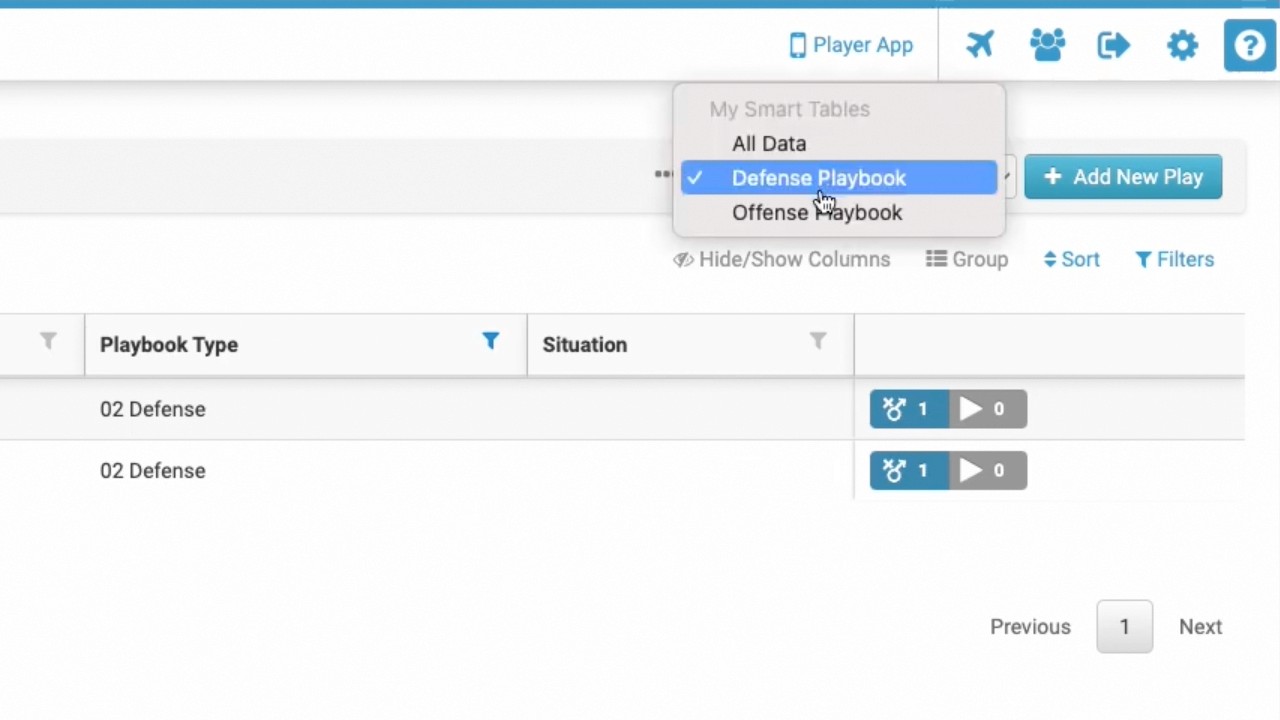
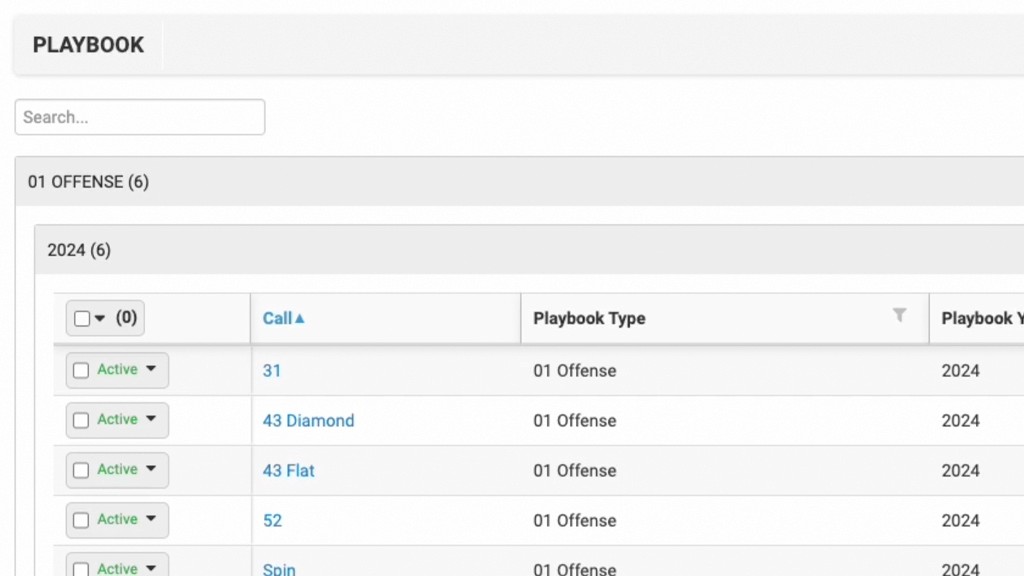
Playbook Organization
This video provides a walkthrough on how to add video files to plays within the Just Play Lacrosse platform.
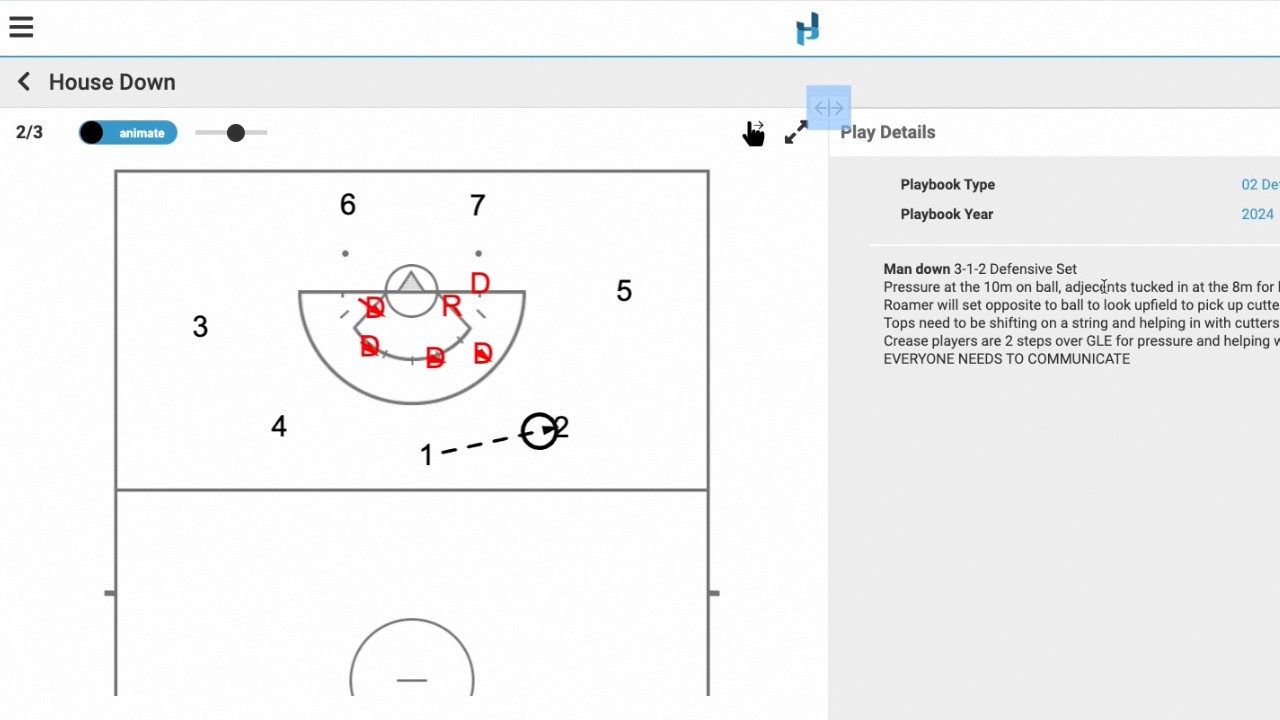
Saving and Exiting: After drawing your plays, ensure you click the green save and exit button to return to the play creation screen (0:15-0:22).
Managing Frame Notes: You can add notes to your frames by clicking the details button (0:33-0:39).
Important Warning: Avoid the red X button on the frame view, as this will delete all frames associated with the play. To safely delete individual frames, use the edit button to return to the drawing tool (0:43-0:56).
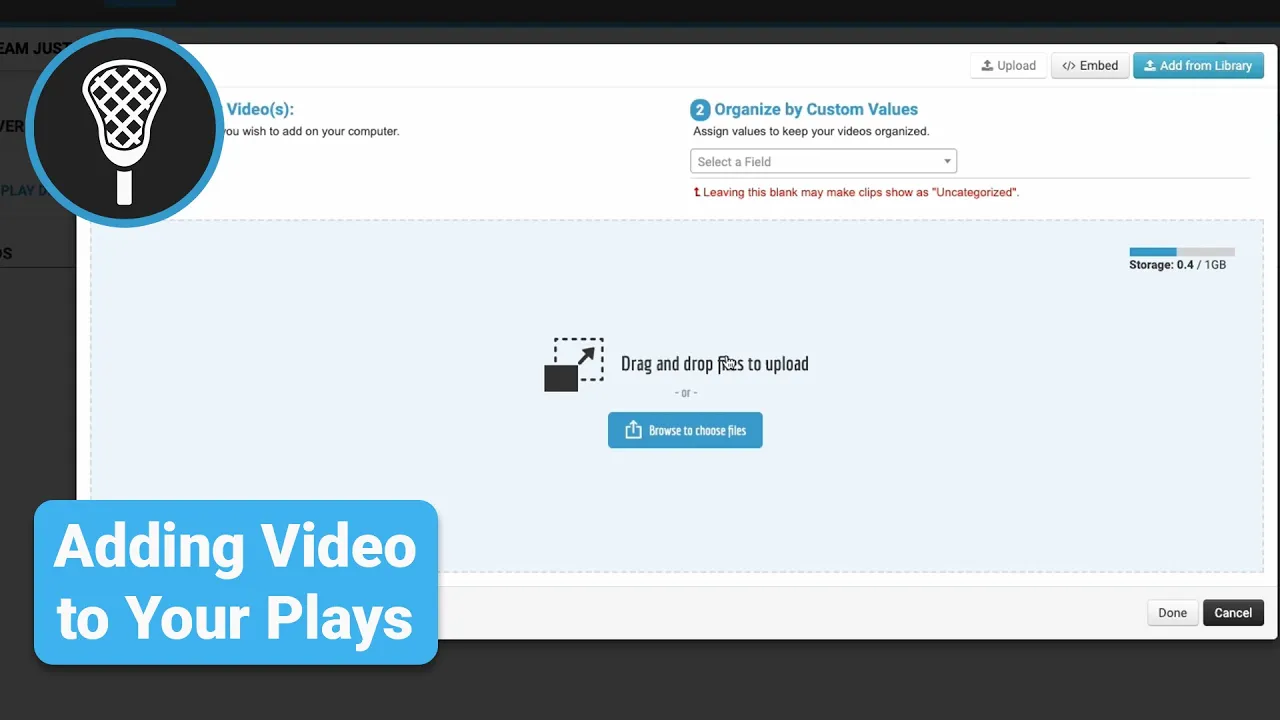
Adding Video: Navigate to the Videos and Files tab. Click Add and simply drag and drop your MP4 or MOV files from your desktop into the designated box. Once the upload reaches 100%, the video will be successfully attached to your play (0:57-1:11).