Creating and Sharing Presentations
|
Teaching
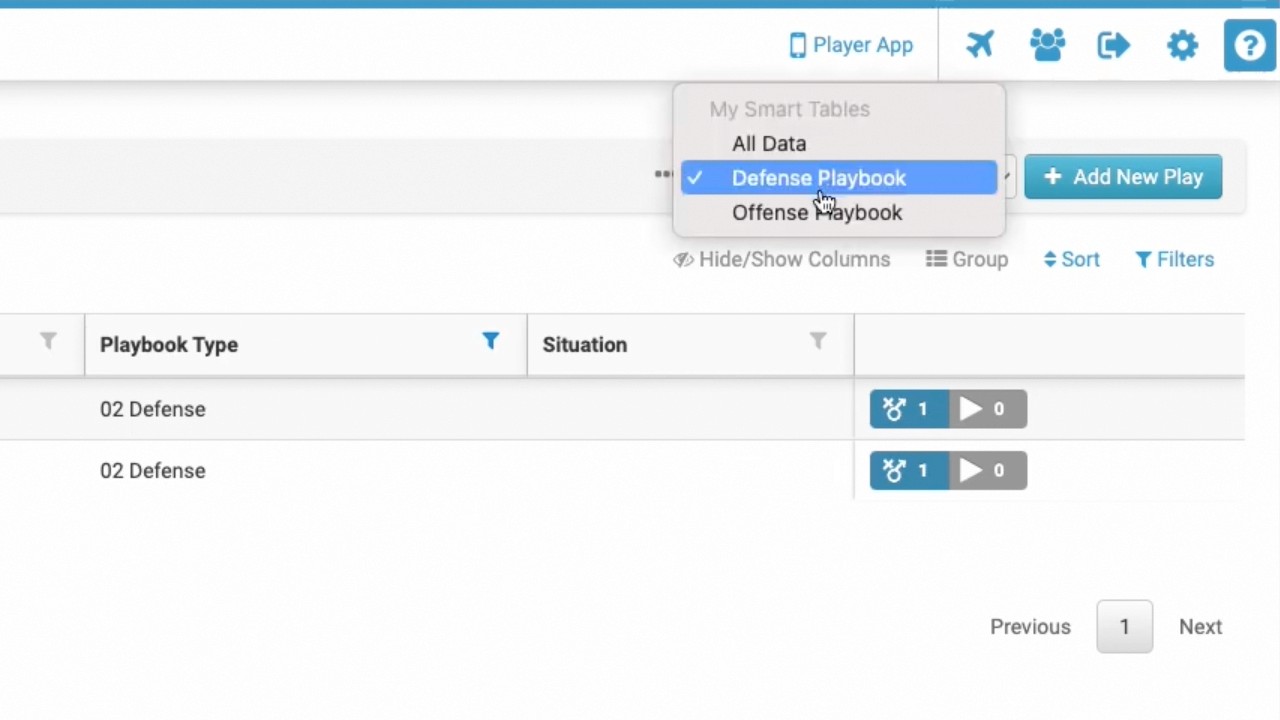
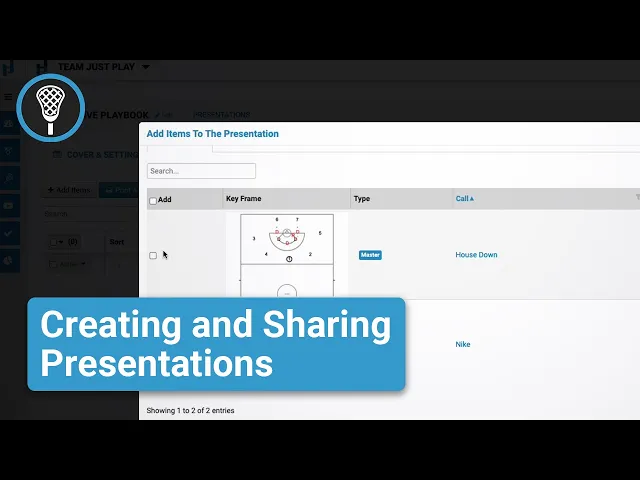
This video provides a step-by-step guide on how to create and share presentations within the Just Play Lacrosse platform, treating them as focused subsets of a larger Master Playbook.
Key Steps in Creating Presentations:
Setup: Navigate to the Playbook section and select Presentations (0:29-0:33). Create a new presentation, assign it a type (e.g., Playbook), and click submit (0:55-1:29).
Adding Content: Use the Add Items button to insert plays from your Master Playbook (maintaining a link for future updates) or use the Copy feature to create independent versions that you can edit without affecting the master file (1:36-3:31).
Organizing: Enable Manual Sort to reorder your plays by dragging and dropping them into your desired sequence (3:33-3:43).
Adding Extras: You can add notes and a cover image for players in the Cover and Settings tab; note that these are digital-only and will not appear on printed copies (3:59-4:19).
Sharing and Player Access:
Activation: For players to see content, ensure every individual play is set to active and that the overall presentation status is flipped from Inactive to Active (4:54-5:09).
App Experience: Once shared, the presentation appears on the player's app dashboard. Players can view notes, animate plays using the speed slider, toggle between different plays, and access linked video content (5:15-6:22).