Navigating the Just Play Team App
|
Teaching
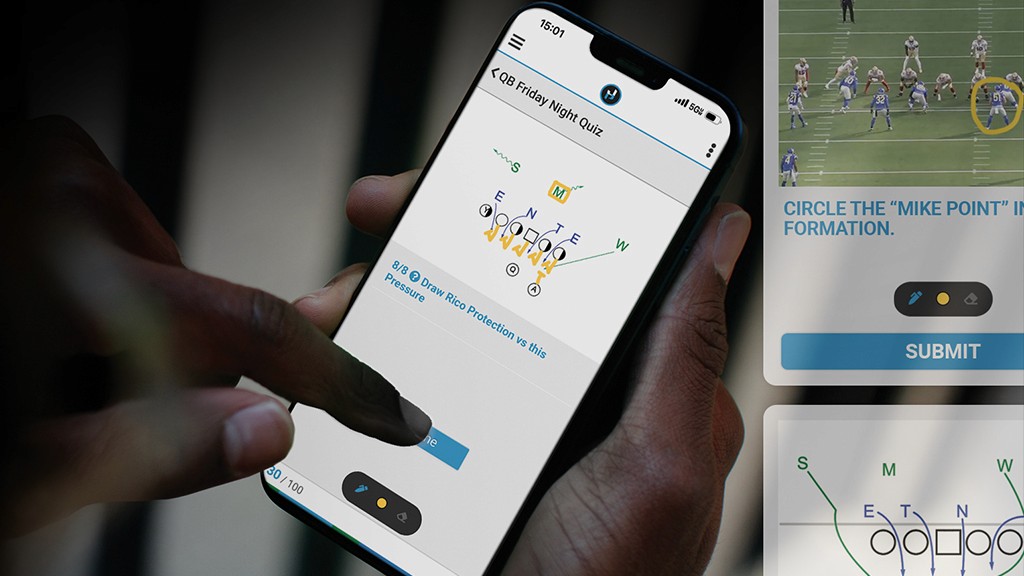
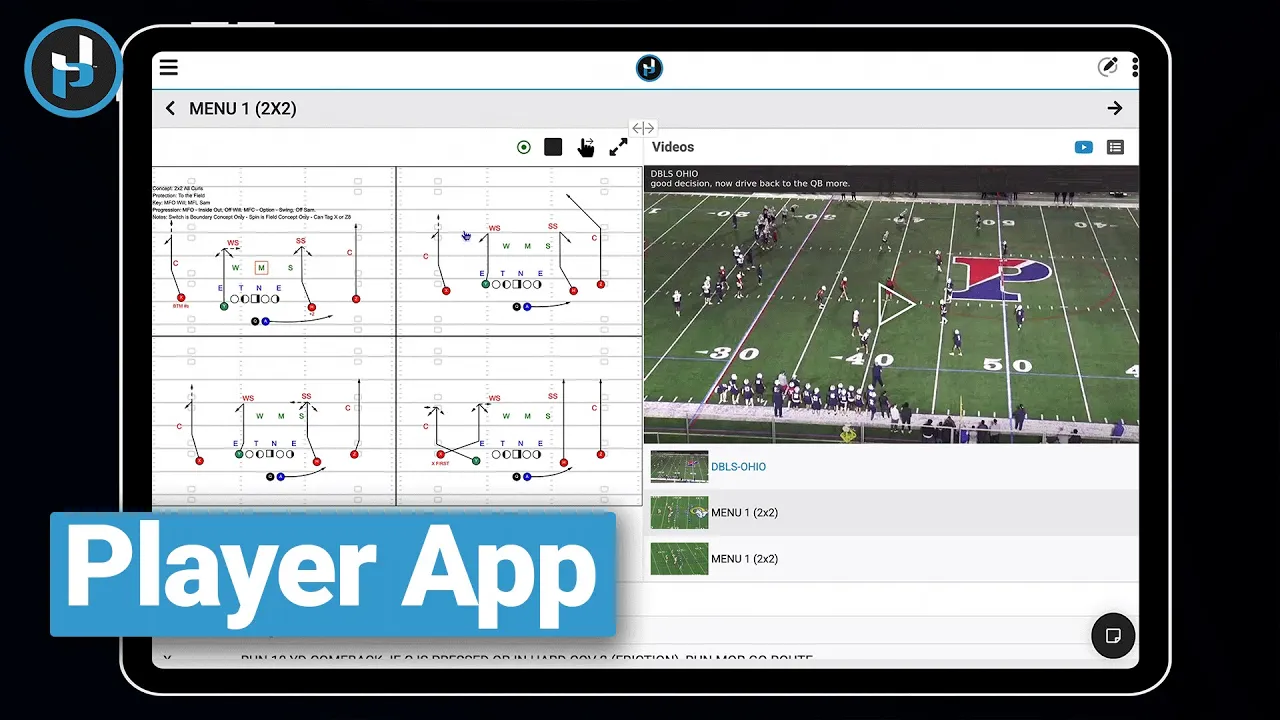
This video serves as a comprehensive guide for players on how to use the Just Play app to access and study game plans and content shared by their coaches.
Getting Started:
Access: The app is available on iOS, Android, and desktop computers (0:06-0:17).
Logging In: Use the credentials provided to reach your dashboard, where you can view all shared content, presentations, and quizzes (0:28-0:40).
Navigating Content:
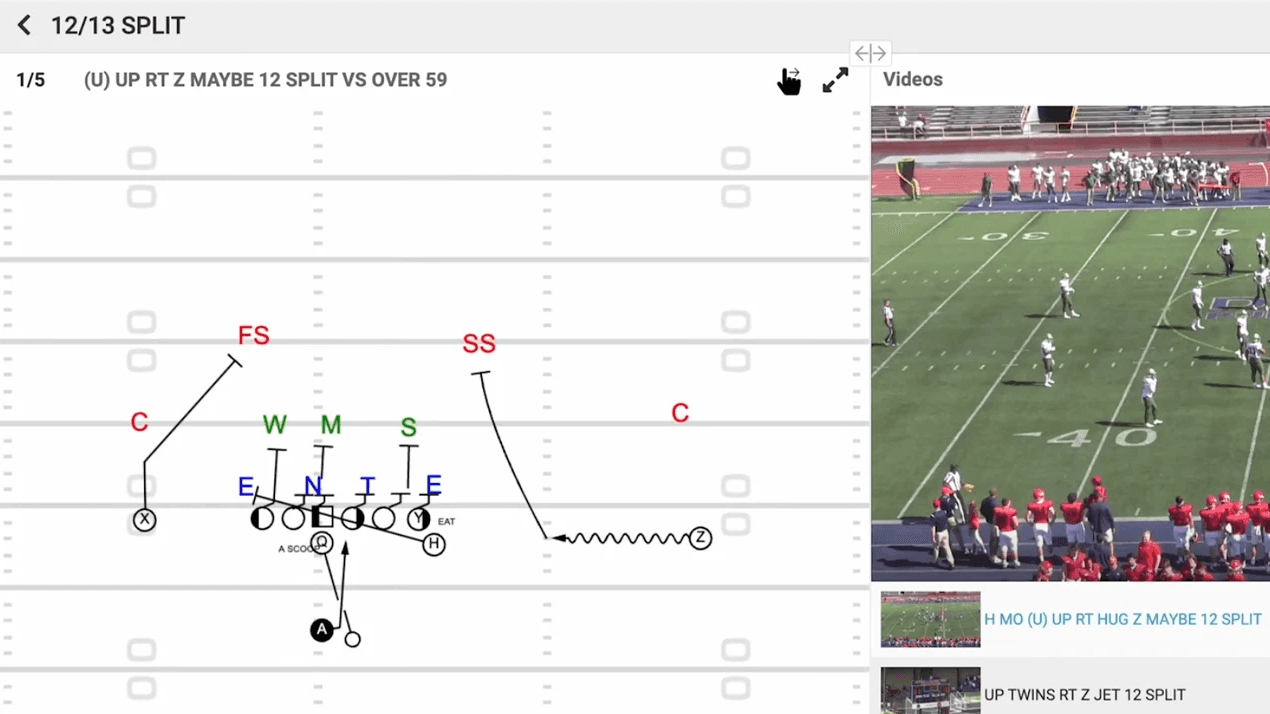
Presentations: Tap on any item on your dashboard to open it. You can scroll through the items list (plays) or use the arrows to move between them (0:45-1:17).
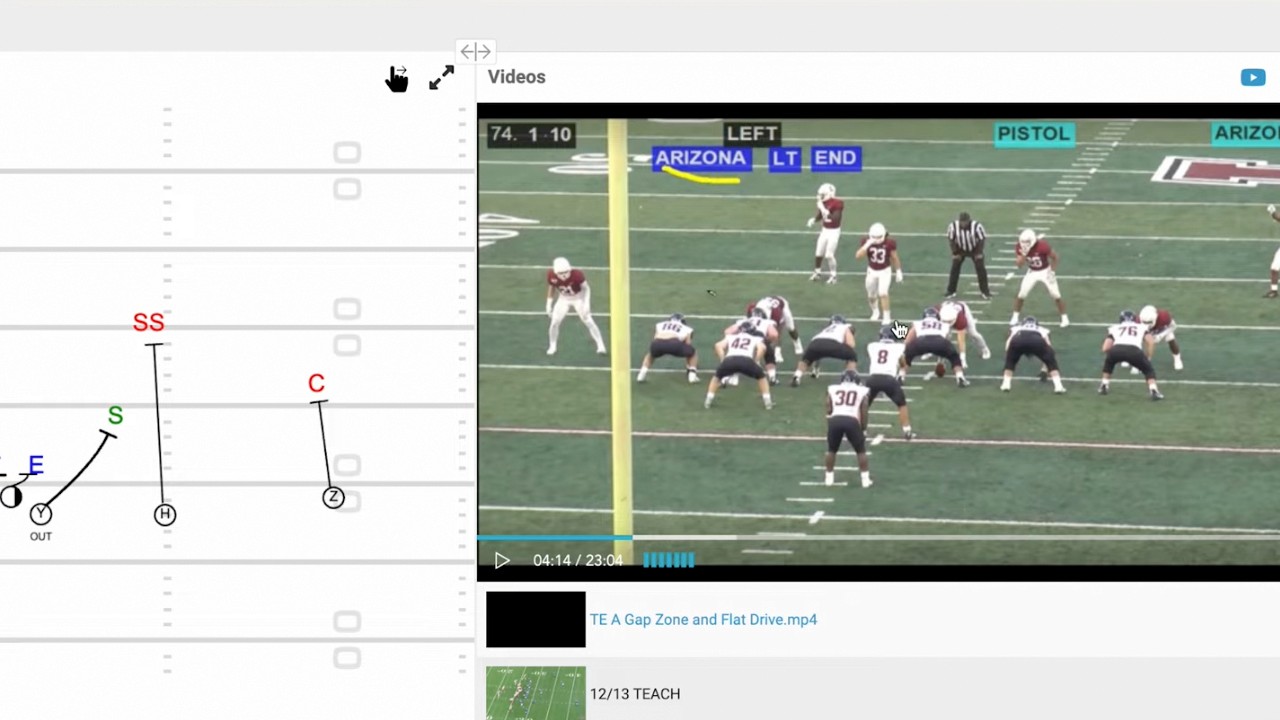
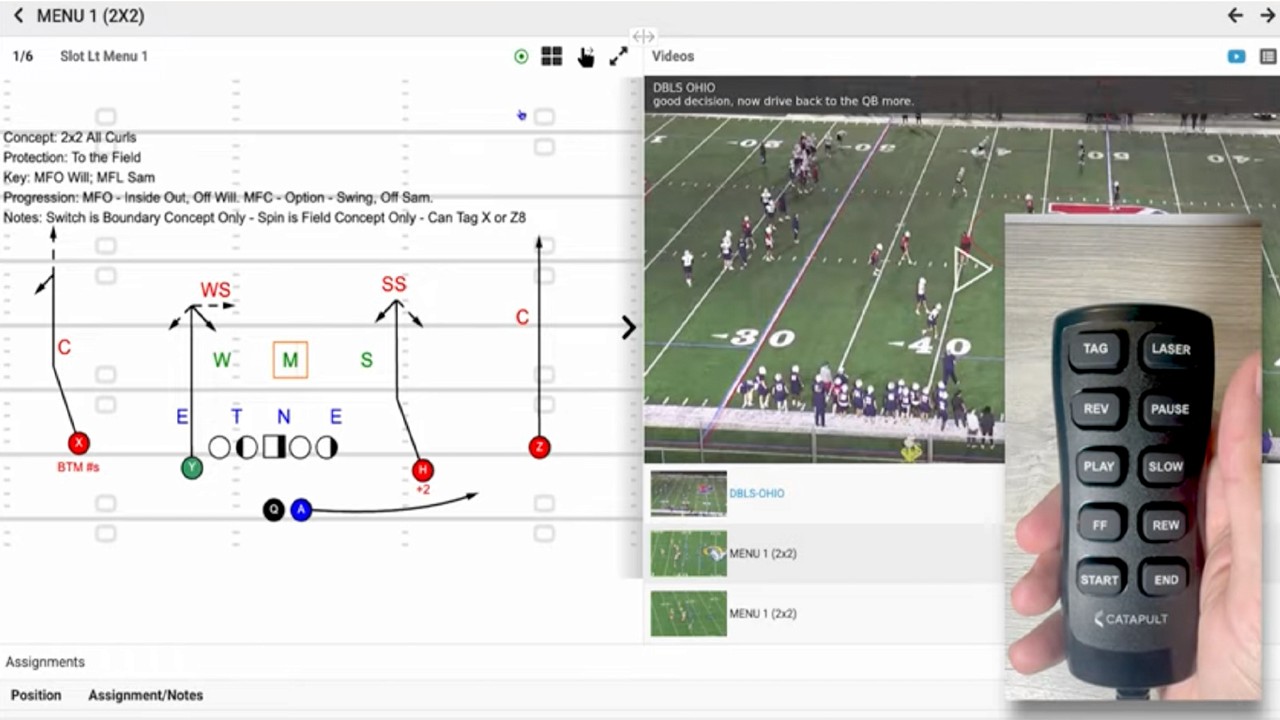
Media Controls: View diagrams and film side-by-side. You can expand these to full screen, adjust playback speed (including slow motion with the turtle icon), and use the double arrows to fast-forward or reverse (1:05-2:25).
Jump Navigation: Use the bullet icon to quickly jump between specific video clips within a play (2:25-2:37).
Study Tools:
Note-taking: Use the notes icon in the bottom right corner to record personal notes. There is a distinction between "Play notes" (which attach to a specific play across different presentations) and "Presentation notes" (specific to the current study session) (2:48-3:21).
Markup: You can use a tablet pen to highlight, bold, or draw directly on your notes (3:21-3:35).
General Navigation:
Use the arrow in the top-left corner to return to the items list, or the icon in the top-center to return to your main dashboard at any time (3:47-4:13).