Creating and Sharing Presentations
|
Teaching
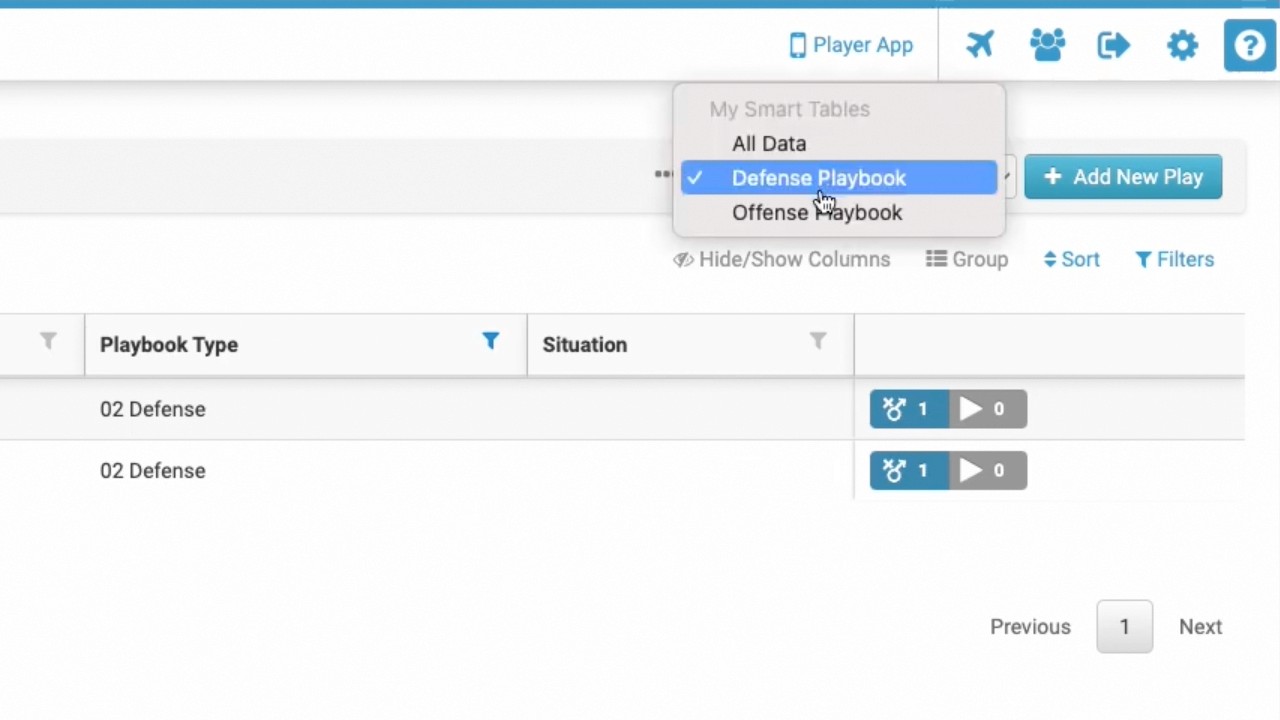
This video serves as a tutorial for coaches on using the Just Play platform to create and share custom presentations with their players. It explains how to curate specific content from a master playbook to help a team focus on a particular set plays or concepts.
Creating and Sharing Presentations:
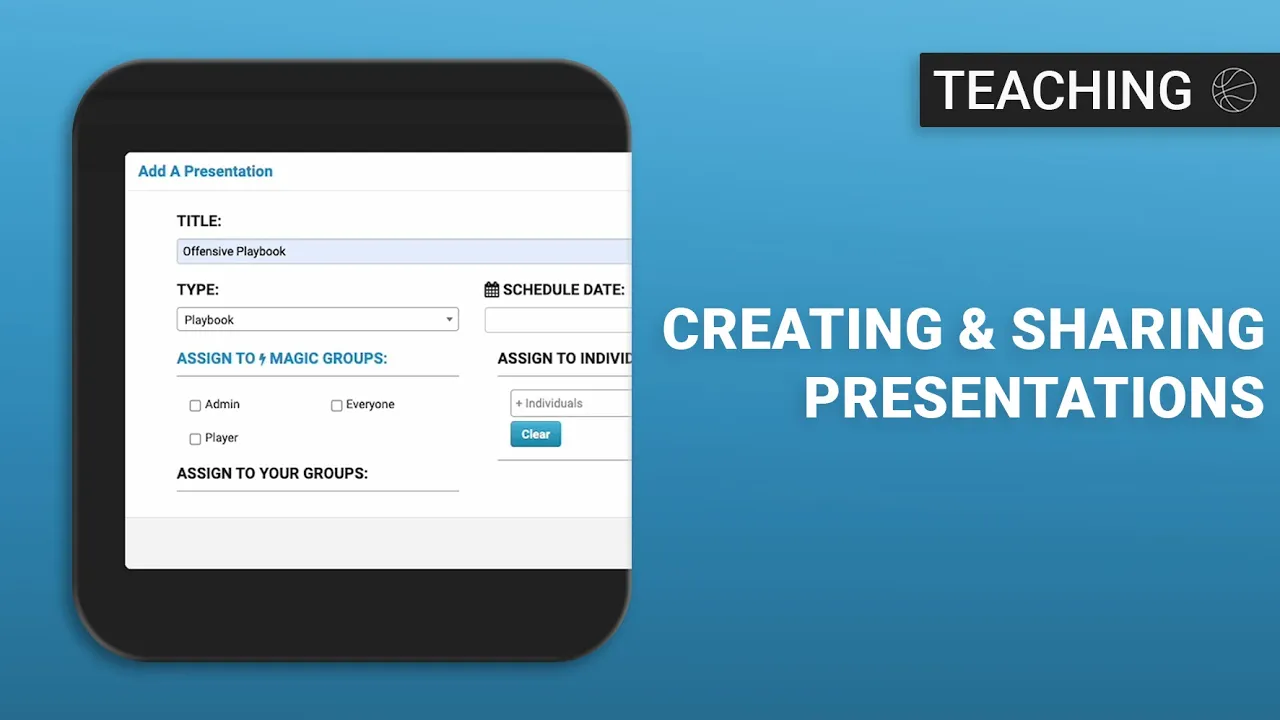
Creating a Presentation: Navigate to Playbook > Presentations and click Add New Presentation to set a title and type (e.g., game plan, install, or practice) (0:14 - 1:17).
Adding Content: Use the Add Items button to insert existing plays from your master library. You can choose to Insert (linked to the master play), Copy (to make editable variations without affecting the master), or Create New (1:44 - 2:30).
Organizing: Use manual sorting to drag and drop plays into a preferred order, or sort by headers (4:00 - 4:27).
Sharing with Players:
Ensure the presentation is set to Active (5:04 - 5:11).
Click the Share button to assign the content to specific groups or individual players (4:48 - 5:00).
Player App Features: Players can view assigned presentations on the app, where they can watch animations, adjust playback speed, and view any paired videos or notes (5:14 - 6:04).
Additional Tools: Users can add cover notes (6:07 - 6:29), print presentations (7:03 - 7:38), or use advanced features like Travel Mode and the Sports Code Wizard (6:35 - 7:00).