Automating Quizzes
|
Teaching
This video provides a step-by-step tutorial on how to automate quizzes in the Just Play basketball platform using information from a completed scouting report. By leveraging existing personnel notes and skills lists, coaches can save time while testing player knowledge.
Key steps for automating quizzes include:
Creating Quiz Tags (0:27 - 1:53): Navigate to your personnel notes within a scouting report and highlight specific keywords or emojis to turn them into "Quiz Tags" using the gold tag button.
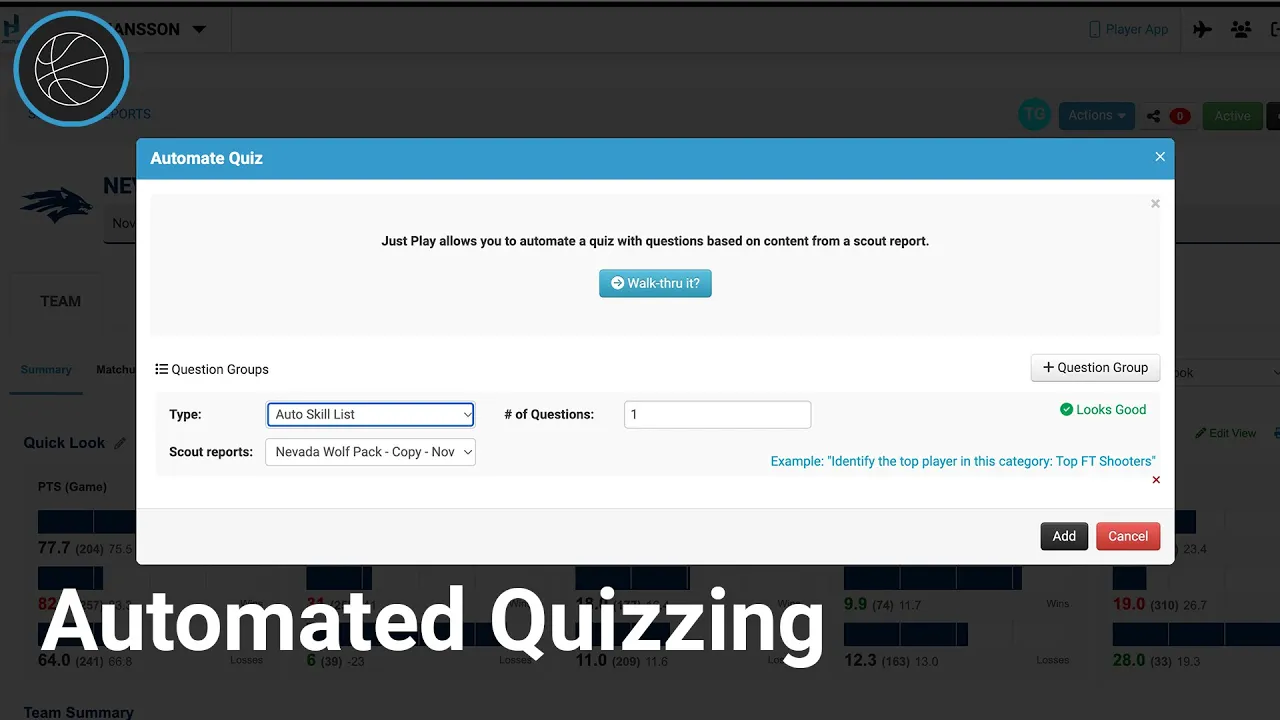
Automating the Quiz (2:01 - 3:39): Use the Actions button to select Automate Quiz. You can choose from three question types:
Auto Skills List: Generates questions based on previously established skills lists (2:26 - 2:54).
What is this player's tag?: Asks the player to identify a specific tag associated with a player (3:00 - 3:10).
Whose tag is this?: Gives the tag and asks the player to identify the corresponding person (3:11 - 3:28).
Reviewing and Managing (3:42 - 4:27): Once generated, you can view the quiz in the Quizzes tab, edit individual questions or answers, and toggle the status from Pending to Active.
Sharing and Reporting (4:29 - 5:12 & 5:55 - 6:11): Share the quiz directly with users on the player app. Coaches can then track analytics, view individual player results, and monitor a leaderboard.
Printing (5:26 - 5:54): If a physical copy or PDF is required, you can use the Print Quiz option under the Actions menu.