Adding Video with Synergy Integration
|
Integrations
This video provides a step-by-step guide on how to integrate and use Synergy video clips within the Just Play Basketball platform for your playbook.
Integration Steps:
Linking Accounts: Navigate to the gear icon (top right) and select Integration Settings. Open the Synergy tab and log in with your credentials (0:13–0:36).
Adding and Managing Video
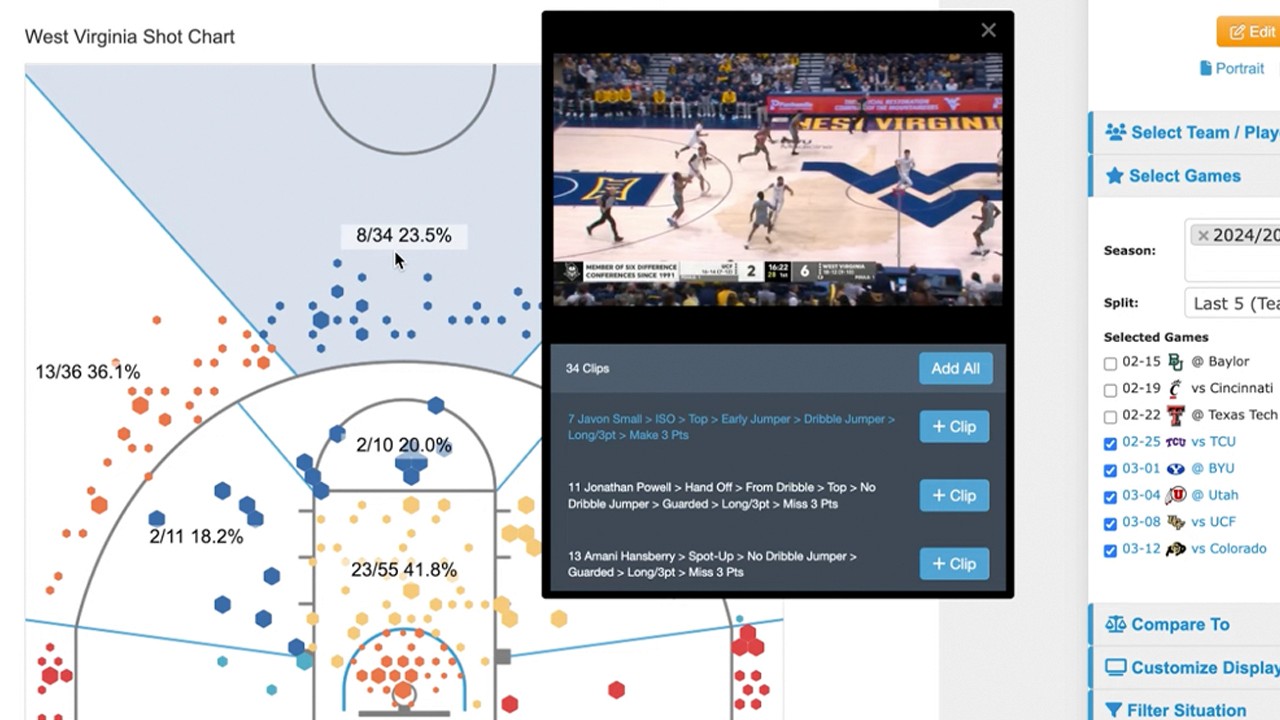
Importing Clips: Inside a play, go to the Videos and Files tab and click the Synergy API button. Select clips from your Synergy folders using the checkboxes (0:48–1:06).
Customization:
Naming Templates: Customize how clips are titled (e.g., Clip Name + Player) using the dropdown menu (1:18–1:36).
Overlay Text: Enable and configure text overlays to appear on your clips (1:38–2:15).
Trimming: Use the Auto Trim Clips feature if you only need specific segments of a video (2:16–2:26).
Finalizing: Choose to import as individual clips or one single video. After importing, clips will undergo a transcoding process to ensure compatibility across all devices (2:27–3:01).
Previewing Content
Once finished, click Actions (top right) and select Preview on App. This allows you to view your diagram alongside the paired video clips and text overlays in the app interface (3:04–3:31).