Resetting Player Passwords
|
Security
This video provides a quick tutorial for coaches on how to manage player passwords within the Just Play platform (0:03). Managing passwords is a recommended best practice for security and ensuring all players are prepared for the season (0:44-0:51).
How to Reset Player Passwords in Just Play
As players begin using the Just Play app more frequently throughout the season, you may occasionally need to reset a password for an individual player or your entire player group.
Reset Passwords for Your Entire Player Group
From the main dashboard, click the People icon in the top-right corner.
Select Player Users.
Select the players you want to update, or choose Select All.
Open the Bulk Actions dropdown.
Select Set Password.
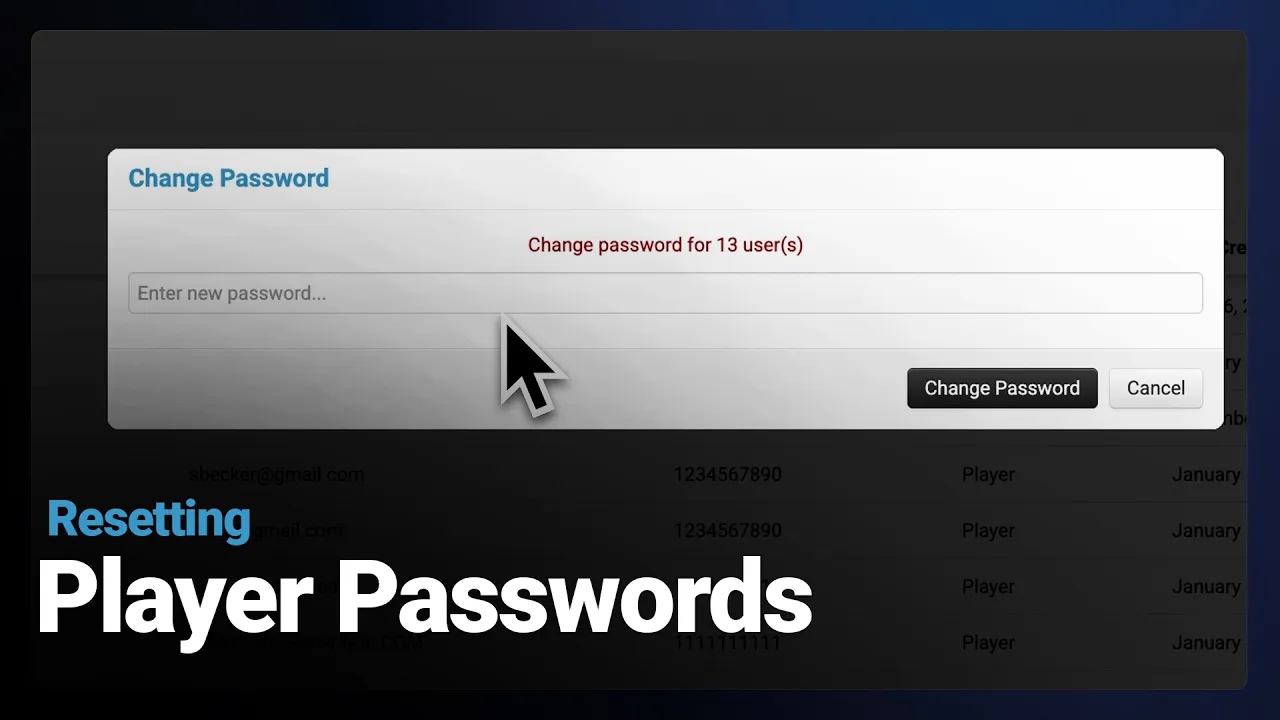
Enter the new password.
Click Change Password.
Reset a Password for an Individual Player
From the Player Users page, select the individual player you need to update. From there, you can change their password or update their active status. These password tools are specifically for player accounts and can be useful when a player is having trouble logging in or simply needs a quick reset.
Best Practice Before the Season
At the beginning of a new season, consider resetting passwords for your entire player group. This helps make sure everyone is starting from the same place and can also help with account security.
Accessing the Menu: Navigate to your main dashboard and click the people icon located in the top right corner, then select Player Users (0:10-0:16).
Bulk Reset: To update multiple players at once, select all relevant players, choose Set Password from the Bulk Actions dropdown menu, enter the new password, and click Change Password (0:16-0:27).
Individual Reset: You can also manage settings for specific players by selecting an individual user to reset their password or adjust their account status (0:27-0:33).