Diagram Tool Keyboard Shortcuts
|
Play Drawing
This article outlines the keyboard shortcuts available for use when drawing in Just Play's diagram tool.
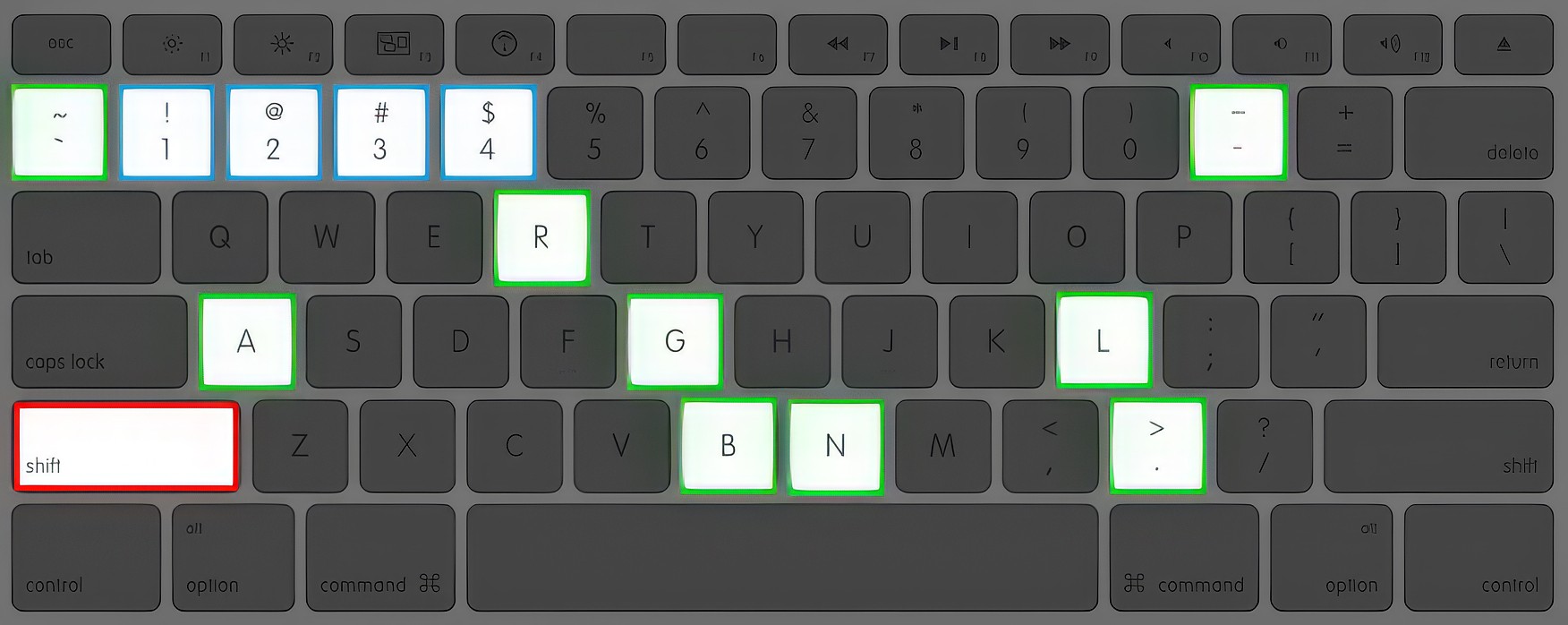
SHIFT KEY
The Shift Key is used as the trigger for all shortcuts. Holding the Shift Key + a corresponding character will either activate a line tool or change the style of an existing line.
Line Tools
Straight Line: SHIFT + 1
Right Angle Line: SHIFT + 2
Multi-Point Line: SHIFT + 3
Curve Line: SHIFT + 4
Line Styles
Dashed Line Style: SHIFT + – (dash)
Dotted Line Style: SHIFT + . (period)
Squiggly Line Style: SHIFT + ~ (tilda)
Increase line thickness: CTRL + + (Plus)
Decrease line thickness: CTRL + – (Minus)
Snap Line to 45 Increments: Hold ALT/OPTION key while drawing a line
End Point Styles
Arrow: SHIFT + A
Block: SHIFT + B
Gap Fill: SHIFT + G
Left Hook: SHIFT + L
Right Hook: SHIFT + R
None: SHIFT + N
Multi-Point Tool
Adjust style of line segment: CTRL + Click the segment you wish to change.
Hold SHIFT while drawing a multi-point line will turn the current line segment into a curve.
End Multipoint Line: ESC
Copy/Paste and Undo
Hold CTRL + C to copy and CTRL + V to paste
Hold CTRL + Z
Other Shortcuts
Zoom in on canvas: F6 or CTRL + SHIFT + Click
Zoom out on canvas: SHIFT + F6 or CTRL + SHIFT + Right Click
Select all figures: CTRL + A
Flip Horizontal: CTRL + H
Flip Vertical: CTRL + J
Send to Back: CTRL + SHIFT + B
Bring to Front: CTRL + SHIFT + F